

Unlock five practical iPhone 15 tricks: Action Button shortcuts, 48MP capture, Back Tap shortcuts, USB-C speed tips and Dynamic Island Live Activities.

What matters most (inverted pyramid)
The iPhone 15 hides several powerful, easy tricks that most users miss — yet they can speed tasks, improve photos and boost privacy.
The Top five:
(1) turn the Action Button into a one-tap ChatGPT or shortcut launcher
(2) unlock full 48MP capture with ProRAW/Resolution Control
(3) double/triple Back Tap for screenshots or shortcuts
(4) use USB-C correctly for faster transfers and reliable charging
(5) make Dynamic Island Live Activities truly useful for real-time updates.
These are official or widely documented features, so you can enable them now and get more from your phone.
How to set the Action Button to run a shortcut or launch ChatGPT
If you own an iPhone 15 Pro or newer with an Action Button, you can assign it to run a Shortcut, flip silent mode, or launch a specific app. Many users set it to open Camera or a torch — but you can create a Shortcut that launches a ChatGPT voice interaction or any custom workflow, then map the Action Button to that Shortcut for instant access.
Guides and hands-on writeups show step-by-step setup so it’s both safe and fast. (See official guidance and community examples from the outlets above.)
How to do it: Settings → Action Button → Shortcuts → pick your shortcut. For ChatGPT voice, create a shortcut that opens your ChatGPT voice shortcut or app (third-party shortcuts may require permissions).

How to enable 48MP capture on iPhone 15 (ProRAW & Resolution Control)
Want sharper photos? Enable ProRAW & Resolution Control to capture up to 48MP images on supported iPhone 15 models. Go to Settings → Camera → Formats → turn on ProRAW & Resolution Control (or Resolution Control on non-Pro models).
Then choose HEIF Max or ProRAW Max in the Camera controls to shoot full-resolution 48MP images at 1×. Use this for landscapes or when you plan heavy cropping — but remember files are much larger.
Use Back Tap (double or triple) as a hidden shortcut or screenshot tool
Back Tap (Settings → Accessibility → Touch → Back Tap) lets your phone respond to double or triple taps on the rear. Common uses: take screenshots, start screen recordings, toggle Focus modes, or run complex Shortcuts (like a quick “home ETA” message). Back Tap works even with many cases and is a fast way to trigger actions without reaching the screen.

USB-C tips: get faster transfers and safer charging on iPhone 15
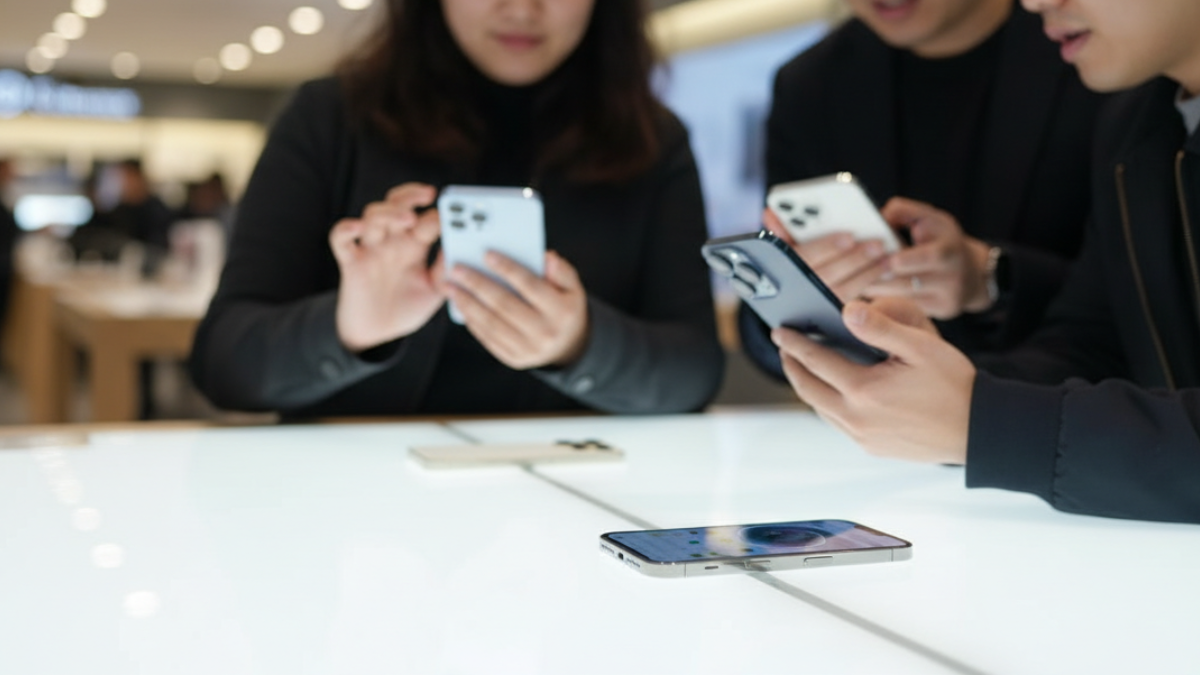
The switch to USB-C means more speed — but only with the right cable or adapter. Use certified USB-C cables that support USB-PD and the highest data rate your model allows to transfer photos and video faster.
For Pro models, certain cables enable higher data bandwidth for fast file transfers; for charging, use a USB-PD 20W+ adapter to speed top-ups. Avoid cheap adapters that lack PD handshakes — they slow transfers or block features like tethered data.
Make Dynamic Island and Live Activities work for you
Dynamic Island and Live Activities surface real-time info (ride ETA, sports scores, timers). To use them effectively: enable Live Activities in Settings → Face ID & Passcode → Live Activities; then allow apps (Maps, timers, fitness apps) to post Live Activities.
You can press and hold Dynamic Island to expand controls, making it a tiny control center for ongoing events. This reduces unlocking and keeps you focused.
Quick privacy tip (bonus)
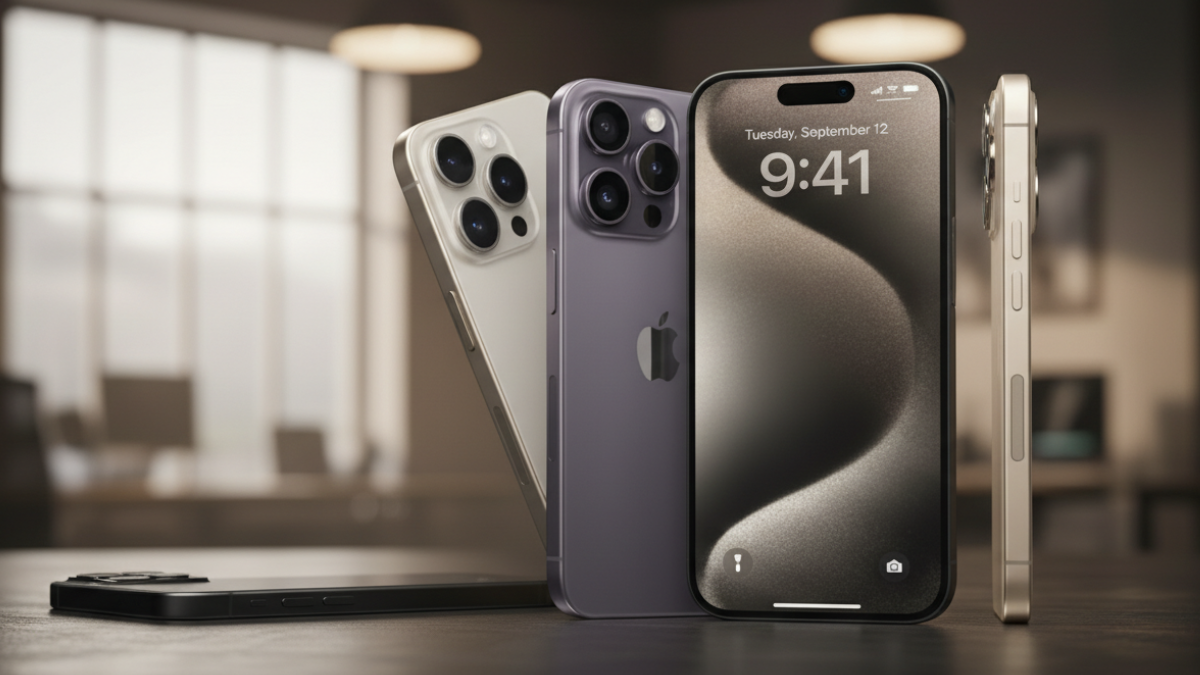
See the green and orange dots? Those are privacy indicators: green = camera in use, orange = microphone in use. If you see either unexpectedly, check Control Center or app permissions.

Frequently Asked Questions
How do I make the Action Button launch a shortcut or ChatGPT?
Create a Shortcut that opens your ChatGPT voice shortcut or the target app, then go to Settings → Action Button → Shortcuts and select it.
Can I take full 48MP photos on iPhone 15?
Yes — enable ProRAW & Resolution Control (or Resolution Control) in Settings → Camera → Formats, then pick HEIF Max or ProRAW Max in the Camera app for 48MP output at 1×.
Does Back Tap work with a case?
Back Tap works with many cases; enable it under Settings → Accessibility → Touch → Back Tap and assign Double Tap or Triple Tap to any supported action.
Which USB-C cable should I use for fast transfers?
Use a certified USB-C cable that supports USB-PD and the highest data rate your iPhone model supports. Cheap adapters may limit speed or features.
How do I enable Live Activities in Dynamic Island?
Allow Live Activities in Settings → Face ID & Passcode → Live Activities and grant permission for apps that support them (Maps, apps, timers).
Author note
I’m Ameer Hamza — I checked Apple’s support pages and coverage from trusted outlets before writing. All tips here are based on official docs or reputable hands-on guides; I avoid rumors and stuck to verified features.

每天都在战争,希望2026和平.