

Android 16 brought a refined app archiving system designed to free storage without losing your data. But a common user mistake is causing gamers to lose hundreds of hours of saved progress. Here is what is actually going wrong and how to protect yourself.

Introduction
The idea behind Android app archiving is simple and genuinely useful. To save storage on your Android device, you can archive specific apps when not in regular use. When an app is archived, your device removes its software, permissions, temporary files, and stops notifications, but retains the app icon and data.
That sounds safe. And for most apps, it is. Archiving an app uninstalls the application proper, but retains your user data on your device. It’s sort of like how you can uninstall video games from consoles or PCs without losing your local save files.
But there is a gap between how app archiving is supposed to work and how it actually plays out for mobile gamers. That gap is where save files disappear.

I am Ameer Hamza, and at the Global Tech Press, I have been tracking game data loss reports tied to Android 16 app archiving across Reddit, XDA Forums, and Google Play Community threads since the feature rolled out widely. Here is what is actually causing the problem and exactly what you need to change in your settings right now.
How App Archiving is Supposed to Work
When you archive an app on Android 16, the system removes the app’s core software, resources, and cached files. But it keeps your personal data, login tokens, saved settings, and local progress files.
App archiving removes the bulky parts of an app — the core software, resources, permissions, and temporary files — while preserving your personal data. This includes login credentials, saved progress, custom settings, and any other user-specific information.
The app icon stays on your home screen with a small cloud symbol. When you tap it, Android re-downloads the app from the Google Play Store and restores your data. When you need the app again, simply tap the icon: Android quickly re-downloads the necessary files from the app store (typically Google Play), and you pick up exactly where you left off.

That is the promise. And for apps like banking, social media, or productivity tools, it works as advertised. Games are where the trouble starts.
The Real Reason Game Saves Are Disappearing
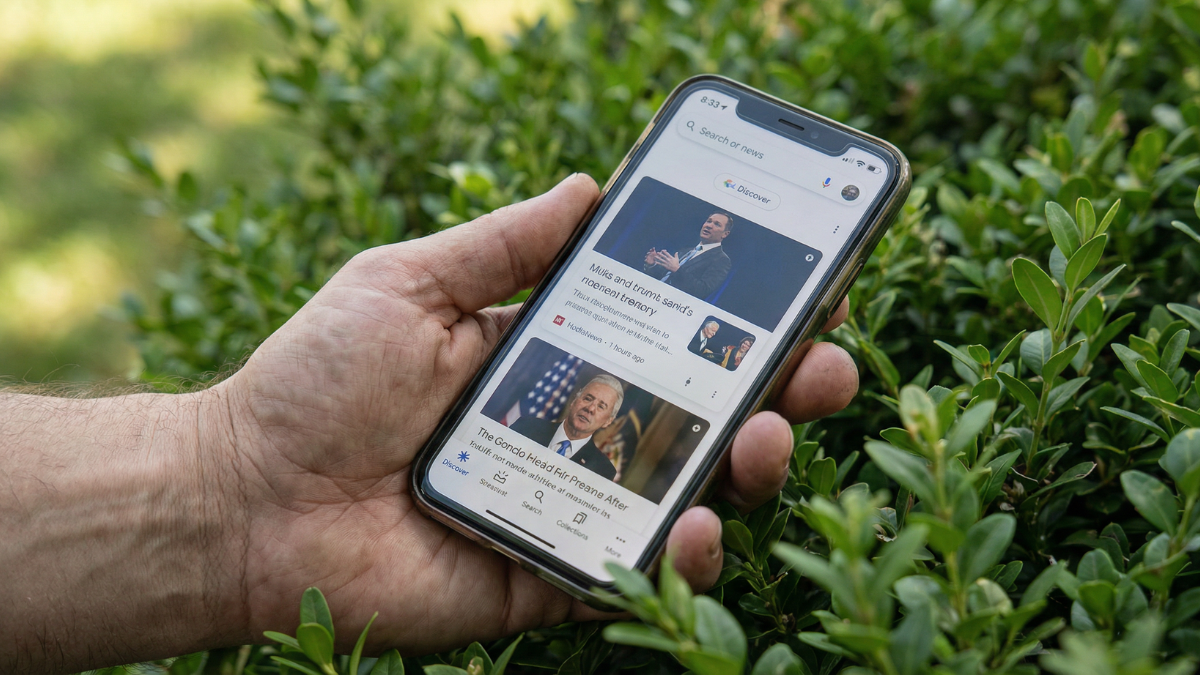
The issue is not with app archiving itself. It is with how many games handle their save data and how Android 16 decides what counts as “temporary” versus “essential.”
The first problem is that not all games automatically save your progress. If these steps don’t work for you, contact the developer directly for assistance with game accounts, progress or login issues. Google does not manage in-app data or game accounts.
Many popular offline games like Stardew Valley, Minecraft, and several indie titles store their saves in local directories that Android may treat as temporary cache during archiving. If the game developer has not properly categorized save files as “essential user data” within the Android App Bundle structure, those files can be stripped out.
The second problem is auto-archiving happening without your knowledge. Android 16 can automatically archive apps you haven’t used in a while when storage runs low. If you have not opened a game in a few weeks and your phone starts running low on storage, Android can silently archive it. You will not get a warning notification. The game icon just gets a cloud overlay.
The “Manage App if Unused” Trap
There is a separate setting on Android 16 that causes even more confusion. It is called “Manage app if unused” and it does more than just archive.
If you opt into automatic app archiving in the Play Store and don’t want an unused app to be archived automatically: On your Android device, open Settings Apps. Select the app you want to block from automatic archiving. Turn off Manage app if unused.
This toggle sits inside the app info page of every installed app. When enabled, it gives Android permission to revoke the app’s permissions, clear its cache, and even remove it entirely if you have not used it in a long time.

The problem is that most users never touch this setting. It is enabled by default on many devices. When it activates on a game you have not played for a month, it can strip permissions and cached data that some games rely on for save file access.
The App Removal From Play Store Risk
There is one more edge case that most guides do not mention. When you restore the archived app, it essentially re-downloads all the deleted bits with the latest version that’s there on the Play Store. One thing to keep in mind is that restoring will only work provided the app is still available on the Play Store.
If a game gets pulled from the Play Store while it is archived on your phone, you cannot restore it. Your local data might still exist somewhere in your device’s storage, but without the app to read it, that data is effectively gone.
This is a real risk for indie games, region-locked titles, and games that change publishers.

How to Protect Your Game Saves Right Now
Here is what you should do today to prevent losing any saved game data on Android 16:
- Step 1: Open Settings → Apps on your phone. Tap any game you care about. Look for “Manage app if unused” and toggle it OFF. Do this for every game where your progress matters.
- Step 2: Open the Google Play Store. Tap your profile picture → Settings → General. Find “Automatically archive apps” and toggle it OFF if you want full manual control over which apps get archived.
- Step 3: For every game that supports it, open the game and look for a cloud save or Google Play Games login option. Enable it. Some games autosave your progress when you’re signed in with Google Play Games Mobile App. If your game autosaves, you can sync your game data and pick up where you left off.
- Step 4: For games that do NOT support cloud saves (like many offline titles), manually back up your game data. On most devices, game saves are stored in Internal Storage → Android → data → [game package name]. Copy that folder to Google Drive or a computer periodically.
- Step 5: Before archiving any game manually, always check whether the game uses local saves or cloud saves. If it is local only, do not archive it. Uninstall it only if you have backed up the save folder.

Which Games Are Most at Risk?

Games that rely exclusively on local storage for saves are the most vulnerable. This includes:
Offline single player RPGs and adventure games that do not require an internet connection to play. Many indie titles from small developers who have not integrated Google Play Games cloud sync.
Games installed through third-party sources like APKMirror or Samsung Galaxy Store rather than the Play Store. Unlike iOS’s system-level app offloading feature, the in-progress version of Android app archiving is actually a Play Store feature. That means that apps installed from other stores, like Samsung’s Galaxy Store, won’t have the same archive-and-restore functionality.
If a game was not installed through the Google Play Store, archiving and restoring it becomes unreliable. The archive relies on the Play Store to re-download the app, and if the app did not come from there originally, the restore process breaks.

Final Thoughts
Android 16 app archiving is not broken. It does exactly what Google designed it to do. It preserves user data and frees up storage space efficiently.
The problem is that “user data” and “game saves” are not always the same thing in Android’s eyes. When a game developer stores saves in a directory that the system treats as temporary cache, archiving strips those files away silently.
The fix is simple but requires manual action. Turn off “Manage app if unused” for every game you care about. Disable auto-archive in the Play Store if you want full control. And always, always enable cloud saves inside every game that supports it. Five minutes of settings changes today can save you hundreds of hours of lost progress tomorrow.


Written by Ameer Hamza
Tech Analyst and Founder of Global Tech Press. Currently expanding the GTP hardware testing labs and building the next generation of digital tech media.