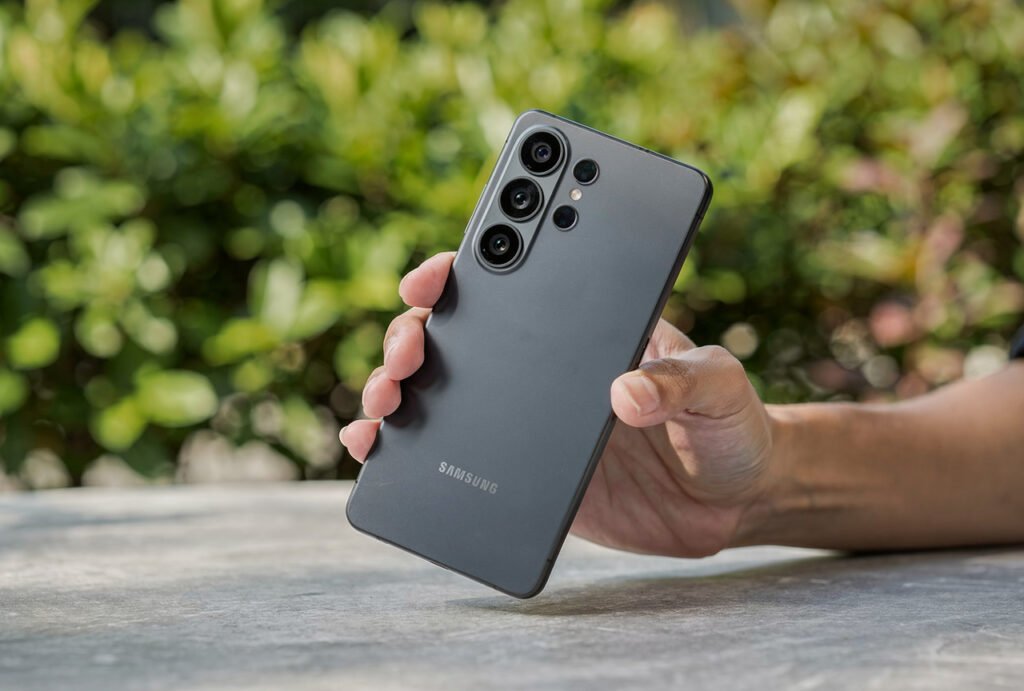
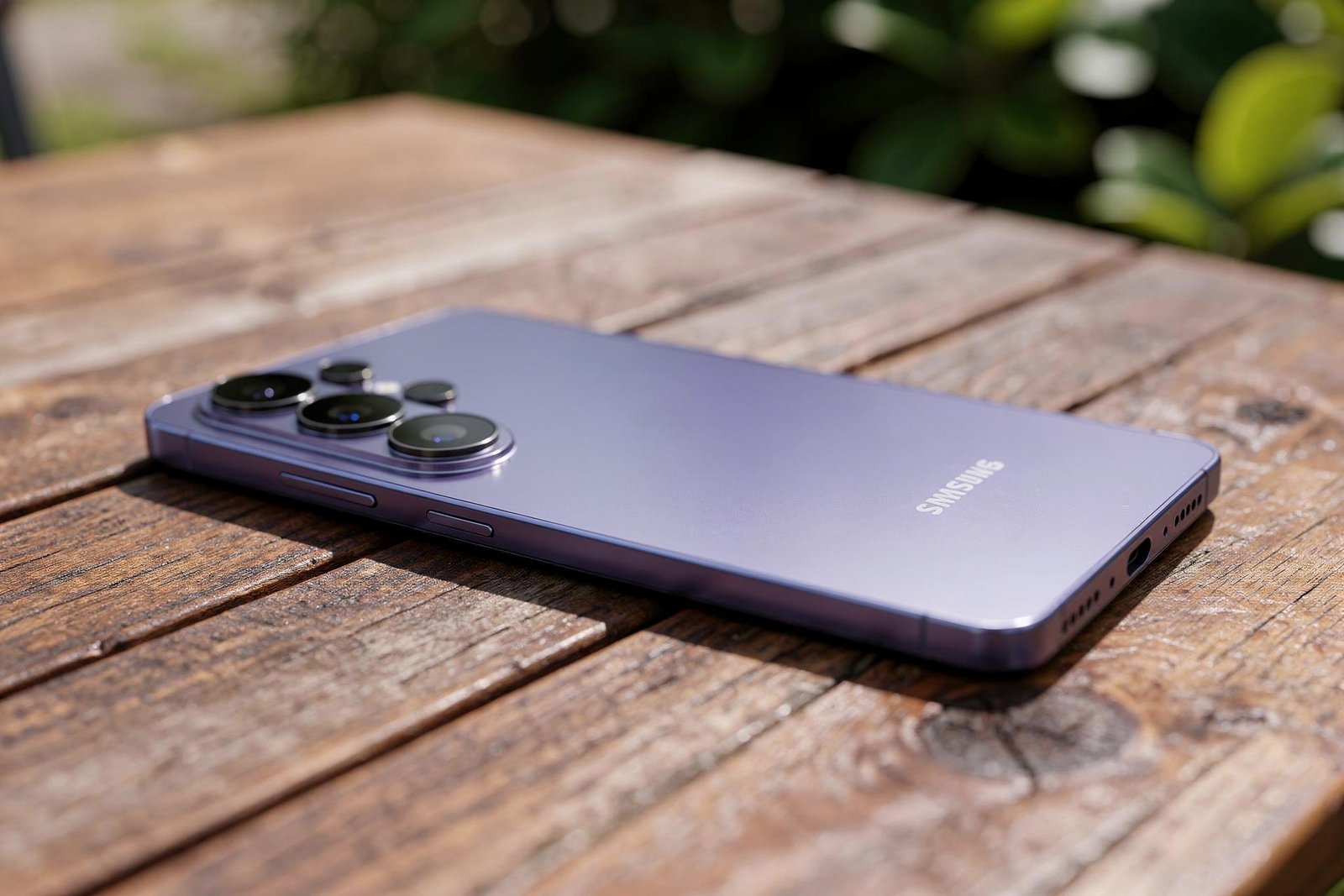
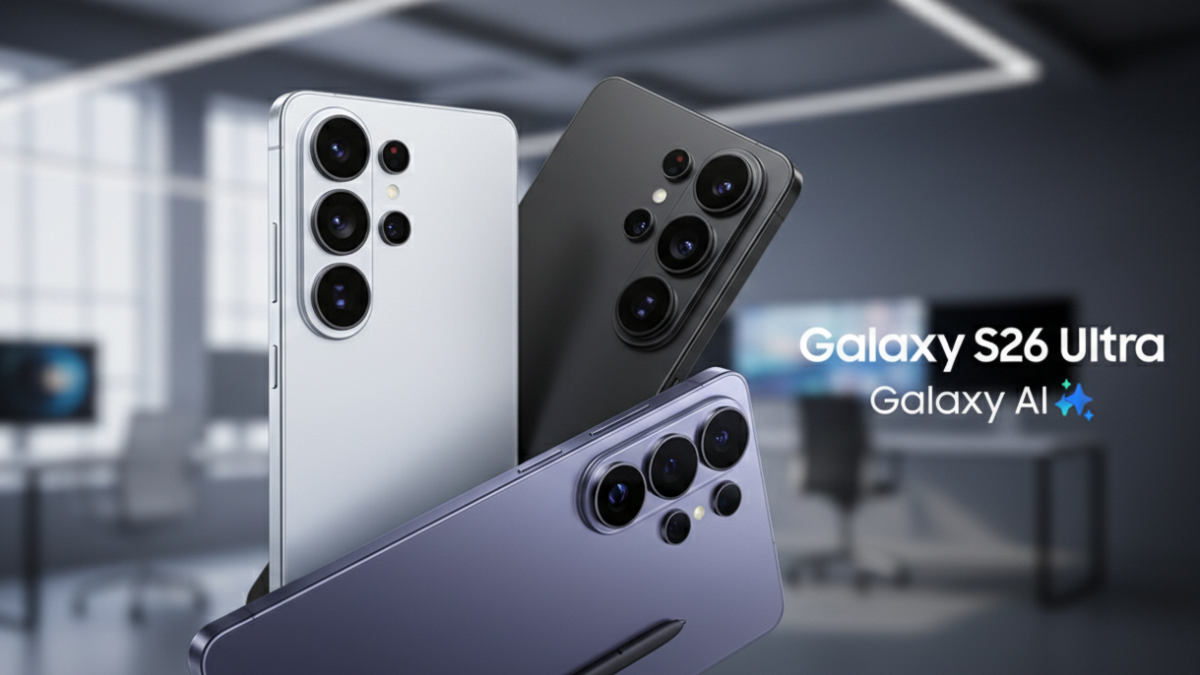
Samsung’s Privacy Display on the Galaxy S26 Ultra is the world’s first hardware level privacy screen on a phone. It is also dimming your display by up to 67.6% if you have it configured incorrectly. Tom’s Guide lab tested it. GSMArena put it under a microscope. LTT Labs measured it with professional luminance equipment. They all found the same thing. Here is how to set it up correctly so you get real privacy without destroying your screen quality.

The Brightness Problem Nobody Expected
I am Ameer Hamza, and at Global Tech Press, we have been using the Galaxy S26 Ultra since launch day. And the first thing we noticed about Privacy Display was not the privacy. It was how dim the screen became.
Tom’s Guide lab tested the brightness. With Privacy Display and Maximum Privacy Protection both turned on, brightness plummets to 586 nits. That represents a massive 67.6% decrease in light output.
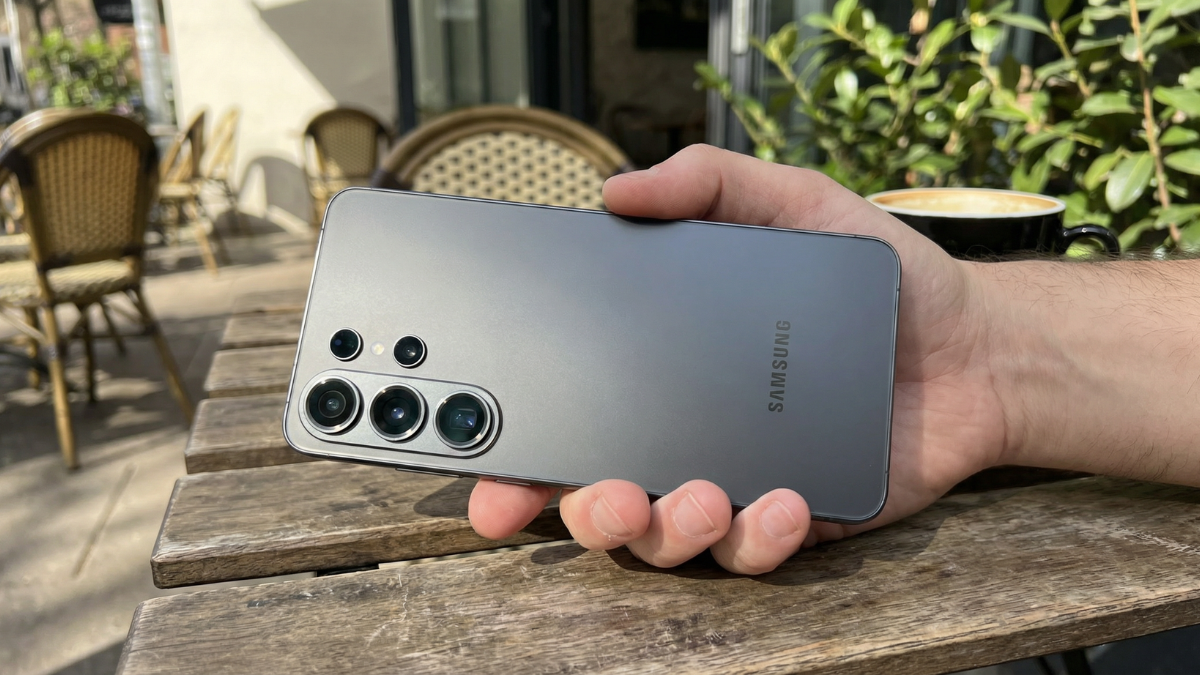
For context, Samsung rates the display at 2,600 nits peak. With adaptive brightness on, the baseline is 1,209 nits. At 586 nits, the screen becomes extremely challenging to view, especially outdoors under direct sunlight.
Even With Privacy Display OFF, the Screen Is Dimmer
This is the finding that shocked everyone.
The Galaxy S26 Ultra reached a max of 1,806 nits of brightness with HDR content, compared to 1,860 for the S25 Ultra.
That difference is tiny. But the off angle story is worse.
Even with the Privacy Display disabled, there is less visibility when viewing the S26 Ultra from the sides.
9to5Google’s review confirmed this under a microscope. You can clearly see that the structure of the display panel is different and, as a result, the viewing angles take a slight hit, while the overall resolution feels a bit lower as well.
This is because Flex Magic Pixel technology is physically built into the panel. The directional pixels exist whether you use Privacy Display or not.
How Privacy Display Actually Works at the Pixel Level
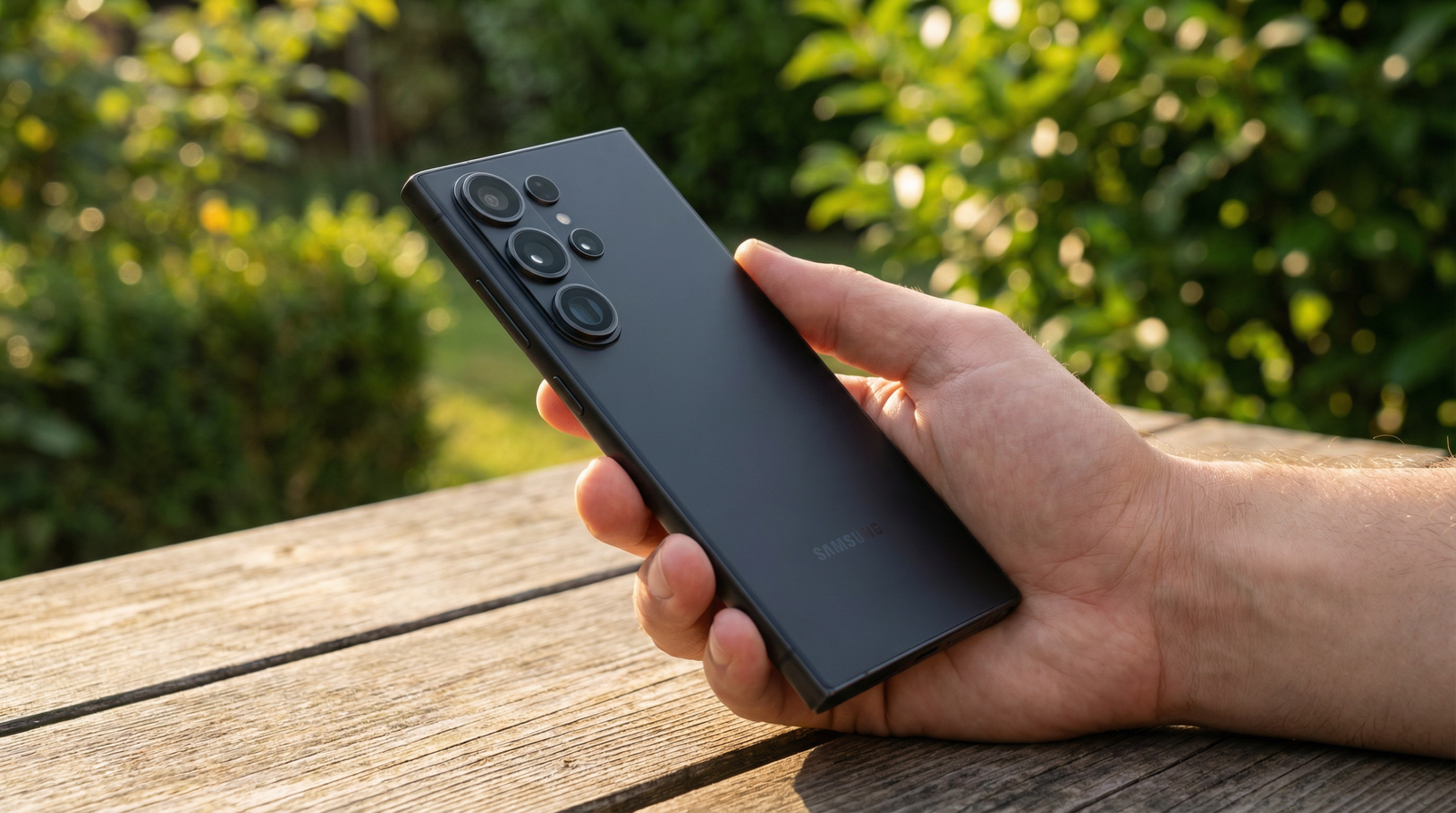
Samsung Display first unveiled the Flex Magic Pixel technology at MWC24 in 2024. The tech has been in development for 5 years.
There are two types of pixels. Narrow Pixels emit light straight forward. Wide Pixels emit light across a broad range of angles.
When Privacy Display is off, both types fire at full capacity. You get maximum brightness and full viewing angles.
When Privacy Display is on, the Wide Pixels drop to minimal output or shut off entirely.
GSMArena confirmed under a microscope that when half of the pixels don’t work, peak brightness is halved. Around 800 nits with the standard privacy setting. Down to 586 nits with Maximum Privacy.
Samsung confirmed to TechRadar: “When Maximum privacy protection feature is turned on, overall contrast ratio of the display gets lower/dimmer.”
The Three Privacy Levels Explained
Here is what each setting actually does to your display.
| Setting | Brightness | Side Visibility | Best For |
|---|---|---|---|
| Privacy Display OFF | 1,806 nits peak | Full viewing angles (slightly less than S25 Ultra) | Daily use, media, outdoors |
| Privacy Display ON (Standard) | ~800 nits | Significantly reduced but still partially visible from steep angles | Moderate privacy in bright environments |
| Maximum Privacy Protection | 586 nits | Nearly invisible from sides | Sensitive content, banking, passwords in dark environments |
Android Police tested the standard setting and was blunt. They could still view the display at a steep angle and see everything on the screen, even with Privacy Display turned on. Only the Maximum setting gave true privacy.
But Maximum drops brightness so severely that it looks like viewing the screen through a foggy lens.
The Correct Way to Configure Privacy Display
Here is the setup that gives you privacy when it matters without permanently dimming your screen.
Step 1: Do NOT Leave Privacy Display Always On
Samsung’s support page offers a clear choice. You can either keep Privacy Display always on or use it based on configured Conditions for turning on settings.
Always on is the wrong choice for most people. It dims your screen constantly, including when you are alone at home.
Step 2: Set Up Conditional Activation
Go to Settings. Tap Display. Tap Privacy Display. Select Conditions for turning on.
You have three condition types.
Apps. Select specific apps where Privacy Display activates automatically. Choose your banking apps, private messaging apps, and any app containing sensitive information.
PIN, Pattern, and Password. When enabled, Privacy Display is automatically applied whenever you enter a PIN, pattern, or password in Settings, the lock screen, or Secure Folder.
Notification Pop Ups. When enabled, Privacy Display is applied to notification pop ups of all apps. It applies only to the notification pop up area and does not affect other screen areas.
Step 3: Use Maximum Only for Banking
For your banking apps, set Maximum Privacy Protection. For everything else, standard privacy is sufficient.
This way, your screen stays at full brightness 95% of the time. Privacy Display only activates when you open sensitive apps or enter passwords.
The Quick Panel Shortcut Most People Miss
There is a faster way to toggle Privacy Display than digging through Settings every time.
Swipe down from the top right of the screen. Find the Privacy Display icon in the Quick Panel. Tap it to activate or deactivate instantly.
Tap the text area of Privacy Display in the Quick Panel to enter detailed settings directly without opening the Settings app.
Tom’s Guide also noted you can double press the side key to toggle Privacy Display on instantly.
The Per App Privacy That Makes This Worth It
This is the feature that separates Samsung’s approach from a physical privacy screen protector.
Individual settings can be configured by app, allowing selective application only to certain supported financial apps or personal apps.
The Privacy Display can apply privacy protection to specific portions of the display, such as notification pop ups. This means users can hide sensitive notifications while keeping other content normally visible.
No physical privacy film can do that. A film dims your entire screen all the time. Samsung’s approach dims only specific apps or even specific notification areas on demand.
This per app and per notification granularity is genuinely innovative. But only if you configure it correctly.
The Eye Strain Controversy
One more thing you should know.
Android Police raised a concern. There have been online complaints about the Galaxy S26 Ultra screen, including some claiming it causes eye strain. If you’re sensitive to PWM dimming, the reviewer highly recommends spending some time with a Galaxy S26 Ultra at a store to see if you notice any issues.
Samsung has not addressed this directly. But the Flex Magic Pixel architecture changes how the display operates at the subpixel level, and some users with sensitivity to PWM flickering may notice discomfort during extended use.
If you experience eye strain, set Privacy Display to conditional activation only and avoid Maximum Privacy unless absolutely necessary.
My Honest Take
Privacy Display is the most innovative phone feature of 2026. Samsung Display spent 5 years developing it. They filed 150 patent applications related to Flex Magic Pixel. It won “Best in Show” at MWC 2026. And it genuinely works.
But it was shipped with a configuration that makes many people’s experience worse by default.
If you leave it always on, you lose 67.6% of your brightness at maximum and roughly half at standard. If you leave it off entirely, you miss the point of having the Galaxy S26 Ultra’s headline feature.
The sweet spot is conditional activation. Per app. Per password screen. Per notification.
That gives you real privacy exactly when you need it and a bright, vibrant 2,600 nit rated AMOLED display the rest of the time.
Go to Settings, tap Display, tap Privacy Display, and set up your conditions. It takes two minutes. Your eyes will thank you.