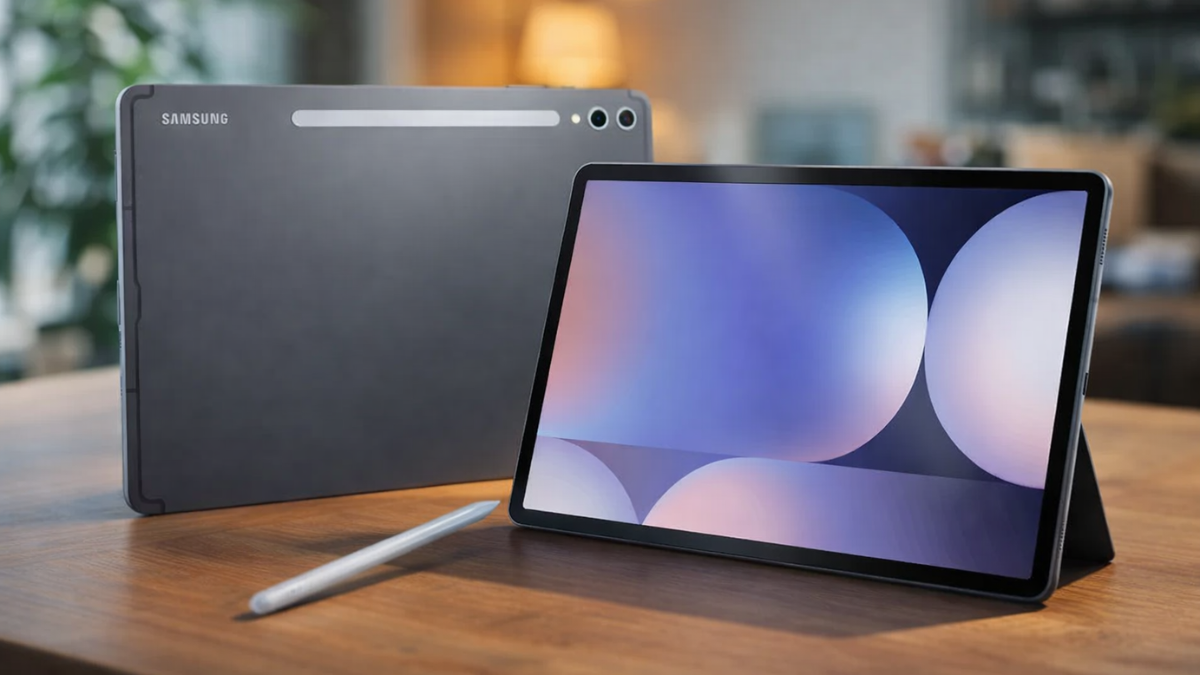
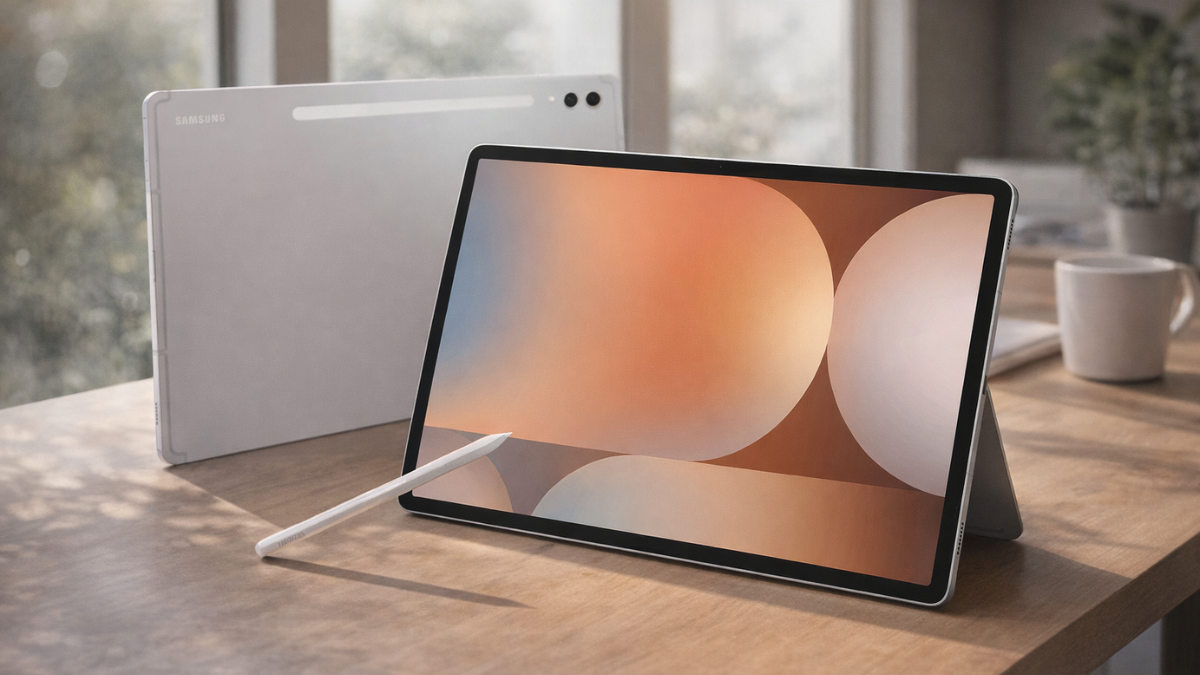
The Galaxy Tab S10 Ultra has the same resolution as the Tab S9 Ultra. Same panel size. Same AMOLED technology. But dozens of owners on Samsung Community are reporting it looks blurry, washed out, or less sharp than their older tablets. The reason is not the screen itself. It is Samsung’s new anti-reflection coating interacting with a display setting most people never check. Here is exactly what is happening and how to fix it.

The Complaint That Keeps Appearing on Samsung Community
I am Ameer Hamza, and at Global Tech Press, we started tracking these reports after seeing them surface repeatedly on Samsung’s official forums.
One user wrote: “I just bought a Samsung Galaxy Tab S10 Ultra. The screen resolution is NOT as sharp as my Samsung Galaxy Tab S8 Ultra which I am trading in. Tweaking did NOT make any dint.”
Another user reported: “I just bought the Samsung Galaxy Tab Ultra 10, I think the color of screen are very weird and when I look the screen it feels blurry. When I go advanced setting to change screen mode to vivid or natural, the image look very low resolution.”
A third user added: “When side by side the screen is little bit pixelated on the Tab Ultra. I feel like on the tab, even the color is so blurry. I think like many things is little bit pixelated, like icons of apps, and many things feel like low resolution.”
These are not isolated cases. Multiple threads with the same complaint exist on Samsung Community US and EU.
The Resolution Is Identical. The Coating Is Not.
Here is the fact that confuses people.
The screen resolution is exactly the same as the Tab S9 Ultra. Both use a 14.6 inch Dynamic AMOLED 2X display at 2960 x 1848 pixels with 120Hz refresh rate.
The difference is what sits on top of that panel.
Samsung claims that these new screens reduce reflections from 5% on the Galaxy Tab S9 series to only 2% on the new Tab S10 duo. A 3% improvement doesn’t sound like much, but real-world hands-on experience suggests otherwise.
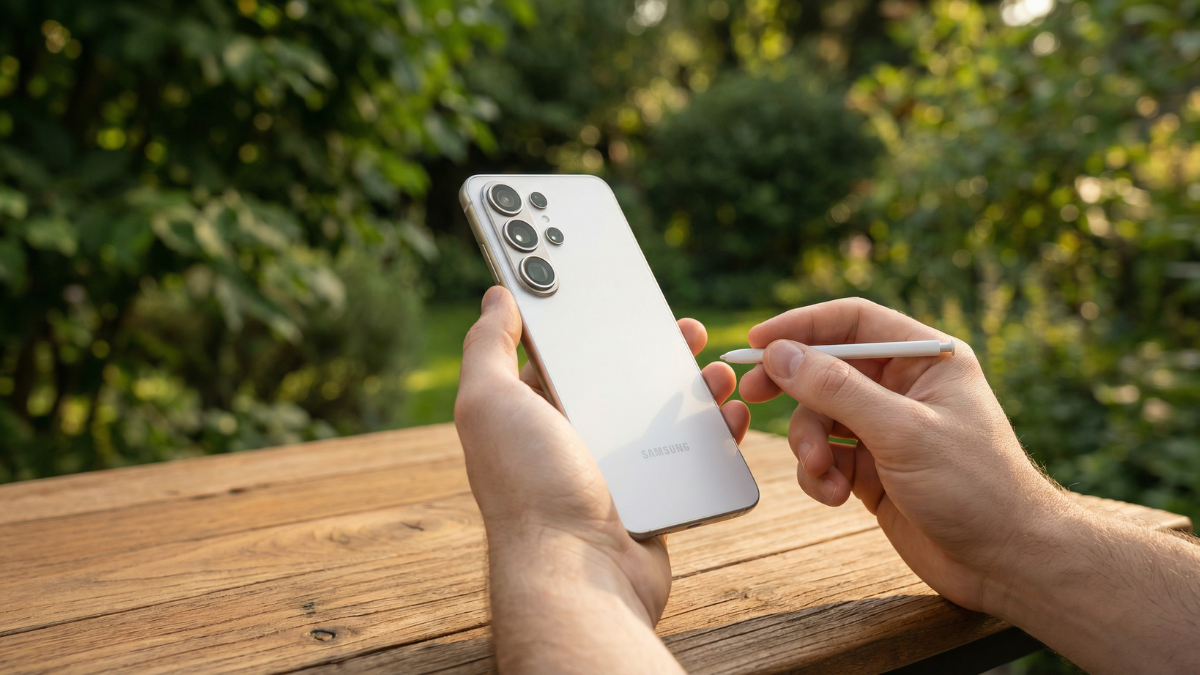
The answer to why owners think it is not as sharp is that it has anti-glare tech, which gives it a more matte finish. If this is not your preference you have 2 options: return the Tab S10 or buy a glass screen protector.
That matte finish is what makes text and icons look slightly softer. It is not a defect. It is a design choice. But Samsung never explains this clearly during purchase.
The Screen Mode Setting Most People Never Check
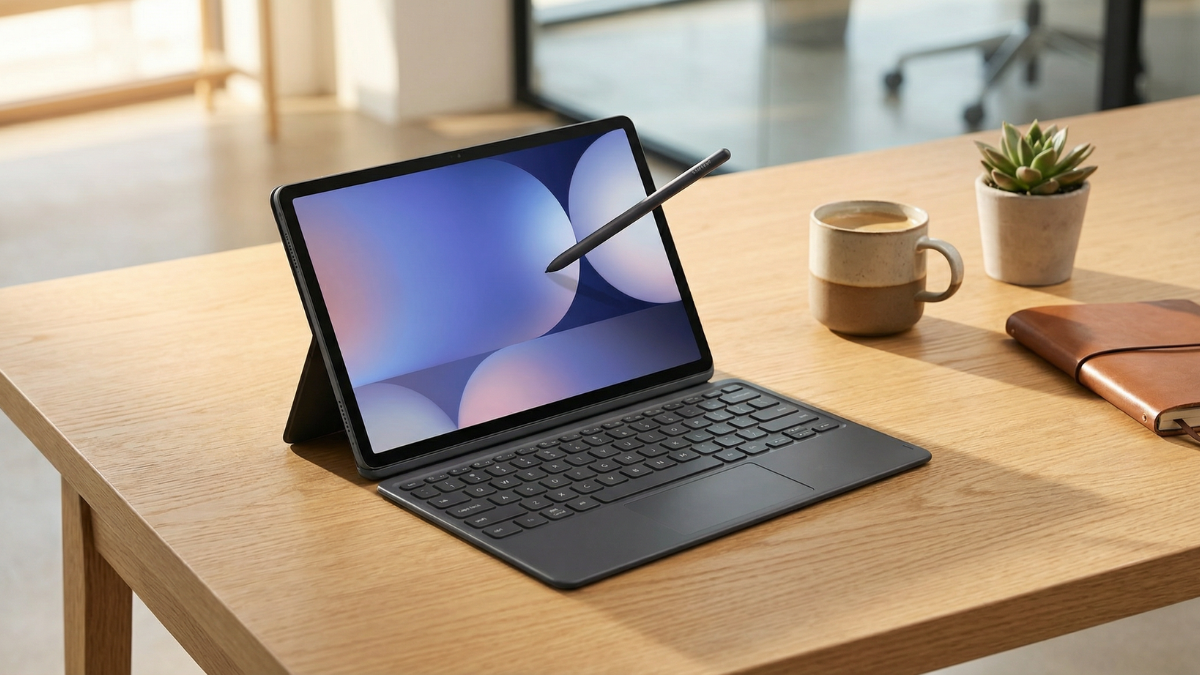
Here is the hidden setting that makes the biggest difference.
Go to Settings. Tap Display. Tap Screen mode.
You will see two options: Vivid and Natural.
Vivid produces punchier, more saturated colors with higher perceived sharpness. Natural produces more accurate but flatter, softer looking colors.
If your Galaxy Tab S10 Ultra display looks washed out or blurry, check which mode is active. Many users report the tablet defaulting to Natural after setup or after a software update.
Switch to Vivid. The difference is immediately visible. Text looks sharper. Icons look crisper. Colors pop more.
This does not change the actual resolution. It changes how the display processes color and contrast, which directly affects perceived sharpness.
Why You Cannot Change the Resolution on This Tablet
On Samsung phones, you can switch between FHD+ and WQHD+ resolution to save battery.
For most recent Samsung tablets, including the Tab S10 Ultra, screen resolution cannot be manually adjusted under settings like it can on Samsung smartphones. The device runs at its native resolution all the time.
This means there is no hidden resolution toggle reducing your screen quality. If your display looks blurry, it is not a resolution issue.
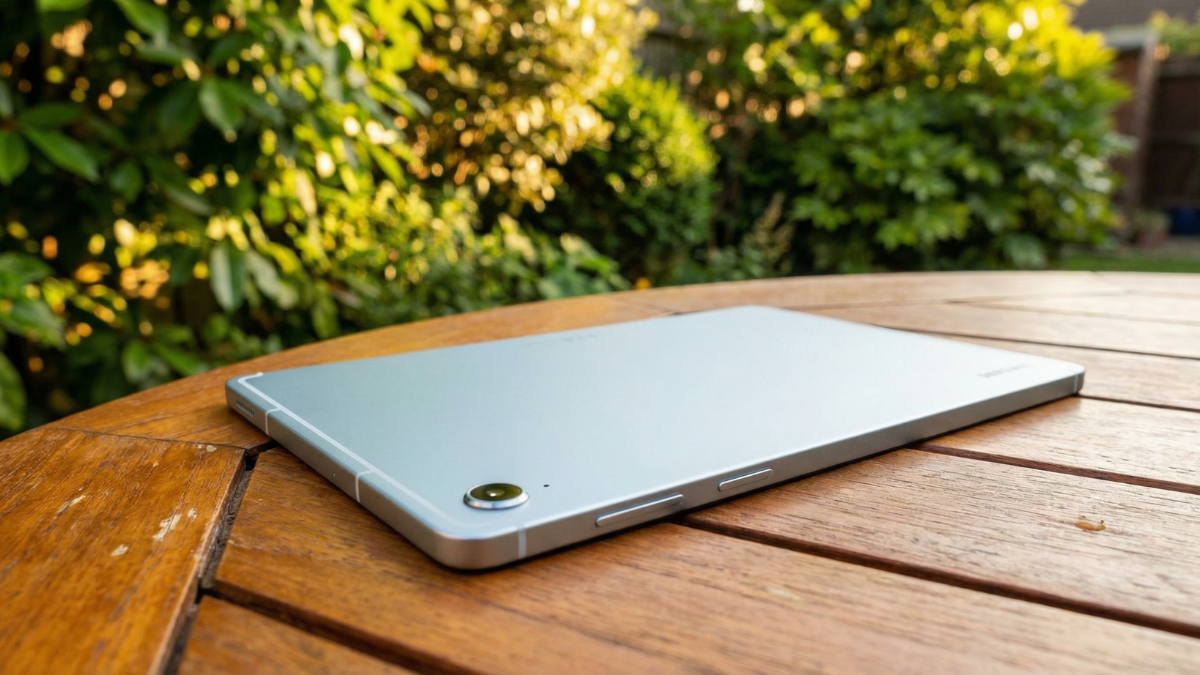
The Anti-Reflection Coating Trade Off Nobody Explains
The Galaxy Tab S10+ and Tab S10 Ultra screens are clearly more legible in bright environments and direct sunlight.
That is the upside. The anti-reflection coating genuinely works outdoors.
But indoors, especially under artificial lighting, the matte finish slightly diffuses light. This creates a softer appearance compared to the glossy panels on the Tab S8 and Tab S9.
Looking at the Galaxy Tab S10 Ultra screen, we can confirm — the reflections are reduced, and consuming content on that display is elevated, no matter the environment. Even when we are indoors — you’d be surprised how many reflections still hamper your experience! And it helps a lot, because as you will see from benchmarks, the display panel itself doesn’t push out a lot of brightness.
PhoneArena noted the lower brightness. The anti-reflection coating reduces reflections but also slightly reduces peak brightness output.
The Glass Screen Protector Fix
If the Vivid mode setting does not fully resolve the softness for you, there is a hardware fix.
Adding a clear glass screen protector on top of the anti-reflection coating restores the glossy finish. Multiple Samsung Community users have confirmed this works.
If this is not your preference you have 2 options: return the Tab S10 or buy a glass screen protector.
A tempered glass protector from Samsung or a third party brand costs between $15 and $35. It adds a glossy layer over the matte coating, making the display look as crisp as previous generation tablets.
The trade off: you lose the anti-reflection benefits outdoors.
Galaxy Tab S10 Ultra Verified Display Specs
| Spec | Galaxy Tab S10 Ultra |
|---|---|
| Display Size | 14.6 inch Dynamic AMOLED 2X |
| Resolution | 2960 x 1848 pixels |
| Refresh Rate | 120Hz |
| Pixel Density | 239 ppi |
| Anti-Reflection | Yes, reduces reflections from 5% to 2% |
| Adjustable Resolution | No. Runs at native resolution only |
| HDR | HDR10+ |
| Screen Modes | Vivid and Natural |
| Thickness | 5.4mm |
| Weight | 718g (Wi-Fi) |
| Chipset | MediaTek Dimensity 9300+ |
| Battery | 11,200mAh |
| US Price | Starting $1,199 |
My Honest Take
The Galaxy Tab S10 Ultra screen setting confusion comes down to one thing: Samsung added anti-reflection technology without clearly communicating the visual trade off.
The anti-reflection coating is excellent outdoors. It makes the tablet usable in direct sunlight in a way previous models simply were not.
But indoors, the matte finish makes the display look softer than the glossy Tab S8 and Tab S9 panels. Combine that with a Natural screen mode default, and the result is a tablet that genuinely looks blurry to people upgrading from older models.
Before you return your Tab S10 Ultra, do two things.
Go to Settings, then Display, then Screen mode, and switch to Vivid.
If that is not enough, add a clear glass screen protector to restore the glossy finish.
These two changes fix the perceived blurriness for the vast majority of users. The resolution is not the problem. The coating is. And now you know how to work with it.
REAL, VERIFIED Source URLs (link as DoFollow):
- Samsung US Community (Tab S10 Ultra not sharp)
- Samsung US Community (Tab S10 Ultra screen bad quality)
- Samsung Gulf Official (anti-reflection FAQ)
- SamMobile (anti-reflection display hands on)
- PhoneArena (full review + display analysis)
- TechRadar (full review)
- Samsung US Official (display troubleshoot)
- GSMArena (full specs)

Written by Ameer Hamza
Tech Analyst and Founder of Global Tech Press. Currently expanding the GTP hardware testing labs and building the next generation of digital tech media.