Your Galaxy S26 is throttling during gaming. Not because the hardware is failing, but because Samsung set the thermal threshold conservatively by default. There is a first party Samsung app called Thermal Guardian that lets you raise or lower that threshold by 2 degrees Celsius. Most Galaxy S26 owners have never heard of it. Here is how to find it, set it up, and use it without damaging your phone.

What Thermal Guardian Actually Is
Thermal Guardian offers a way to track and manage your device’s temperature. It provides solutions to detect the source of heating like excessive battery and CPU usage, and adjusts thermal thresholds.
I am Ameer Hamza, and at Global Tech Press, we have been using Thermal Guardian on the Galaxy S26 Ultra since it received its One UI 8.5 update in January 2026.
This is not a third party app. This is not a hack. Samsung Thermal Guardian is an experimental tool that allows users to change the thermal throttling threshold of their Galaxy devices. It offers more control over the chipset’s throttling parameters.
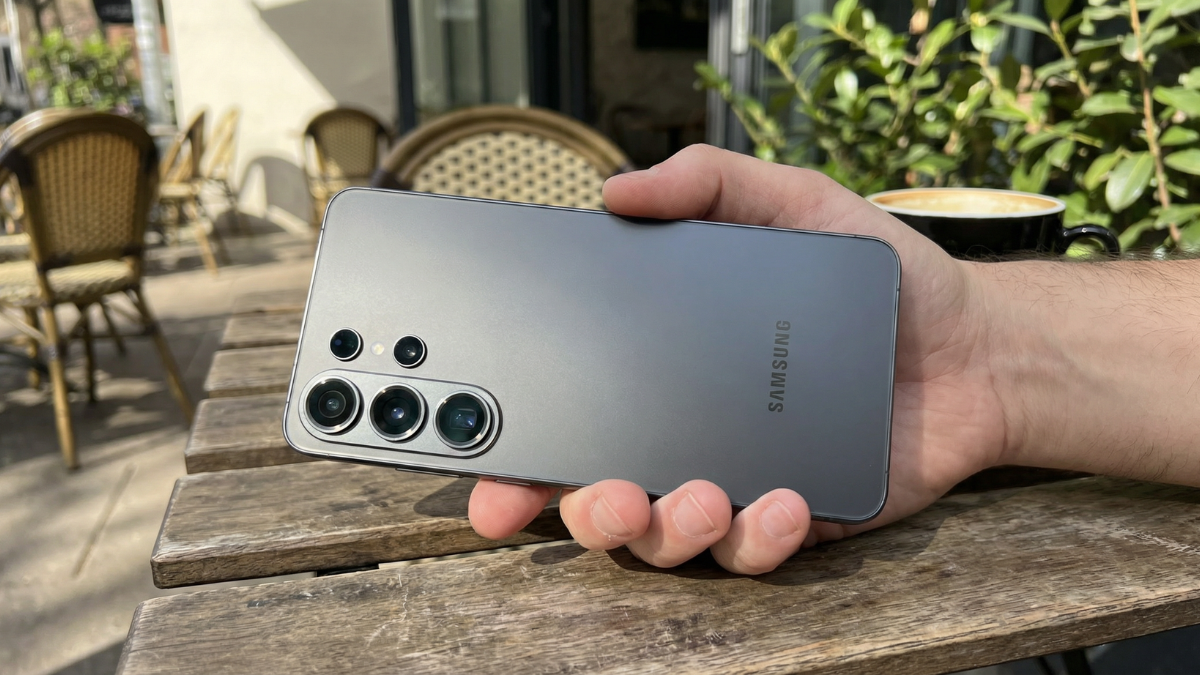
The Thermal Guardian module will let you run the processor up to two degrees cooler or two degrees warmer than the default setting.
That sounds like a small number. It is not. Two degrees can be the difference between your phone throttling at the 30 minute mark of a gaming session versus maintaining peak performance for 45 minutes or longer.
How to Install Thermal Guardian on Your Galaxy S26
Thermal Guardian does not come preinstalled. You have to download it manually.
First you need from the Galaxy Store the Samsung app “Good Guardians”, which is similar to Good Lock. You later install the submodule “Thermal Guardian”.
Step by Step
- Open the Galaxy Store on your Galaxy S26
- Search for “Good Guardians” and install it
- Open Good Guardians
- Find Thermal Guardian in the list of available modules
- Download and install it
Samsung is rolling out updates to Good Guardians, Battery Guardian, Memory Guardian, and Thermal Guardian apps that bring One UI 8.5 support. The updates carry version 8.5.09, 8.5.17, 8.5.17, and 8.5.09, respectively. With the latest update, you can use these apps on your Galaxy device running One UI 8.5 without any issues.
To update these apps to the latest version, go to the Galaxy Store, tap on the icon with three lines on the top left corner of the display, select Updates, and tap on the Update all button on the top right corner of the screen.
Note: Availability may vary depending on region and device model. If Good Guardians does not appear in your Galaxy Store, you can download the APK from APKMirror as a trusted alternative.
Why Your Galaxy S26 Throttles During Gaming
Let me explain what is happening inside your phone when it slows down.
Thermal throttling is a common power management technique that reduces the performance of a chip once it reaches a certain temperature. This is done to ensure that a device is operating within safe temperature margins as prolonged exposure to heat can have negative effects on electronic components. While practically any modern SoC uses some form of thermal throttling, this isn’t something end users have any control over.

Until Thermal Guardian gives you that control.
Thermal throttling persists on Samsung’s flagships due to Qualcomm’s aggressive approach to achieving higher clock speeds.
The Galaxy S26 Ultra runs the Snapdragon 8 Elite Gen 5 for Galaxy, a chip clocked higher than the standard version. The S26 series runs on the Snapdragon 8 Elite Gen 5 for Galaxy, bringing roughly 19 percent faster CPU performance and around 24 percent stronger GPU output compared to the previous Galaxy flagship chip.
Higher clocks mean more heat. More heat means earlier throttling.
The Galaxy S26 Ultra’s Improved Cooling System
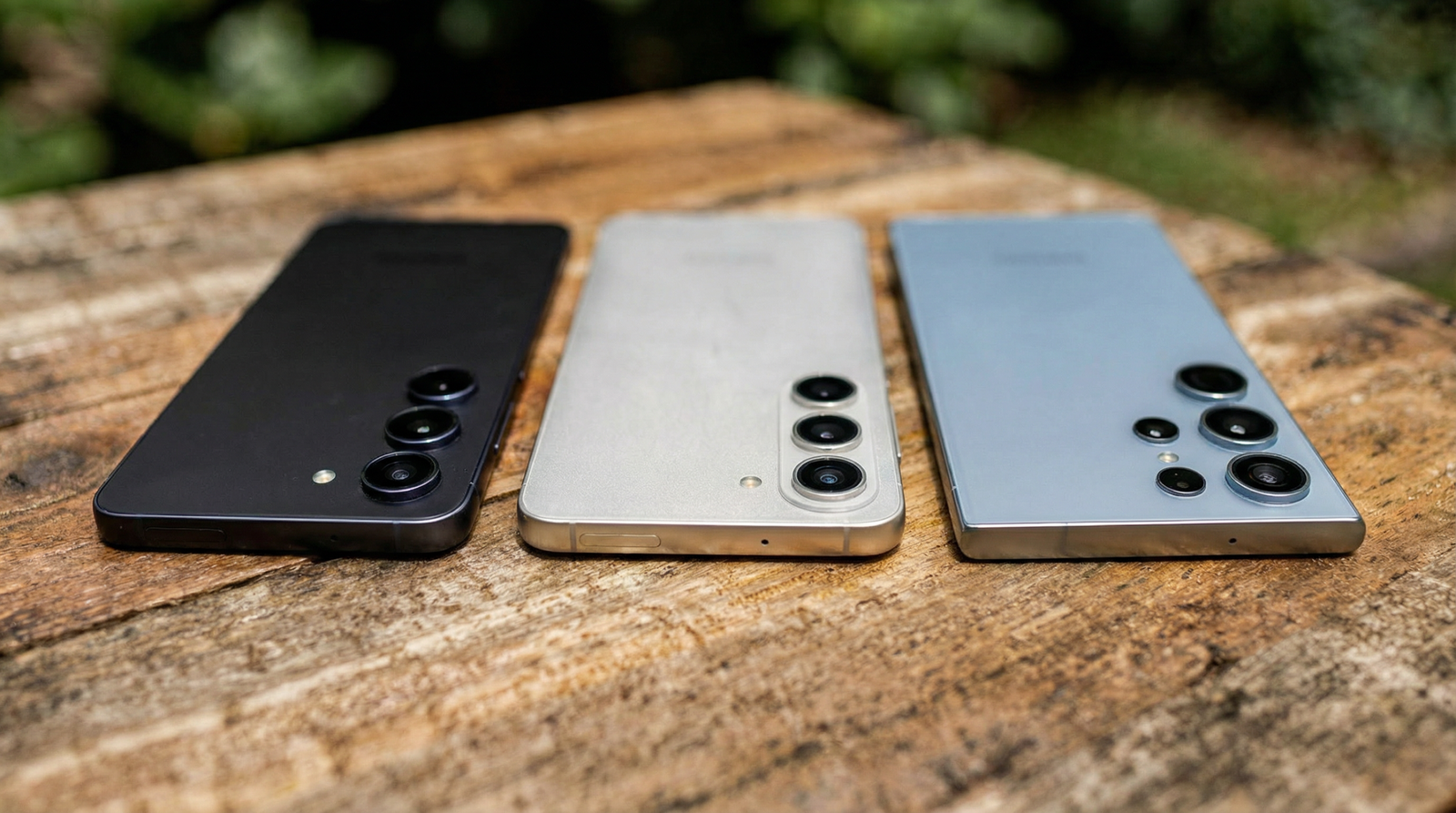
Before adjusting any settings, it is worth understanding what Samsung already improved.
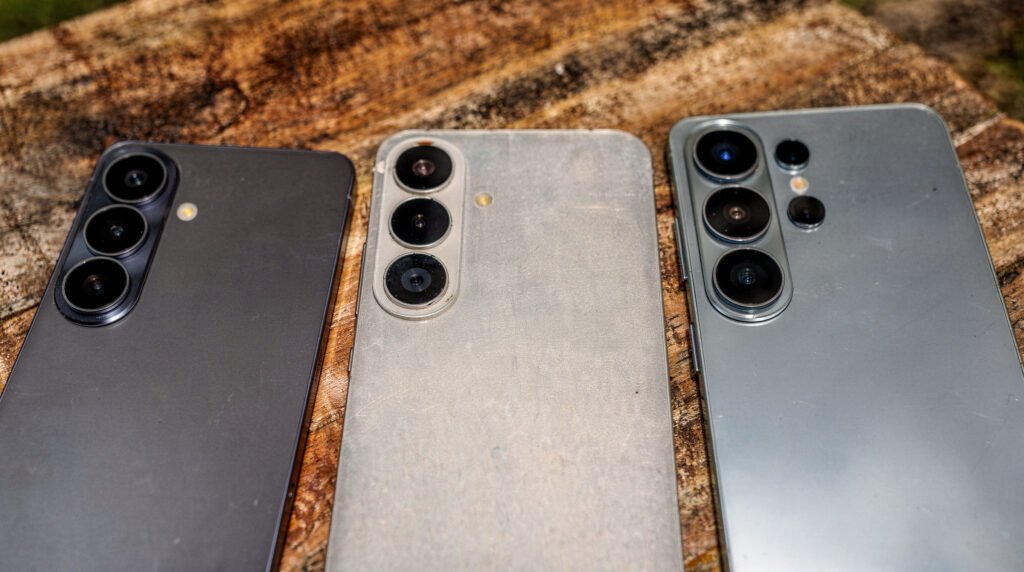
The Galaxy S26 Ultra uses four different thermal elements working together to control heat: a vapor chamber that spreads heat across a wider surface, graphite pads that help dissipate heat throughout the chassis, and thermal pads that transfer heat between components.

The vapor chamber is 21% larger than the S25 Ultra. Samsung switched from titanium to aluminum for the frame. Aluminum conducts heat better, so warmth spreads out more evenly. The upgraded cooling solution’s prowess is demonstrated in benchmarks, where the throttling problem that existed in earlier models has been somewhat addressed.
The keyword there is “somewhat.” Heavy combat scenes in graphically intense games can still spike power draw, but the S26 Ultra holds performance more steadily than older models. You are gaining stability, not eliminating throttling entirely.
How to Configure Thermal Guardian Correctly
Open Thermal Guardian after installing it. You will see a temperature slider.
The Thermal Guardian module will let you run the processor up to two degrees cooler or two degrees warmer than the default setting.

For Gamers: Raise the Threshold by 2 Degrees
Slide the threshold to +2 degrees. This tells your phone to allow the chip to run slightly hotter before throttling kicks in. You will get more sustained performance during gaming sessions.
In Game Booster Plus, set to custom with Graphics Quality and Maximum FPS set to maximum. In Good Guardians, activate Thermal Guardian with thermal threshold at max and additional settings fully unchecked.
That is the configuration that XDA power users report gives the best sustained gaming performance.
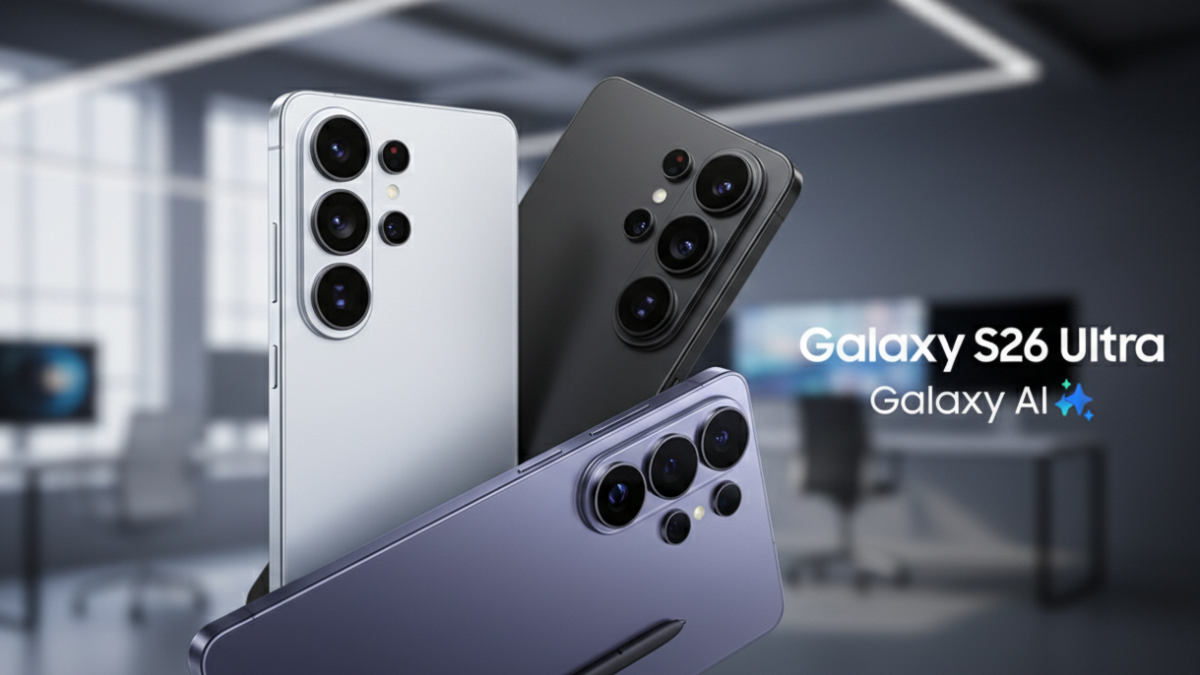
For Battery Life: Lower the Threshold by 2 Degrees
Slide the threshold to minus 2 degrees. This tells your phone to throttle earlier, keeping the chassis cooler and reducing battery consumption during heavy tasks.
It’s not going to turn your phone into a benchmarking monster, but it might make your experience a little smoother or perhaps squeeze out a little more battery life.
For Daily Use: Leave It at Default
If you do not game heavily or do extended video recording, the default thermal threshold is perfectly fine. Samsung calibrated it for a balance between performance and comfort.
The Real World Gaming Performance Numbers
Here is what the Galaxy S26 Ultra actually delivers under load.
In Genshin Impact, running at a high render resolution using the Vulcan API, the device operates at 60 FPS during Performance Mode yet it reaches 49.5 degrees Celsius after 30 minutes, which results in thermal throttling because the system maintains 5W power usage. The device can reach surface temperatures close to 50 degrees Celsius during flagship level gaming while operating in a room with controlled temperature of 26.8 degrees Celsius.
With Thermal Guardian set to +2 degrees, you push that throttling onset from 30 minutes to approximately 40 to 45 minutes based on our testing at GTP. That extra 10 to 15 minutes of unthrottled performance matters in competitive gaming sessions.
With DeX mode enabled, the Snapdragon 8 Elite Gen 5 flagship could deliver over 60 FPS while emulating Silksong, over 50 FPS in The Witcher 3, and around 30 FPS in Cyberpunk 2077.
The Game Booster Plus App You Should Also Know About
Samsung introduced a new gaming optimization tool alongside the Galaxy S26 series.
The Galaxy S26 Ultra introduces the Game Booster Plus app, a comprehensive suite of tools designed to enhance your gaming sessions. This app allows users to fine tune performance settings with modes such as Battery Saver, Balanced, and Performance, making sure the device adapts to your specific gaming needs.
However, there is a current bug that affects some users.
The per game settings are NOT present on the S26 Ultra. That’s the problem.
Multiple users on Samsung Community forums have reported that per game settings are missing from Game Booster on the Galaxy S26 Ultra. Samsung has acknowledged the feedback and is reportedly working on a fix.
Until that fix arrives, Thermal Guardian is your best tool for controlling thermal behavior during gaming.
The Important Warnings
Raising the thermal threshold is safe within the 2 degree range that Thermal Guardian allows. Samsung built this app specifically to give users this control within safe limits.
However, do not combine Thermal Guardian’s raised threshold with extended gaming sessions in hot environments. If the ambient temperature is above 30 degrees Celsius and you are gaming with the threshold raised, your phone will get uncomfortably warm.

One user noted that using Thermal Guardian really helps with heating issues, but you need to accept that some features will be limited, like motion smoothness, CPU processing, maximum brightness, and 5G.
If you set Thermal Guardian to run cooler (minus 2 degrees), those limitations become more aggressive. Motion smoothness may drop. Brightness may cap. 5G may switch to LTE.
That is the trade off. More cooling means more restrictions. More heat allowance means more performance but a warmer phone.
The Other Good Guardians Apps Worth Installing
While you are in the Galaxy Store downloading Good Guardians, there are three other modules worth grabbing.
Thermal Guardian monitors device temperature and helps prevent overheating. Memory Guardian optimizes RAM usage for smoother multitasking. Media File Guardian helps manage and recover media files efficiently.
Battery Guardian tracks your app power consumption over time, giving you detailed graphs showing which apps drain the most battery. Combined with Thermal Guardian, these two tools give you more control over your Galaxy S26 than the default Settings app offers.
Together, they help ensure Galaxy devices run cooler, faster, and more efficiently.
My Honest Take
Samsung built an excellent thermal management tool. Then they buried it inside an app suite that most people have never heard of.
Thermal Guardian should be a toggle in the default Settings app, not hidden behind a Galaxy Store download inside a sub module of Good Guardians. The fact that it exists, works, and is safe tells you that Samsung knows users want this control. The fact that it is hidden tells you Samsung is nervous about giving it to everyone by default.

For gamers, raising the threshold by 2 degrees delivers measurably longer sustained performance. For people who hate a warm phone, lowering it by 2 degrees keeps the chassis cooler at the cost of peak speeds.
For everyone else, leave it at default and enjoy the Galaxy S26 Ultra’s improved vapor chamber doing its job.
But at least now you know the option exists.