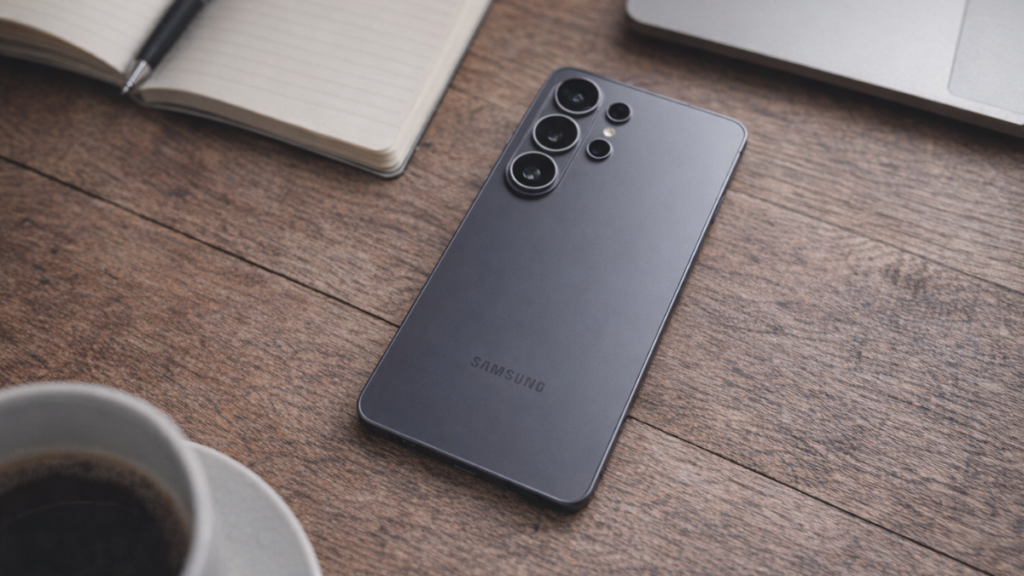
The Galaxy S26 Ultra launched on March 11, 2026 and within 48 hours, battery complaints started flooding the Samsung Community Forum and Reddit. One user reported draining from 100% to 15% in just two hours with the screen off. Another said the phone barely survived six hours. But here is what almost everyone reporting these issues has in common: their phone is less than a week old. And that changes everything.

Why Your Galaxy S26 Battery Is Draining Fast in the First Week
I am Ameer Hamza, and at Global Tech Press, we have been tracking Galaxy S26 battery reports since launch day. And we need to start with the most important detail that most people are missing.
Your device will need some time to reoptimize again. Allow 2 full weeks for the adaptive battery to relearn your usage pattern. Battery usage may appear higher during this adjustment phase.
Completely normal after a major update. Android runs background optimization, rebuilds system caches, and re indexes apps while Adaptive Battery relearns your usage patterns. That temporary workload can cause higher drain at first, but it usually stabilizes after a few charge cycles once the system finishes optimizing.
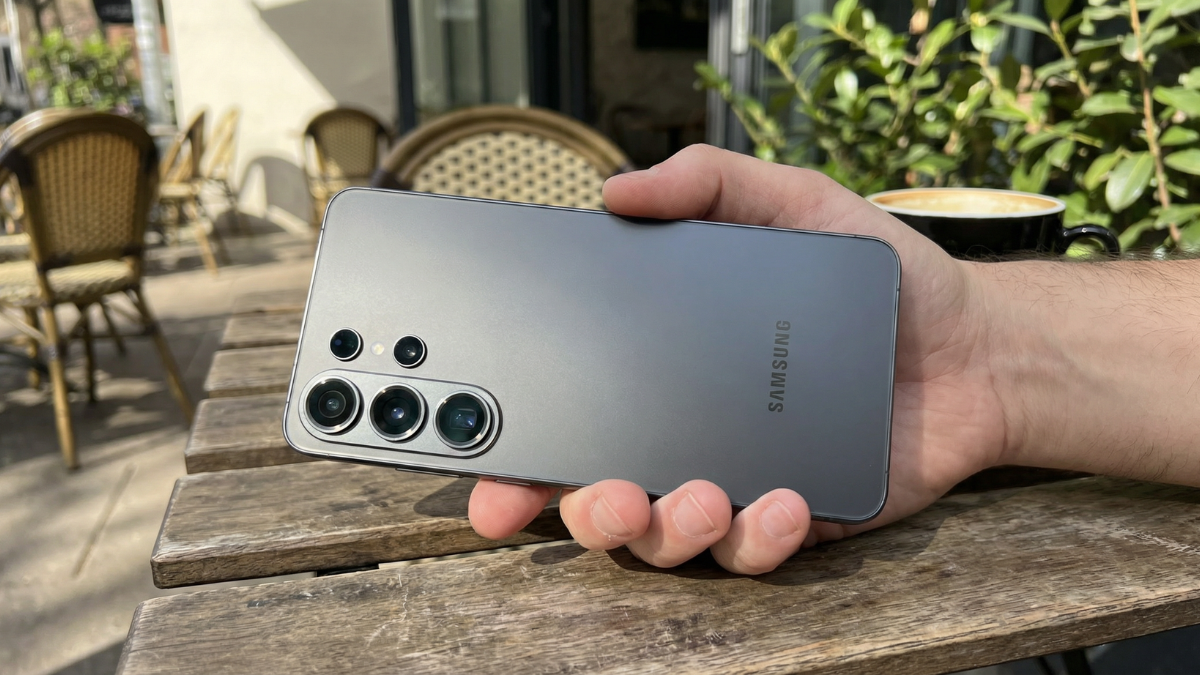
As experienced Samsung Community members have confirmed, about the 10th to 12th day you should start seeing improvements.
So the first rule: do not panic. Your Galaxy S26 battery is not defective. It is learning.
But that does not mean you have to sit there and accept poor battery life for two weeks. There are Galaxy AI features running silently in the background that you can control right now.
The 7 Galaxy AI Background Features You Should Check Immediately
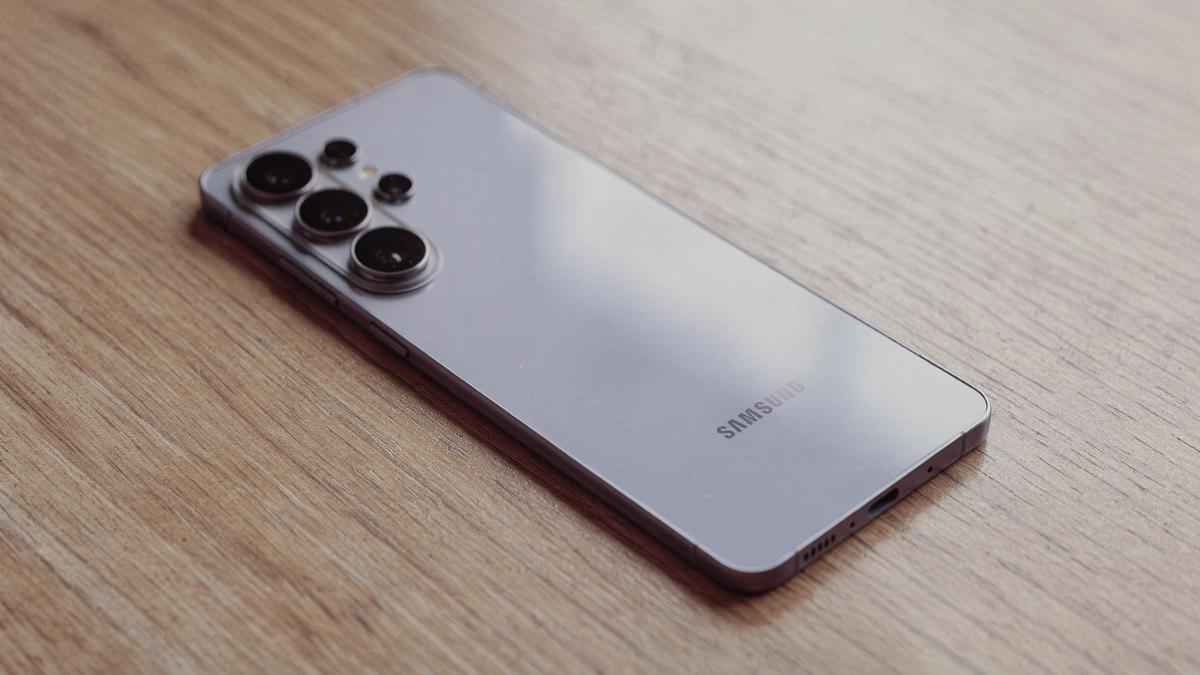
Constantly monitoring usage patterns and making predictions requires processing power, which can drain your battery. However, Samsung claims to have optimized this feature to minimize battery impact through efficient local processing and intelligent scheduling. The feature is designed to only become active during specific times when it’s likely to be useful, rather than running continuously in the background.
That is what Samsung says. Here is what the real world data shows.
A user who only uses Circle to Search twice daily sees negligible drain, while someone running Live Translate during 90 minute calls and generating AI wallpapers daily may lose up to 18% more battery over 12 hours.
The difference is massive. Here are the seven features worth checking.
1. Always Ready for Translation and Real Time Captioning
Disable “Always Ready for Translation” and “Real Time Captioning” in Settings then Advanced Features then Galaxy AI if you don’t need instant, on demand speech conversion. These cause the highest background CPU spikes.
These two features are among the biggest background battery consumers because they keep the NPU partially active at all times, waiting for a trigger that most people rarely use.
2. Smart Suggestions on Lock Screen and Quick Panel
To disable: Settings then Advanced features then Smart suggestions, then toggle off all three sub options (Lock screen, Quick panel, Settings).
These appear as “Suggested apps” on lock screen, “Quick settings suggestions,” and “Settings shortcuts.” They’re generated by analyzing app launch frequency, location, and time.
These feel minor, but they require constant pattern analysis in the background to generate those suggestions.
3. AI Scene Optimizer in Camera
The Galaxy camera app aggressively layers AI suggestions. These aren’t just visual noise; they force real time processing that heats the device and drains battery during extended use.
To disable: open the Camera app, tap the gear icon, scroll to “AI Scene Optimizer” and toggle it off. Your photos will still look great. The manual Pro Mode, Night Mode, and HDR are completely unaffected.

4. Bixby Voice Background Daemon
Bixby Voice runs a persistent listening daemon that drains 3 to 7% of battery daily.
If you are using Gemini or Perplexity as your primary assistant, go to Settings then Apps then Bixby Voice and tap Force Stop. Then set the background usage to Restricted under Settings then Battery then Background usage limits.
5. AI Wallpaper Auto Refresh
Samsung’s AI Wallpaper changes your lock or home screen daily without consent.
Go to Settings then Wallpapers and styles then Wallpaper suggestions and disable “Show wallpaper suggestions.” This stops the daily background generation cycle that silently uses NPU processing power and data.

6. Customization Service
The Customization Service is Samsung’s overarching engine for delivering personalized content, ads, and suggestions across various native apps (Weather, Galaxy Store, etc.). It heavily relies on AI analysis of your usage.
Go to Settings then Privacy then Customization Service and disable the master switch. This stops Samsung from analyzing your usage patterns to push personalized ads and content recommendations.
7. Performance Profile: Switch to Light
Go to Device Care then Performance Profile and switch to Light. On the S25 Ultra, this made no noticeable difference to performance but did improve battery life noticeably.
The Light performance mode slightly reduces peak CPU and GPU power, but in daily use, the difference in speed is virtually undetectable. The difference in battery endurance, however, is real.
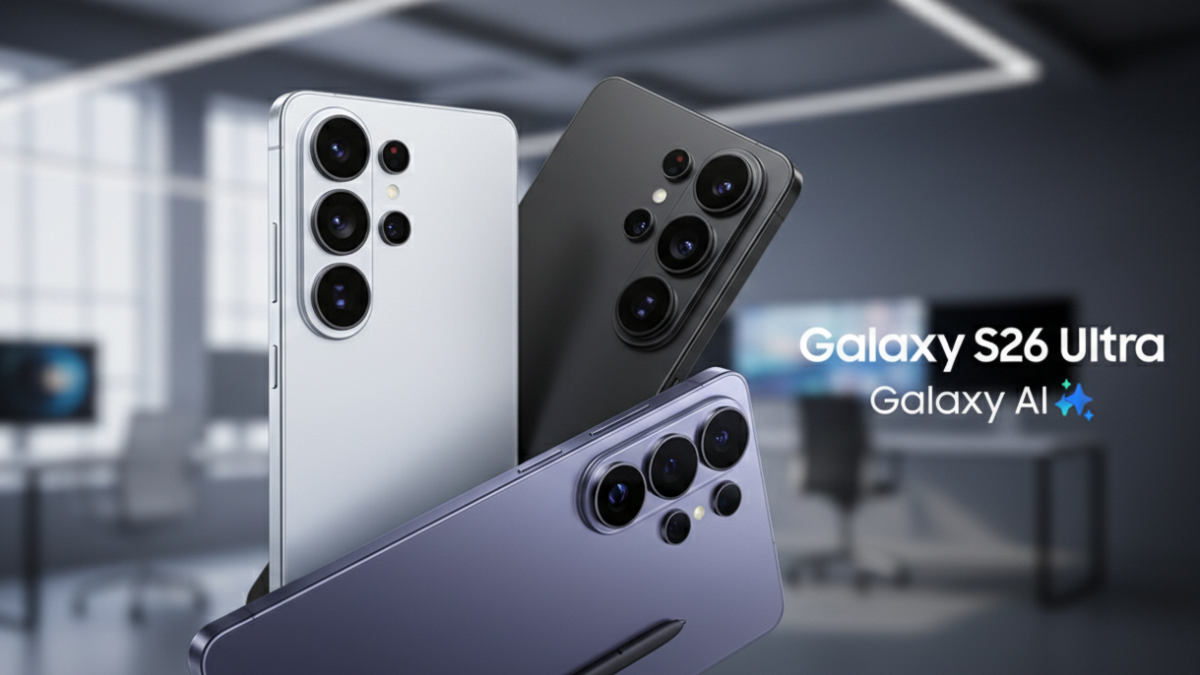
The Hidden Adaptive Battery Toggle Samsung Buried
Here is a detail that most people do not know about.
The adaptive battery toggle has been hidden in the Background usage limits section of the battery page. You have to tap on the 3 dots to turn it on or off now. Default is on.
Make sure this is enabled. Go to Settings then Battery then Background usage limits, then tap the three dot menu at the top right, and confirm Adaptive Battery is toggled on. This is the system that learns your usage patterns over those first two weeks. If it is accidentally disabled, your phone will never properly optimize itself.
How the Galaxy S26 Ultra Stacks Up in Battery Tests After the Learning Period
Once the adaptive battery finishes learning, the numbers are actually solid.
The Galaxy S26 Ultra endured for an average of 16 hours and 10 minutes in the Tom’s Guide Battery Test. That’s more than two hours longer than the Galaxy S25 Ultra.
Real world users like Droid Life’s reviewer are reporting around 7.5 hours of screen on time with 20 to 30% battery remaining at the end of the day.
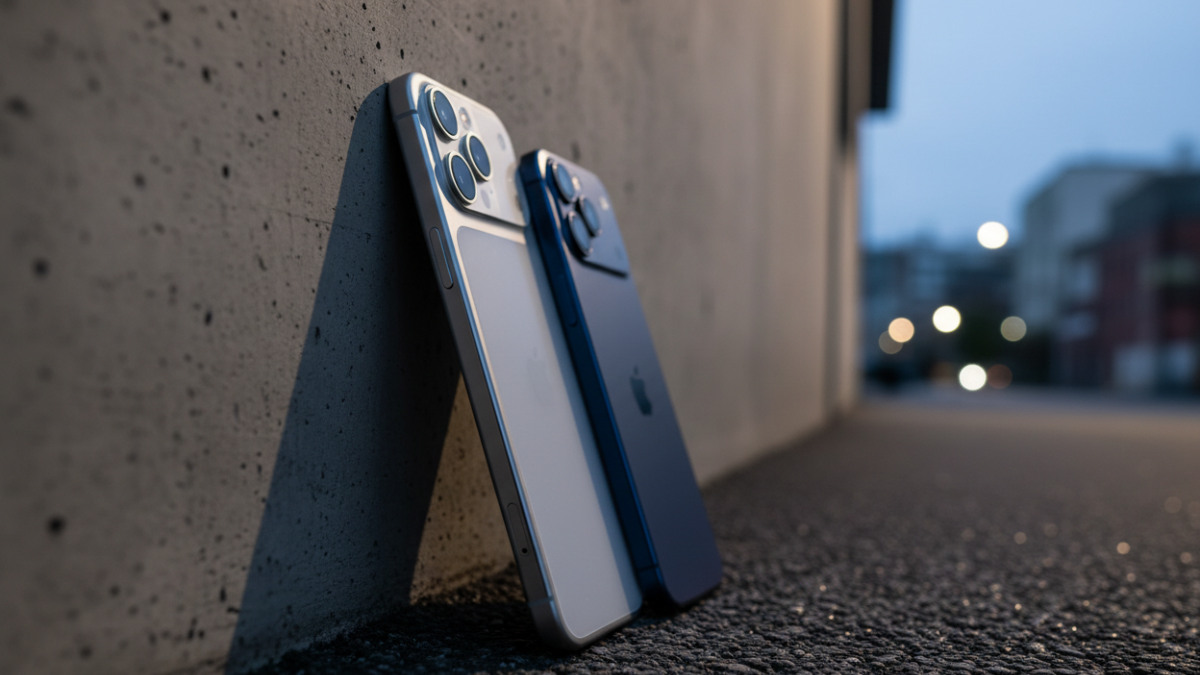
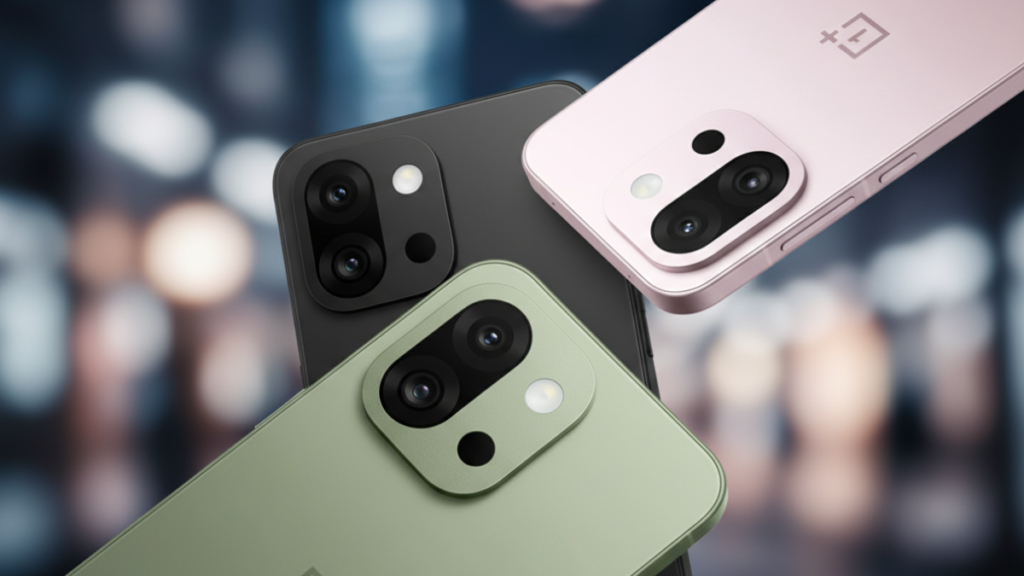
However, the Galaxy S26 Ultra’s endurance falls behind the iPhone 17 Pro Max. Apple’s flagship lasted for nearly 18 hours, giving it close to a 2 hour advantage over Samsung. All of these flagship phones get blown away by the OnePlus 15, which benefits from a 7,300mAh silicon carbon battery.
So after the learning period, the Galaxy S26 Ultra is a solid all day phone. But it is not class leading. Samsung stuck with 5,000mAh while competitors moved to 6,000mAh and 7,000mAh silicon carbon cells. That gap is real, and no software optimization can fully close it.
What to Do Right Now: The Quick Checklist
Here is the order I recommend for any new Galaxy S26 owner experiencing battery drain.
- First, confirm Adaptive Battery is turned on (buried in the three dot menu under Background usage limits).
- Second, give it at least 10 to 12 days to learn your patterns before judging the battery.
- Third, disable Always Ready for Translation and Real Time Captioning if you do not use them daily.
- Fourth, turn off Smart Suggestions on lock screen, quick panel, and settings.
- Fifth, disable AI Scene Optimizer in the camera settings.
- Sixth, restrict Bixby Voice background usage if you use Gemini or Perplexity instead.
- Seventh, disable AI Wallpaper suggestions and the Customization Service.
- Eighth, switch Performance Profile to Light.
Before disabling applications, users should revoke unnecessary permissions for Location, Microphone, and Background Activity, which often delivers 80% of battery and privacy benefits with zero system stability risk.
My Honest Take
The Galaxy S26 Ultra is not a phone with a broken battery. It is a phone that ships with too many AI features running at full throttle from the moment you take it out of the box, during the exact same period when the phone’s adaptive battery system has not yet learned how to manage them.
That combination creates the perception of terrible battery life in the first week. And the Samsung Community Forums are full of panicked users who do not realize this is temporary.

At Global Tech Press, we have been using the Galaxy S26 Ultra since launch day. After the first 12 days, with the settings above adjusted, our test unit consistently delivers 7 to 8 hours of screen on time and comfortably lasts from morning to late evening.
Is 5,000mAh enough in 2026? Honestly, it is starting to feel tight. Competitors like OnePlus and Xiaomi are shipping phones with 7,000mAh silicon carbon batteries that last into the second day. Samsung is going to need to make a bigger hardware leap with the Galaxy S27 series.
But for now, your Galaxy S26 battery is not broken. It just needs two things: time to learn, and your permission to stop running features you never asked for.