The Samsung share menu has been cluttered for years. Every app you install adds itself to the Direct Share suggestions. Contacts you never share with appear at the top. There was no way to remove them. Good Lock’s Home Up module for One UI 8.5 just fixed it. You can now exclude specific apps and contacts from the share menu entirely. Here is how to set it up plus 8 other features this update adds.

The Share Menu Problem That Lasted Years
I am Ameer Hamza, and at Global Tech Press, the cluttered share menu has been our single biggest daily annoyance with Samsung phones since One UI 4.
Direct Share is a part of the share menu in One UI. It suggests contacts from across your apps that you frequently share things with, and it intelligently remembers what types of files are often shared with which contact. That’s the idea anyway. In practice, it seldom suggests the right person.
That is Android Authority‘s honest assessment.
The Direct Share update is particularly exciting because that menu has been cluttered for years. Being able to curate that list saves seconds every day, and over a year, that adds up to a lot of time.
That is PhoneArena confirming what everyone already felt.
What the Home Up Update Actually Fixes
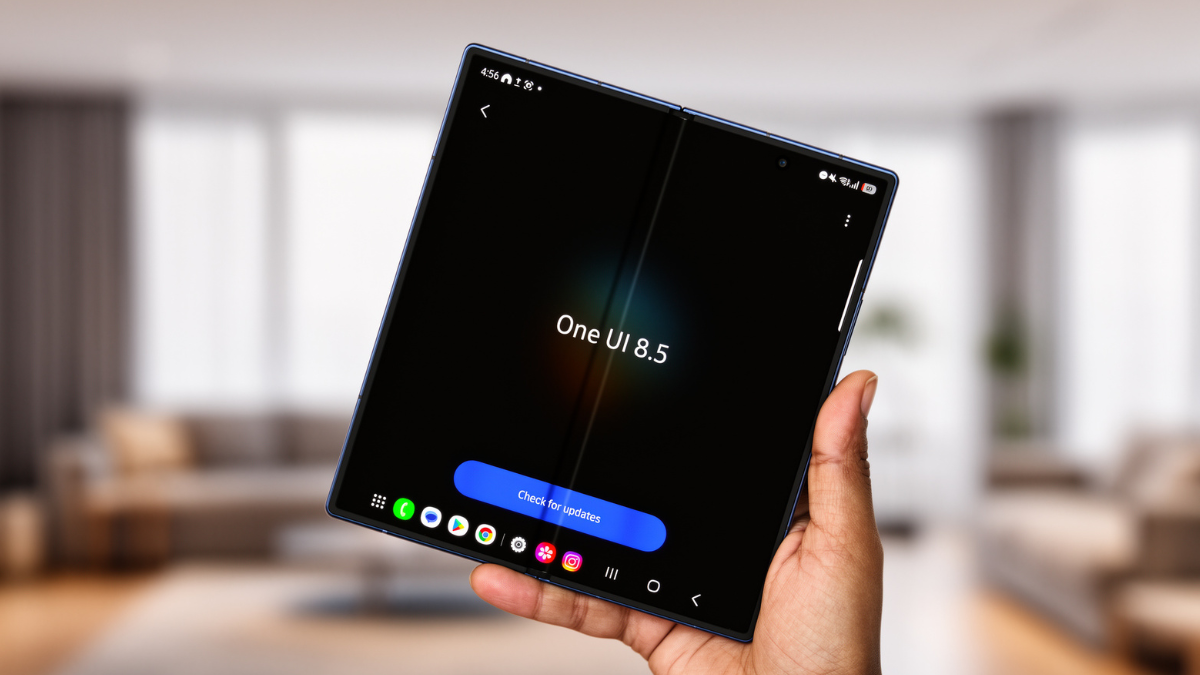
Samsung has released Home Up version 17.5.00.18, which adds full support for One UI 8.5. Samsung has announced nine new features and changes for Good Lock’s Home Up module as part of upgrading it for One UI 8.5.
Here are the 9 changes, verified from SamMobile.
1. Share Menu Exclusion List
The latest Home Up version lets users customize their Share Manager. If there are apps you typically use, or some that you never share content to, you can make the appropriate changes to clear up that menu clutter. For a long time, Home Up has let you pick favorite Direct Share targets, letting you pin the chats you use most for quick access. The Home Up update takes this further by adding an exclusion list.
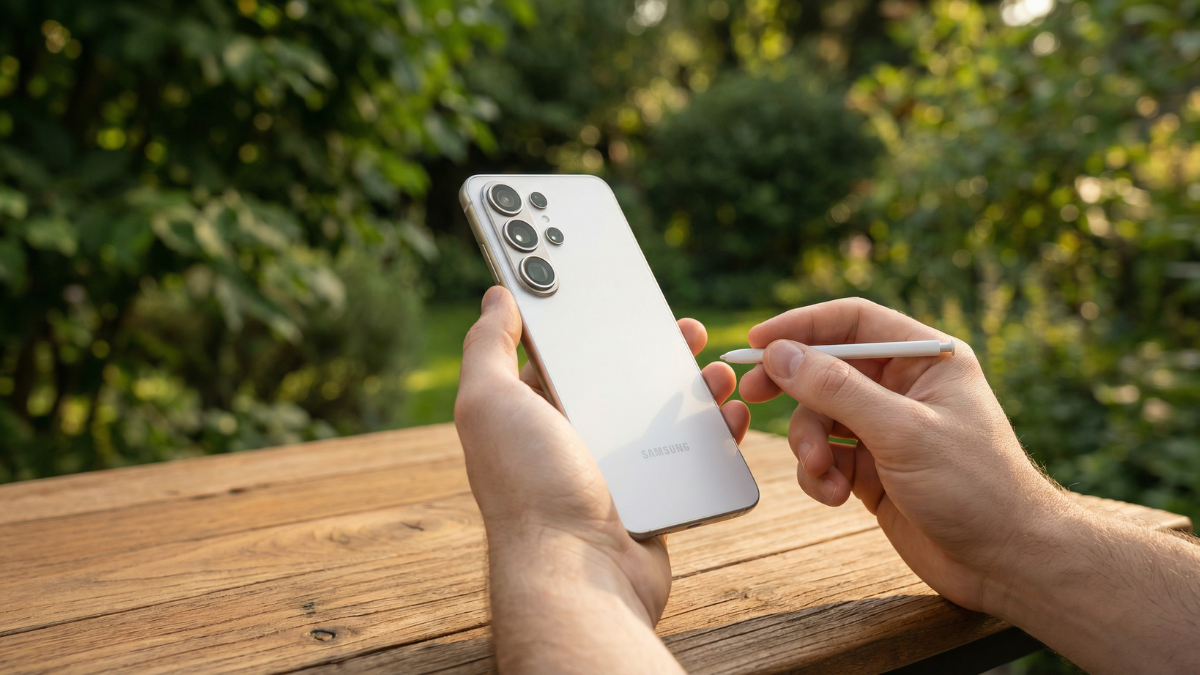
This is the headline fix. You can now remove apps and contacts from the share menu permanently.
2. Widget Size Control
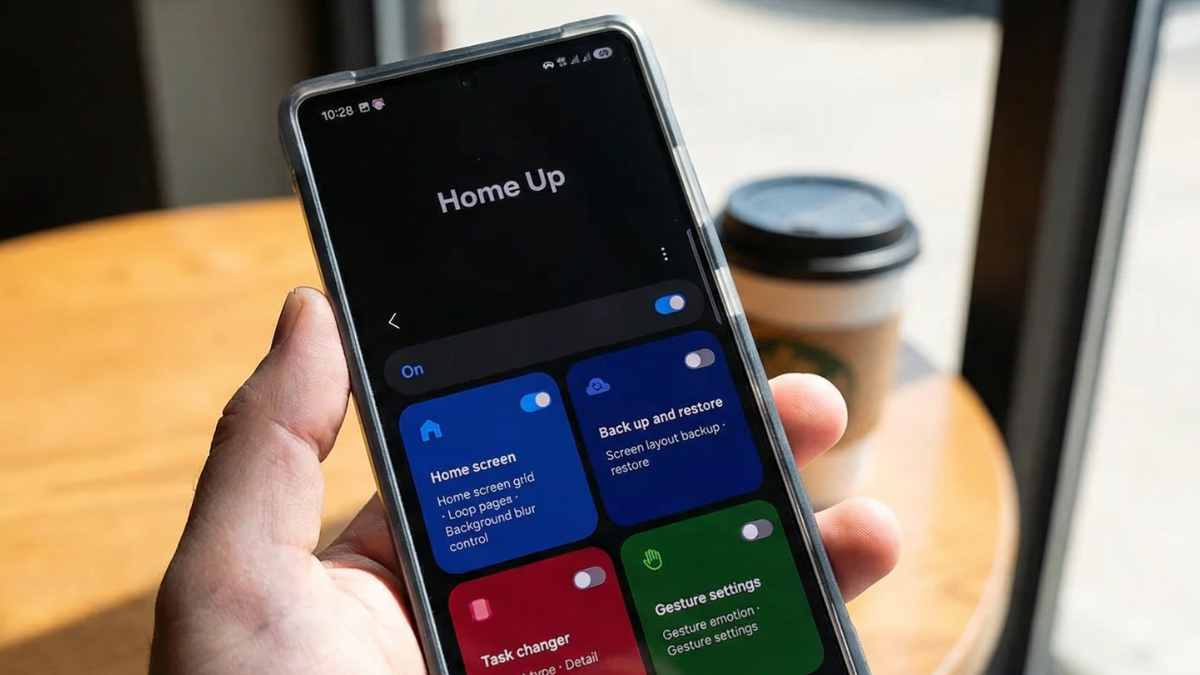
Home Up has been able to resize app icons for a long time now, and this update extends the same functionality to widgets. The new version has a “Widget setting” menu that lets you increase the scaling of widgets in the home screen.
3. Widget Blur Removal
You can also remove the blur effect from Samsung’s first party widgets from this menu.
4. Large Folder Customization
Home Up will let you adjust the size of large folders. It will offer options for letting you scroll within a large folder. You will get the option to remove the background blur effect from it.
5. Icon Label Editing
The Good Lock module will let you edit an icon’s label, as well as the font and color of the label text.
6. Layout Backup Fix
Samsung has finally fixed a long standing DIY Home layout issue that has plagued Galaxy users for quite some time. This fix concerns a “misalignment” issue the feature previously suffered, as well as a backup and restore fix for widgets when switching phones.
7. Disable Accidental App Switching Gesture
Home Up will allow you to turn off the “Switch to previous app with gesture” option even when the “Gesture hints” option is turned on. The ability to stop accidental app switching with that gesture toggle is something I didn’t know I needed until I read about it.
8. Unified Edge Panel
The Good Lock module will provide the “Unified panel” option for the Edge panel, which will let you use apps, function shortcuts, and contacts from one place. It will also let you adjust and select the area from where you can access the Edge panel. It will be very useful for people who find accessing it hard, especially due to case thickness or usage habits.
9. Foldable Cover Screen Favorites
For Galaxy Z series phones, it brings a way to adjust the number of favorites that are visible on the cover screen.
How to Install Home Up on Your Galaxy
Open the Galaxy Store. Search for “Good Lock.” Install it. Open Good Lock. Find Home Up in the module list. Download or update it.
If you already have Home Up, go to Galaxy Store, tap the menu icon, select Updates, and tap Update all.
The Critical Warning
If you are still on standard One UI 8 and not the 8.5 beta, you should skip this update for now as it might cause reset issues.
This is important. Do not install Home Up v17.5.00.18 if your phone is running One UI 8.0. Wait for the stable One UI 8.5 release.
The Bug You Should Know About
Samsung’s new Home Up update finally works with One UI 8.5, but it comes with a deal breaking bug that jams your animations if you use blur.
If you enable the blur removal toggle for widgets and experience animation stuttering, disable it until Samsung patches the bug.
How to Set Up the Share Menu Exclusion List
Once Home Up is installed and updated, open it. Scroll to Share Manager. You will see a list of apps that appear in your share menu.
Tap any app you want to exclude. It will no longer appear in your Direct Share suggestions.
You can also pin your most used sharing targets to the top. This combination of pinning favorites and excluding unwanted apps transforms the share menu from a cluttered mess into a clean, fast, personalized list.
When Is Stable One UI 8.5 Coming?
Reports suggest we may see an 8th beta this month. If so, we may have a good chance of seeing the stable One UI 8.5 rollout in April, as previously speculated.
For S25 and S24 owners, the wait will be measured in weeks, while wider rollout to older eligible devices is expected from late March 2026, with mid range and budget models following in phases through Q2 2026 or later.
My Honest Take
If you own a Samsung phone and have not tried Good Lock yet, you are missing out on some of the best features your device has to offer. It is essentially a suite of mini apps that unlock settings Samsung leaves out of the standard menu.
The share menu fix alone is worth the download. After years of a cluttered, unusable Direct Share system, Samsung finally gave users the ability to curate it.
The widget resizing, gesture toggle, and unified Edge Panel are bonuses. The DIY Home misalignment fix solves a bug that frustrated power users for months.
But the blur animation bug is real. If you enable blur removal and notice stuttering, disable it and wait for the patch.
Download Good Lock from the Galaxy Store today. Install Home Up. Open Share Manager. Remove the apps you never share with. Pin the ones you do.
Your share menu will finally work the way it should have worked since 2021.
Sources I Used In This Article:
- PhoneArena (Home Up massive update)
- Android Central (Home Up looks better than ever)
- Android Authority (3 favorite new features)
- Android Authority (major Home Up update)
- SamMobile (Home Up 9 new features)
- SamMobile (Home Up compatibility update)
- Sammy Fans (Good Lock One UI 8.5 compatibility)

Written by Ameer Hamza
Tech Analyst and Founder of Global Tech Press. Currently expanding the GTP hardware testing labs and building the next generation of digital tech media.