Circle to Search is one of Samsung’s most promoted AI features on the Galaxy S26 Ultra. I turned it off after three days. It fires accidentally during normal navigation, conflicts with the S Pen, uploads full resolution screenshots to Google’s servers, and does nothing that Google Lens cannot do better with one deliberate tap. Here is exactly why I disabled it, and what I switched to.

The Accidental Activation Problem Google Already Admitted
I am Ameer Hamza, and at Global Tech Press, the Galaxy S26 Ultra has been my primary phone since launch day. Within three days, Circle to Search became the single most frustrating feature on the device.
Currently, you can access Circle to Search by long pressing the home button or the navigation handle. However, people have been complaining that it gets activated accidentally quite a lot.
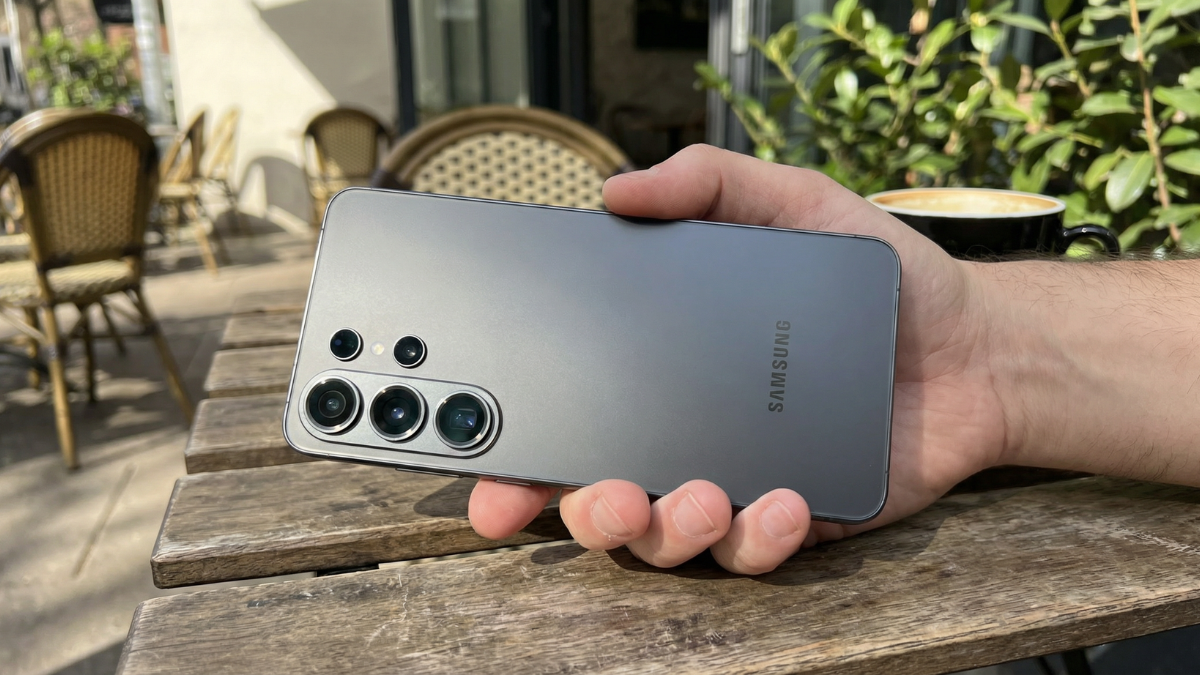
That is not just user frustration. Google has officially acknowledged the problem.
In the latest Made by Google podcast, the team behind Circle to Search said, “We still have further to go, and we’re working a lot on making sure it’s triggered when you want, and it’s not triggered when you don’t want.” Unfortunately, there’s no information about when Google will make the improvement.
In my daily use at GTP, the feature activated accidentally at least three to four times per day during normal scrolling and navigation. Each time, the screen dimmed, a search overlay appeared, and I had to dismiss it before continuing what I was doing.
The S Pen Problem Unique to the Galaxy S26 Ultra
Here is where it gets worse for Ultra owners specifically.
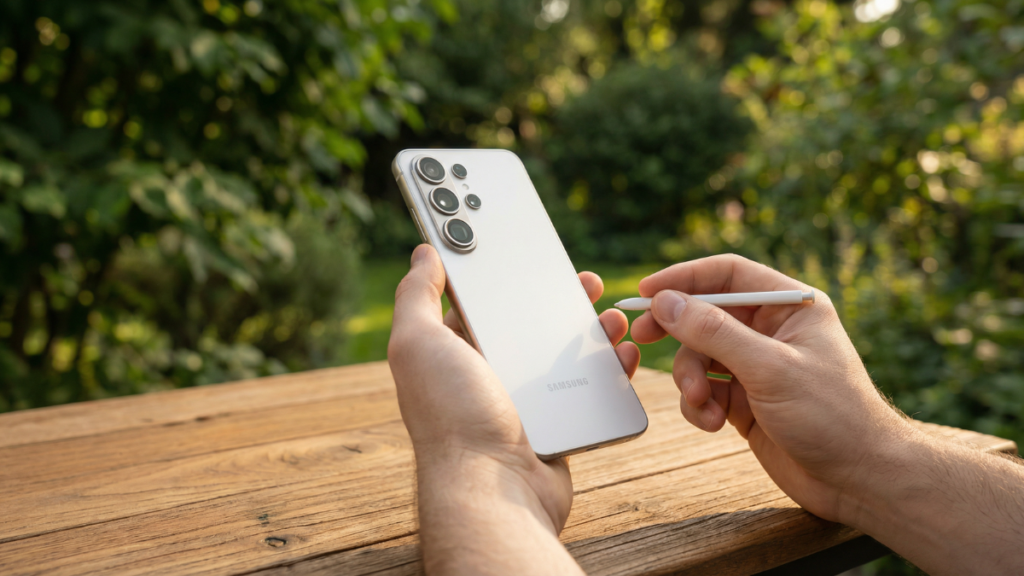
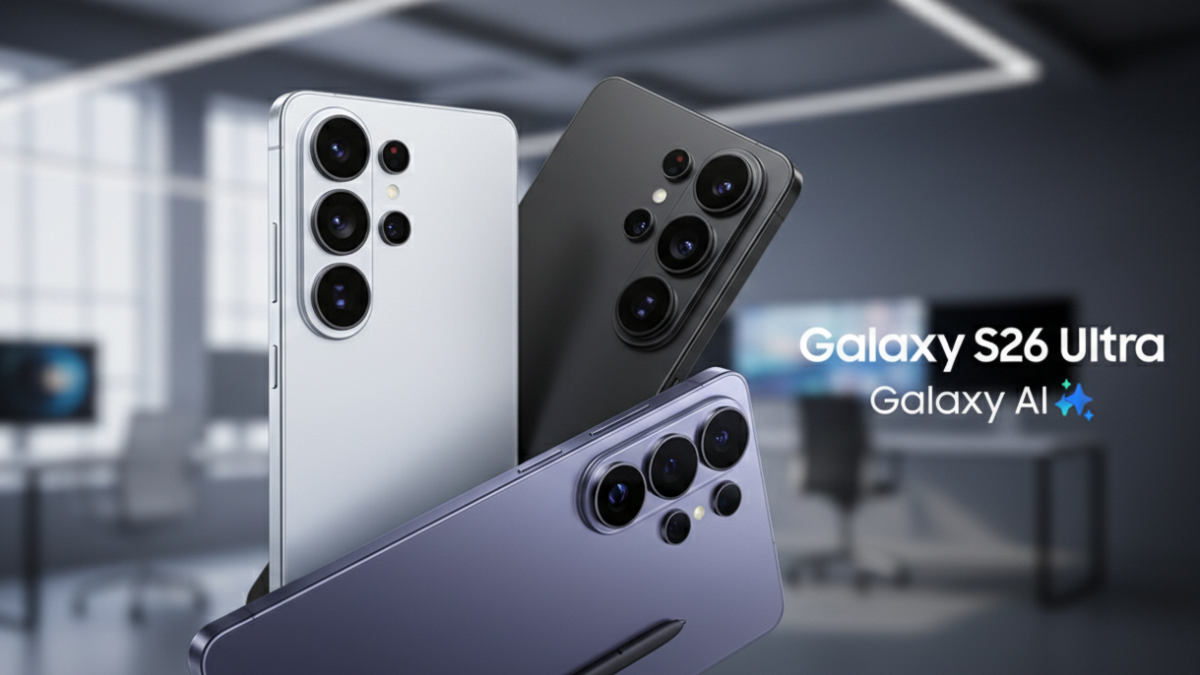
Circle to Search: You can search for objects and items from apps that support screen capture when you touch and hold Home on the Navigation bar with the S Pen.
That means the S Pen and Circle to Search share the same activation zone. When writing notes or sketching, any accidental long press near the navigation bar triggers the search overlay instead of your intended S Pen action.
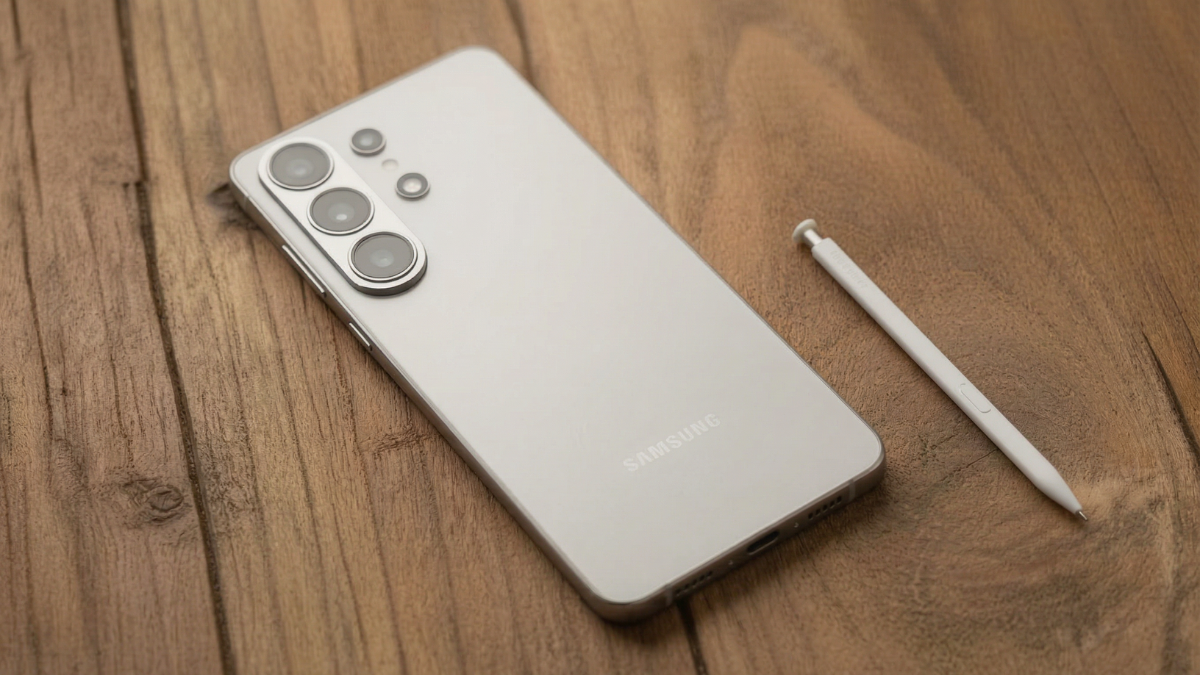
The S Pen situation on the S26 Ultra is already more complicated this year. Samsung last year dumped Bluetooth features from the S Pen on the Galaxy S25 Ultra, and the new Galaxy S26 Ultra repeats that lack.
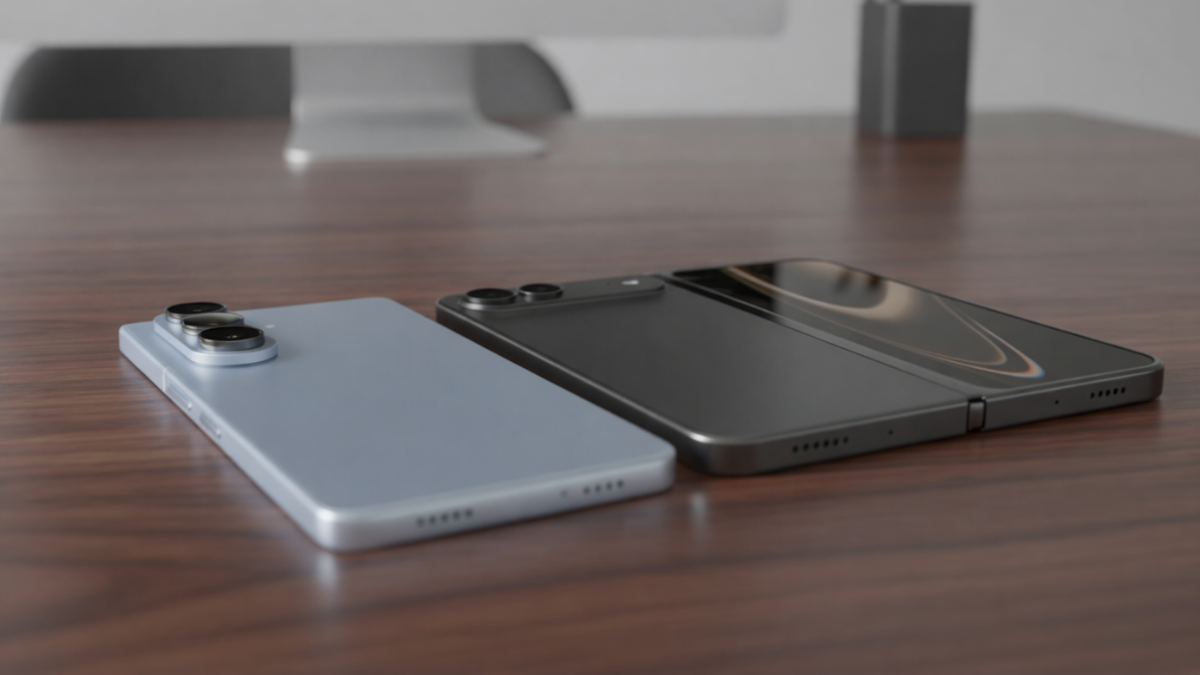
Samsung has increased the Galaxy S26 Ultra corner curvature, which ends up making S Pen insertion trickier than the S25 Ultra.
And on top of these existing frustrations, after attaching a third party Qi2 magnetic case to the Galaxy S26 Ultra, the device threw up a system notification linked to the S Pen. The message reads: “Magnets in accessories can interfere with your S Pen’s signal.”
Adding Circle to Search accidental activations to this already compromised S Pen experience made the phone harder to use, not easier.
What Circle to Search Actually Does With Your Screenshots
This is the part most people are not aware of.
Circle to Search uploads full resolution screenshots, including browser address bars, message previews, and notification banners, without on device redaction.
When you activate Circle to Search, it captures your entire screen and sends it to Google’s servers for processing. It requires an active internet connection and Google account sync. On device processing handles only segmentation, the heavy lifting happens server side.
That means every time Circle to Search fires, whether intentionally or accidentally, a full screenshot of whatever is on your screen gets uploaded. If you were reading a private message, viewing a banking notification, or looking at sensitive work content, that data left your device.
Circle to Search is not supported in apps that prohibit screen capture due to security and copyright issues. But for everything else, the capture happens without warning.
The Galaxy S26 Upgrade Makes Accidental Searches Worse
The Galaxy S26 version of Circle to Search actually makes the accidental activation problem more consequential.
On the Samsung Galaxy S26 phones, you won’t need to circle interesting items individually: one large circle that encompasses a whole bunch of items allows the phone to look up what each and every one of them is.
That sounds great in theory. But in practice, if you accidentally circle more than you intend to, you might end up searching the web for loads of items instead of the one you intended.
So now, an accidental activation does not just trigger a single unwanted search. It can trigger multiple simultaneous searches for everything visible on your screen.

How to Disable Circle to Search on Your Galaxy S26 Ultra
The process takes 15 seconds.
Method 1: Samsung Settings
Navigate to and open Settings, then tap Display, and then tap Navigation bar. Circle to Search will appear at the bottom of the screen. Toggle it off.
Method 2: Full Disable via Digital Assistant
For a complete disable that stops all background components: Navigate to and open Settings, then tap Apps, and then tap Choose default apps. Tap Digital assistant app, and then tap the switch next to Analyze on screen images to turn off the option. Once this option is disabled, you will not be able to use Circle to Search on your phone.

On Pixel Phones
Go to your Pixel’s Settings. Navigate to Display, then Navigation mode, then Gesture Navigation. Turn off the Hold handle to search option.
What I Use Instead: Google Lens Does Everything Better
Everything Circle to Search does, Google Lens already does, with more control and zero accidental activations.
Google Lens lets you point your camera at anything and search for it. It translates text in real time. It identifies products. It copies text from images. And it does all of this when you deliberately open it, not when your thumb accidentally lingers on the navigation bar.
The difference is intent. Google Lens requires a deliberate action. Circle to Search activates from a gesture you use constantly for other purposes.
After disabling Circle to Search, I pinned Google Lens to my Quick Settings panel. One swipe down, one tap, and I have everything Circle to Search offered without a single accidental activation in three months.
SamMobile recently talked about ways Google can improve Circle to Search, including allowing people to access it by pressing the side button, and on devices with S Pen, showing the option in Air Command and allowing them to summon it by pressing the stylus button.
Those would be meaningful improvements. But as of March 2026, none of them have shipped.
The Counter Argument: When Circle to Search Actually Works
Let me be fair.
When it works as intended, the ability to circle any object on screen and instantly search for it is genuinely useful. Shopping for furniture, identifying a plant in a photo, translating a sign in a screenshot, these are real use cases where the feature delivers.
With a single gesture, Circle to Search will instantly identify visual matches for every piece, from the top to footwear and everything in between. From there, you can scroll through for inspiration and narrow down your vision.
If you use three button navigation and do not own an S Pen, the accidental activation problem is significantly reduced because the home button press is more deliberate.
But if you use gesture navigation on a Galaxy S26 Ultra with an S Pen, the conflict is real, persistent, and unfixed.
My Honest Take
I wanted to like Circle to Search. The concept is brilliant. Circling anything on your screen to search for it should be the future of mobile search.
But the execution on the Galaxy S26 Ultra is flawed. The gesture conflict with normal navigation makes it fire accidentally multiple times a day. The S Pen overlap adds a second layer of frustration unique to the Ultra. The full screenshot uploads raise privacy questions that most users are unaware of. And the new multi element search means accidental activations now trigger even more unwanted results.
Google has admitted the accidental activation is a problem. SamMobile has proposed fixes. But none of those fixes have shipped.
Google Lens does everything Circle to Search does. It just does it without hijacking your navigation gestures.
If Google moves Circle to Search to a dedicated gesture, like a two finger long press, a squeeze, or the S Pen button, the feature would instantly become useful without being annoying. Until then, it stays off on my Galaxy S26 Ultra.
And honestly, I have not missed it once in three months.