Samsung is marketing the Galaxy S26 Ultra with “10x optical quality zoom.” But if you read the fine print on Samsung’s own website, you will find a very different story. The 10x is not optical. It is a digital crop from a 50MP sensor. And there is a hidden app called Camera Assistant that changes how your zoom photos actually look. Here is the full breakdown.

What Samsung Is Actually Claiming
Let me start with Samsung’s own words, taken directly from their official product page.
Optical quality zoom is enabled by the Adaptive Pixel sensor. 3x and 5x distances are optical zoom. 2x and 10x distances are optical quality zoom.
Read that again carefully. Samsung is distinguishing between two things: optical zoom and optical quality zoom. These are not the same thing, and the distinction matters enormously.
I am Ameer Hamza, and at Global Tech Press, we have spent the last week testing every zoom level on the Galaxy S26 Ultra across different lighting conditions. And the difference between what Samsung markets and what the camera actually does at 10x is something every buyer needs to understand before they start zooming.
What “Optical Quality” Actually Means in Practice
Here is what is happening inside the camera when you tap 10x on your Galaxy S26 Ultra.
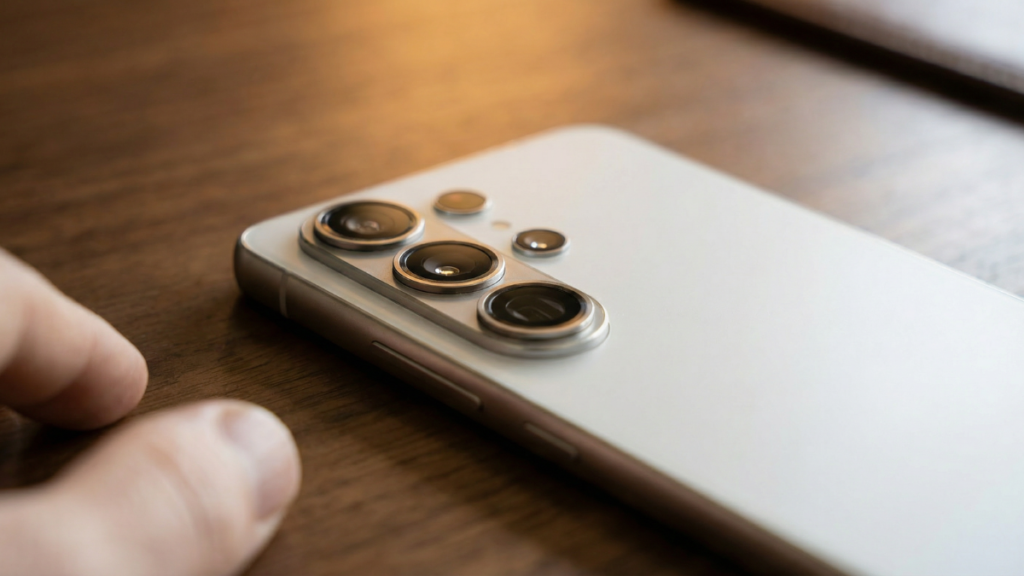
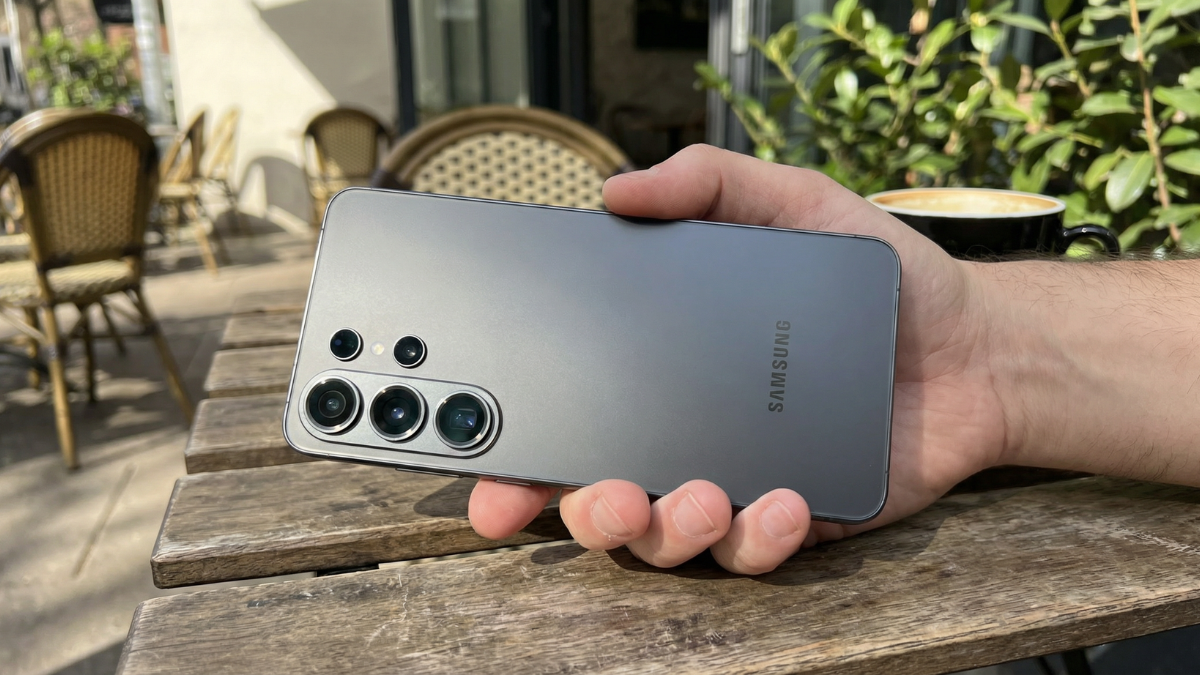
There’s a 200MP wide angle, 50MP ultra wide angle, 10MP that handles up to 3x optical zoom, and a 50MP that does optical up to 5x and “optical quality” up to 10x.
At 5x, the phone uses the dedicated 50MP periscope telephoto lens with real optical glass. Light physically passes through the lens at a 5x magnification. That is true optical zoom.
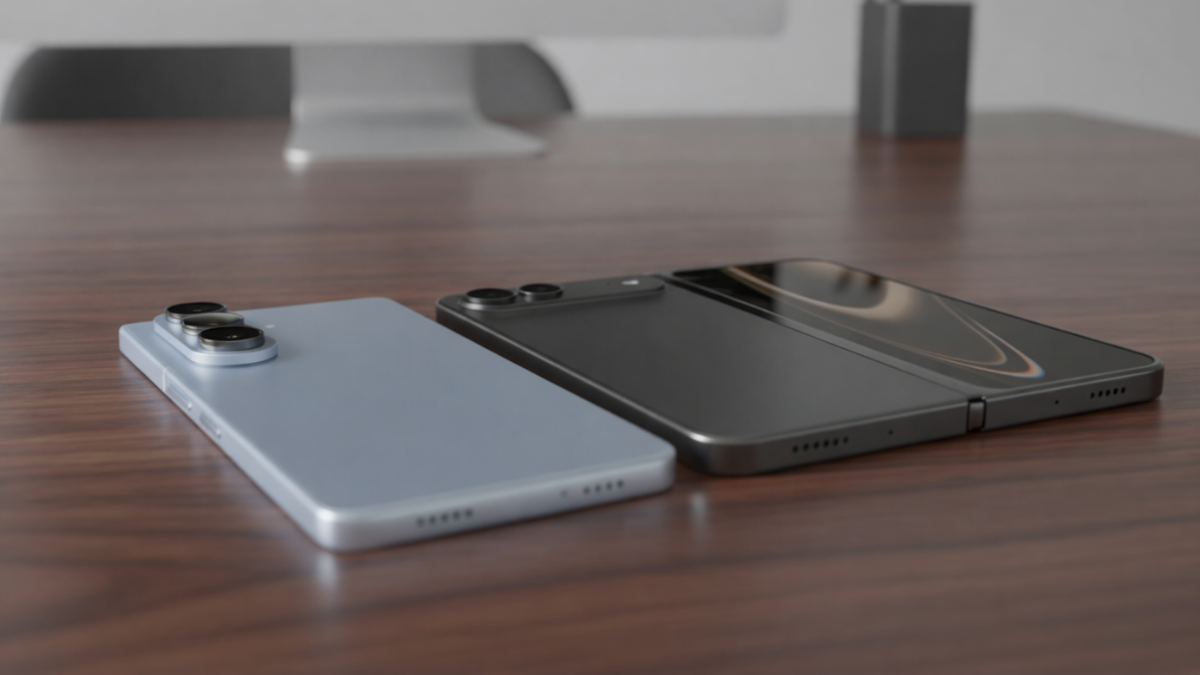
At 10x, the phone takes the 50MP sensor behind that 5x lens and crops into the center of the image, effectively using digital magnification to get from 5x to 10x. Because the 50MP sensor has a high pixel count, the crop still retains decent detail. Samsung calls this “optical quality” because the result looks close to what a true 10x optical lens would produce.
But it is not optical. It is a sensor crop. The lens does not move. The glass does not change. The magnification is digital.
Why This Distinction Matters for Your Photos
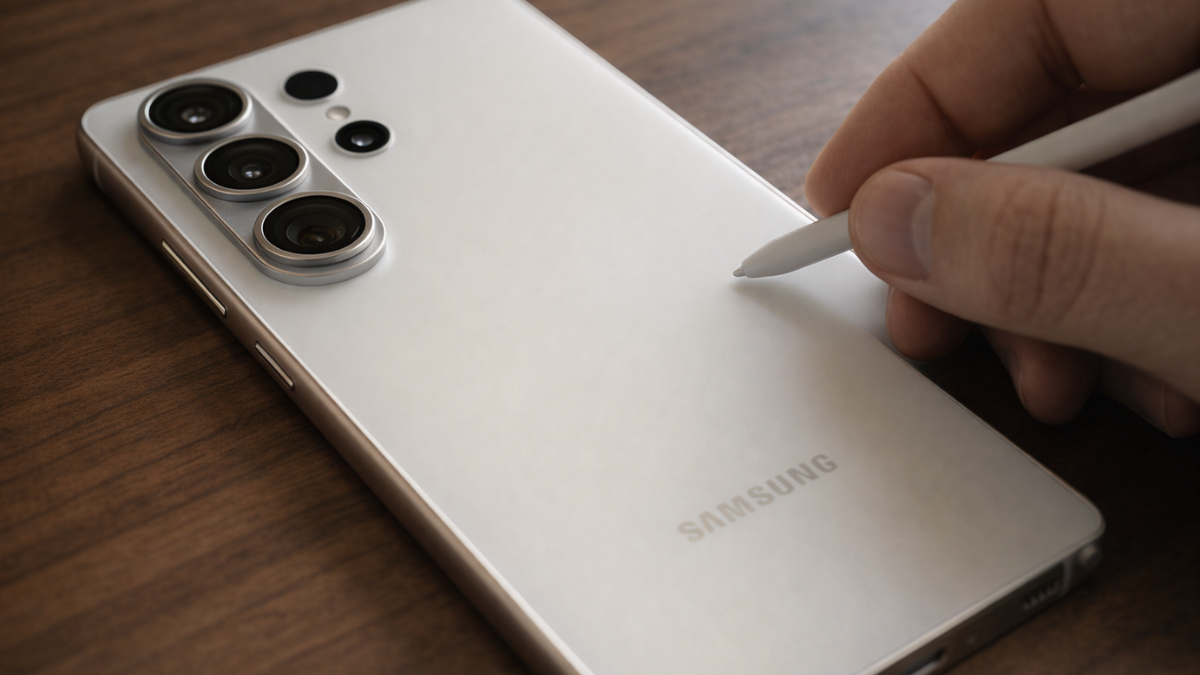
The 10x zoom level will get you okay results, nothing impressive. They’re more or less the same in terms of resolved detail as the 5x 50MP shots, only more heavily sharpened.
That is GSMArena’s assessment after full lab testing. And it matches what we found at GTP.
In daylight, the 10x shots look decent on your phone screen. But zoom into them on a laptop or try to crop further, and you will see the limitations.
10x zoom is basically lossless during daylight hours and 30x holds up fairly well, though fine details do start to disappear; 100x zoom looks blurry at the best of times.
The word “lossless” here is doing a lot of heavy lifting. Stuff.tv is saying the 10x crop retains most of the information from the 50MP sensor, so you are not losing much in good light. But “not losing much” is very different from “optical quality.”
In low light, the gap widens significantly.
Zooming in to 10x, you can expect usable results, but not exactly great ones.
The Hidden Setting That Changes Everything: Camera Assistant
Here is the part that most Galaxy S26 Ultra owners are missing completely.
In addition to Expert RAW, you can download Camera Assistant through the Galaxy Store, and this is a must for photographers picking up the S26 Ultra. This is where you can customize which zoom shortcuts appear on screen, turn off auto lens switching, and enable handy video tools like audio monitoring via Bluetooth headphones.

Camera Assistant is a first party Samsung app. It is free. But it does not come preinstalled on the device.
You have to go to the Galaxy Store, search for Camera Assistant, download it, and then configure it. Here is what it unlocks.
Disable Auto Lens Switching
This is the single most important setting for zoom photography on the Galaxy S26 Ultra.
The Camera app on Galaxy phones is designed to fall back on the primary camera for zoom pictures in low light conditions, as the zoom/telephoto lenses have weaker light gathering capability due to their narrower/smaller apertures.
While that’s great for most users and helps you get clearer low light zoom pictures, it doesn’t always work perfectly and can sometimes fall back on the primary camera even when there’s plenty of light in the scene. But you can force your phone to always use the zoom camera, no matter how tough the lighting conditions may be, by disabling the Auto lens switching option in Camera Assistant.

What does this mean in plain language?
By default, when you tap 5x or 10x on your Galaxy S26 Ultra in anything less than bright sunlight, the phone may secretly switch to the 200MP main camera and crop into it digitally instead of using the actual 5x telephoto lens. You would never know this is happening. The viewfinder still says 5x or 10x. But the photo is coming from a completely different camera.
When capturing a photo at 5x, if the subject is too close, the S26 Ultra will switch to the 10MP 3x camera. Interestingly, this photo’s been upscaled to a 50MP, 3MB file, but the lack of a shallow depth of field and overall picture quality exposes the 3x camera’s limitations.
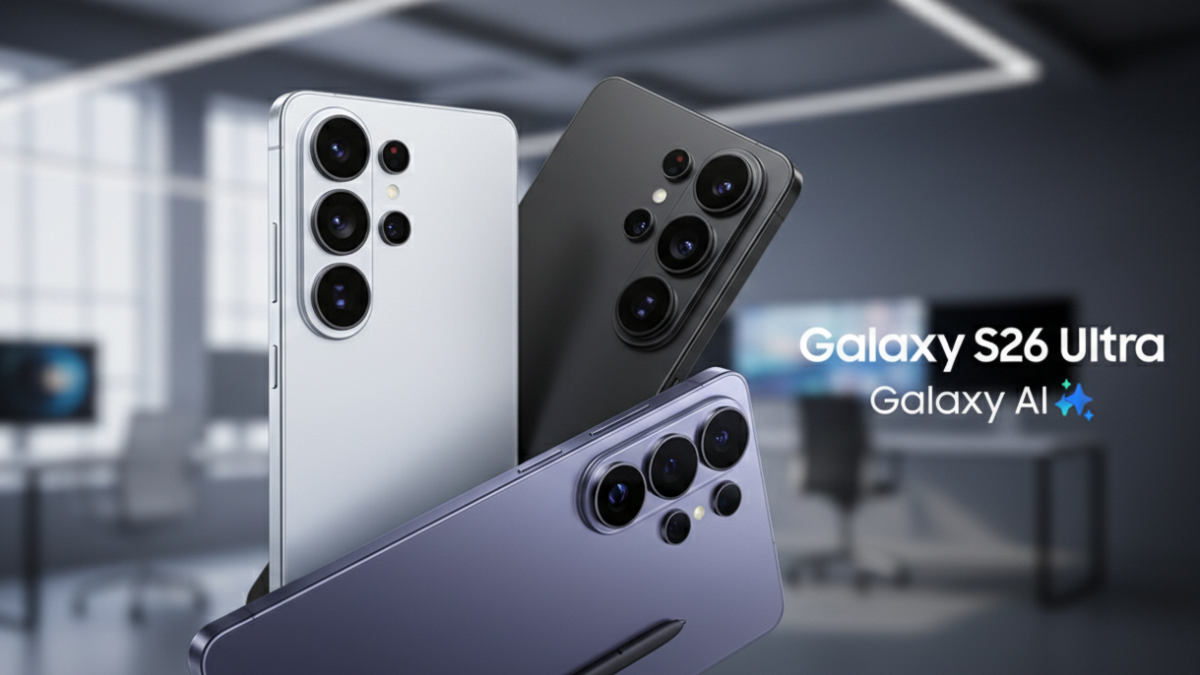
That is a verified observation from Digital Camera World. The phone silently swaps lenses without telling you, and the quality difference is visible.
How to Disable It
Open the Galaxy Store. Search for Camera Assistant. Install it. Open it from your camera settings or app drawer. Find Auto lens switching and turn it OFF.
Disabling auto lens switching forces the right camera to be used based on the selected magnification in every mode that lets you zoom in on the subject, including the standard Photo mode, Video mode, and the dedicated Night mode.
Now, when you tap 5x, you get the actual 5x periscope lens every time. When you tap 10x, you get the actual sensor crop from that 5x lens every time. No silent switching. No surprises.
The 24MP Mode Samsung Hid Inside Camera Assistant
Here is another setting buried inside Camera Assistant that directly affects zoom quality.
Samsung has added a 24MP resolution setting to the Galaxy S26 Ultra’s camera. However, it is only accessible after installing an additional app.
The Galaxy S26 Ultra’s 24MP mode sits between these options. It is designed to provide a balance between details and image processing, offering more resolution than 12MP while maintaining better dynamic range and color performance than the 50MP and 200MP modes in many situations.
How to Enable 24MP Mode
Install Camera Assistant from the Galaxy Store. Open it. Go to Advanced Resolution Options. Toggle on 24MP resolution.
To stop it from resetting, expand 24MP settings and turn on “Keep 24 MP resolution.”
Without that last step, the phone resets to 12MP the next time you open it.
For zoom photography specifically, the 24MP mode gives you more detail to work with when cropping, without the massive file sizes of 50MP or 200MP shots.
The 3x Camera Is the Weakest Link Nobody Mentions
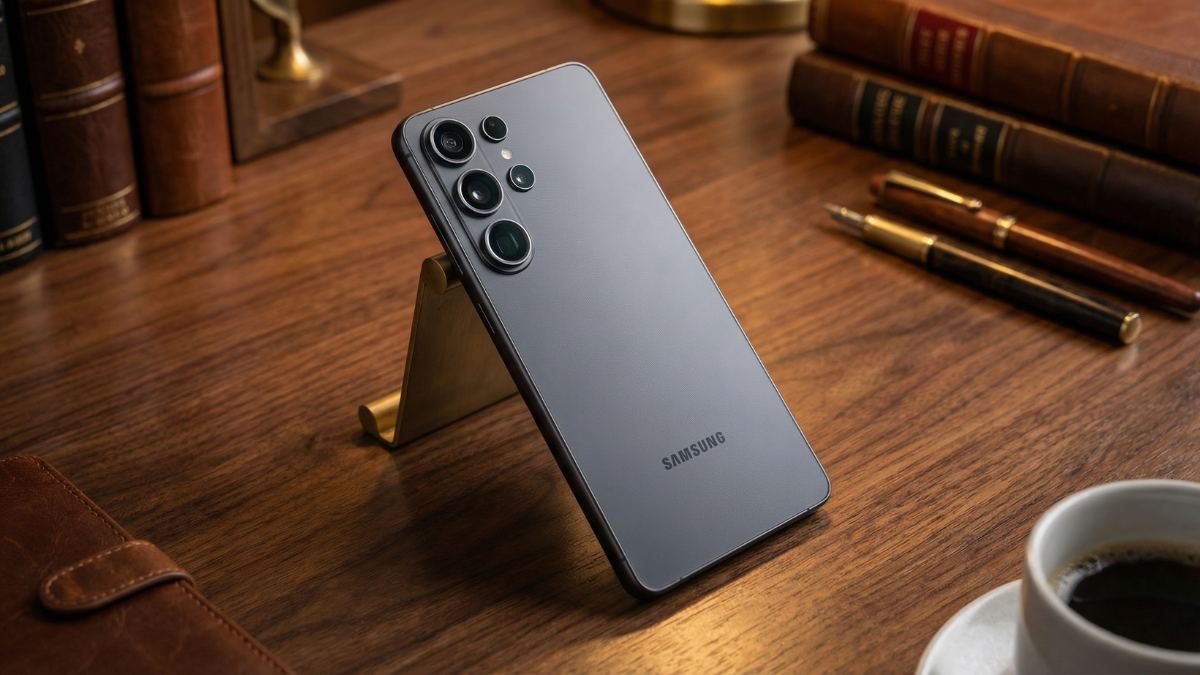
There is one more thing you need to know about how the Galaxy S26 Ultra handles zoom.
Where Samsung’s Ultras have always dropped the ball is the 3x camera. With its 10MP resolution, it can’t even record true 4K video, and it’s historically been poor in low light. This year, Samsung has actually shrunk the sensor, dropping the pixel size from 1.12 microns to 1 micron, resulting in a tiny 1/3.94 inch size.
Let that sink in. The 3x telephoto on a $1,299 phone got a smaller sensor this year. Not bigger. Smaller.
When you zoom to 3x in low light, you are relying on a 10MP sensor with a 1/3.94 inch sensor area. That is smaller than some budget phones’ main cameras.
The practical advice here is simple: in low light, skip 3x entirely. Shoot at 1x or jump straight to 5x where the larger 50MP sensor and the new wider f/2.9 aperture give you significantly better results.
The Zoom Levels Explained Simply
| Zoom Level | What Actually Happens | Lens Used | True Optical? |
|---|---|---|---|
| 0.6x | Ultrawide camera | 50MP ultrawide, f/1.9 | Yes |
| 1x | Main camera | 200MP main, f/1.4 | Yes |
| 2x | Crop from 200MP main sensor | 200MP main (cropped) | No, “optical quality” |
| 3x | Dedicated 3x telephoto | 10MP telephoto, f/2.4 | Yes |
| 5x | Dedicated 5x periscope | 50MP periscope, f/2.9 | Yes |
| 10x | Crop from 50MP periscope sensor | 50MP periscope (cropped) | No, “optical quality” |
| 30x | Digital zoom from 5x sensor | 50MP periscope + AI | No, digital |
| 100x | Heavy digital zoom + AI Space Zoom | 50MP periscope + AI | No, digital |
What Samsung Got Right Despite the Marketing
Let me be fair. The Galaxy S26 Ultra zoom system is not bad. It is actually very good in the right conditions.
The Samsung Galaxy S26 Ultra offers a refined zoom experience, with the telephoto module delivering cleaner images thanks to improved noise control and more natural rendering.
Samsung has also addressed several of the sporadic telephoto issues seen on the S25 Ultra, resulting in a more reliable performance overall.
The wider f/2.9 aperture on the 5x telephoto is a real improvement.
The 200MP main camera went from f/1.7 to f/1.4, and the 5x zoom 50MP telephoto camera went from f/3.4 to f/2.9. According to Samsung, the wider apertures allow another 47% and 37% more light into the sensors, respectively.
And Samsung’s ProScaler AI processing genuinely helps at extended zoom ranges.
It’s particularly effective for digital zoom shots where pixelation is usually noticeable, seeing that ProScaler upscales the shot to make it appear significantly more detailed and natural.
The hardware is good. The software processing is improving. The problem is not the camera system. The problem is calling a digital crop “optical quality” and burying the tools that make the biggest difference inside a separate app that does not come preinstalled.
My Honest Take
After two weeks of zoom testing at GTP, here is the bottom line.
The Galaxy S26 Ultra’s zoom system is excellent at 1x and 5x. It is solid at 2x and 10x in daylight. It starts falling apart at 30x and beyond, and 100x Space Zoom is more of a party trick than a photography tool.
But here is what frustrates me. Samsung ships this phone with Camera Assistant uninstalled, Auto lens switching turned on by default, and the 24MP mode completely hidden. The three settings that would make the biggest difference to your zoom photos are all buried behind extra steps that most people will never take.
If you just bought a Galaxy S26 Ultra, do these three things today. Download Camera Assistant from the Galaxy Store. Turn off Auto lens switching. Enable 24MP mode and toggle “Keep 24 MP resolution” so it sticks.
Your zoom photos will look noticeably better. Not because the hardware changed. Because you finally told the phone to use what it already has.