Google just shipped a native Desktop mode to every Pixel 8 and newer phone with the March 2026 Pixel Drop. Plug in a monitor, pair a keyboard, and your phone becomes a PC. After a week of using it as my daily work machine, here is how to set it up, what works, what does not, and the 5 things Google still needs to fix.

This Is Not a Beta Anymore
Let me be clear about what changed this month.
Pocket-lint wrote about Android 16’s new native desktop computing environment back when it first shipped experimentally in QPR1 Beta 2 last July. Now, with the release of QPR3, desktop mode is available in stable form without the need to jump through any hoops or tinker with Developer Options within Settings.
I am Ameer Hamza, and at Global Tech Press, we have been testing Android 16 desktop mode since the first beta last year. But this is the first time it works out of the box without any developer toggles on the stable build.
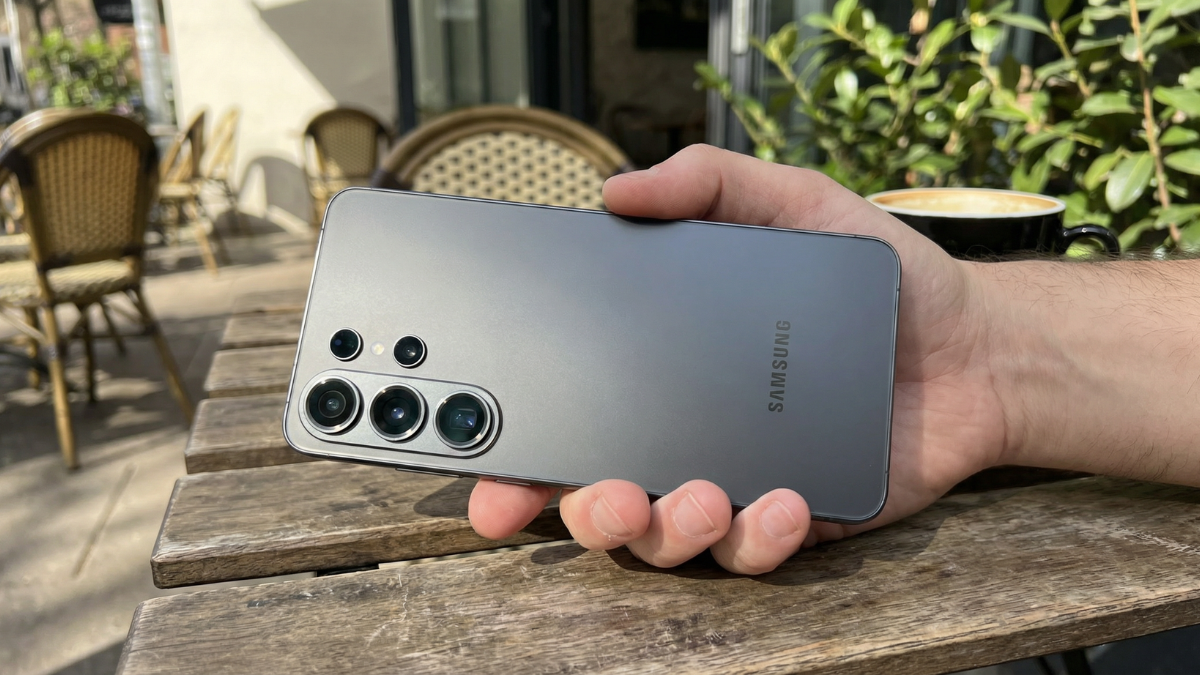
Google is finally rolling out a proper, native desktop mode to all eligible Pixel devices with the Android 16 QPR3 update and its connected display support. The feature allows users to transform their phones into a desktop environment. Currently available on Pixel 8 and newer devices, the feature supports free form windows, taskbars, and multi monitor setups.
You may remember that Samsung users have enjoyed something similar with DeX since 2017. It has been confirmed that Android 16’s Desktop Mode feature is built on top of Samsung DeX’s foundations. During the Google I/O 2025 Developer Keynote event, Google confirmed on stage that Android 16’s Desktop Mode is “built on the foundations of Samsung DeX.”
This is a genuine milestone. For the first time, every Pixel owner has access to a desktop experience without needing a Samsung phone.
What You Need Before Starting
Here is the complete hardware checklist. Do not skip this.
Desktop Mode requires a Pixel device that supports DisplayPort Alt Mode over USB-C. Pixel 8 series and newer Pixel models that include DisplayPort Alt Mode are required. Earlier Pixel models without DP Alt Mode cannot output video to an external display.
That means the Pixel 7, Pixel 6, and older phones cannot use this feature at all. The hardware simply does not support video output over USB-C.
Compatible Devices
The list of devices receiving the update is extensive: Pixel 6, 7, 8, 9 and 10 families, various Pro variants, “a” models, Pixel Fold and Pixel Tablet. However, the full featured desktop experience is currently reserved for the Pixel 8 and above range.
Hardware You Will Need
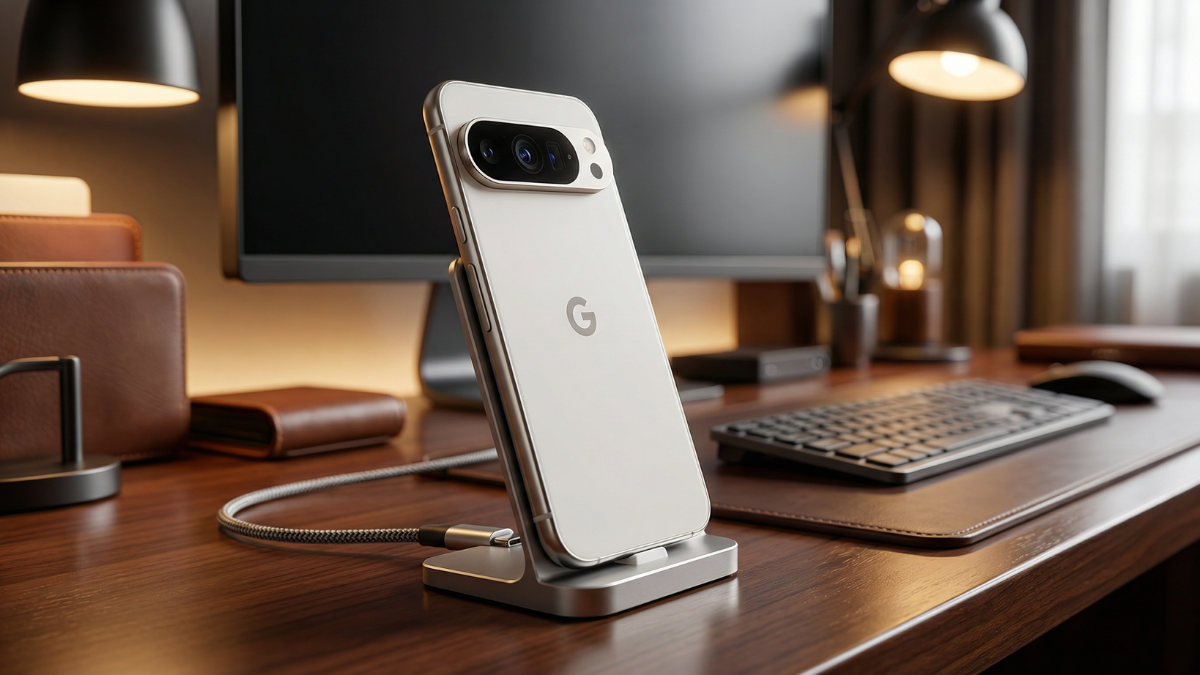
The setup is simple: connect your phone to an external monitor via USB-C, add a Bluetooth keyboard and mouse, and the external display shows a proper desktop with a taskbar, resizable app windows, and an independent phone screen.
You need a USB-C to HDMI adapter or a USB-C hub with HDMI output. Charge only USB-C cables do not support video output. Make sure your cable or hub specifically supports DisplayPort Alt Mode.
Supported Pixel devices may output up to 4K 60Hz, depending on hardware and monitor capability.
How to Enable Desktop Mode: Step by Step
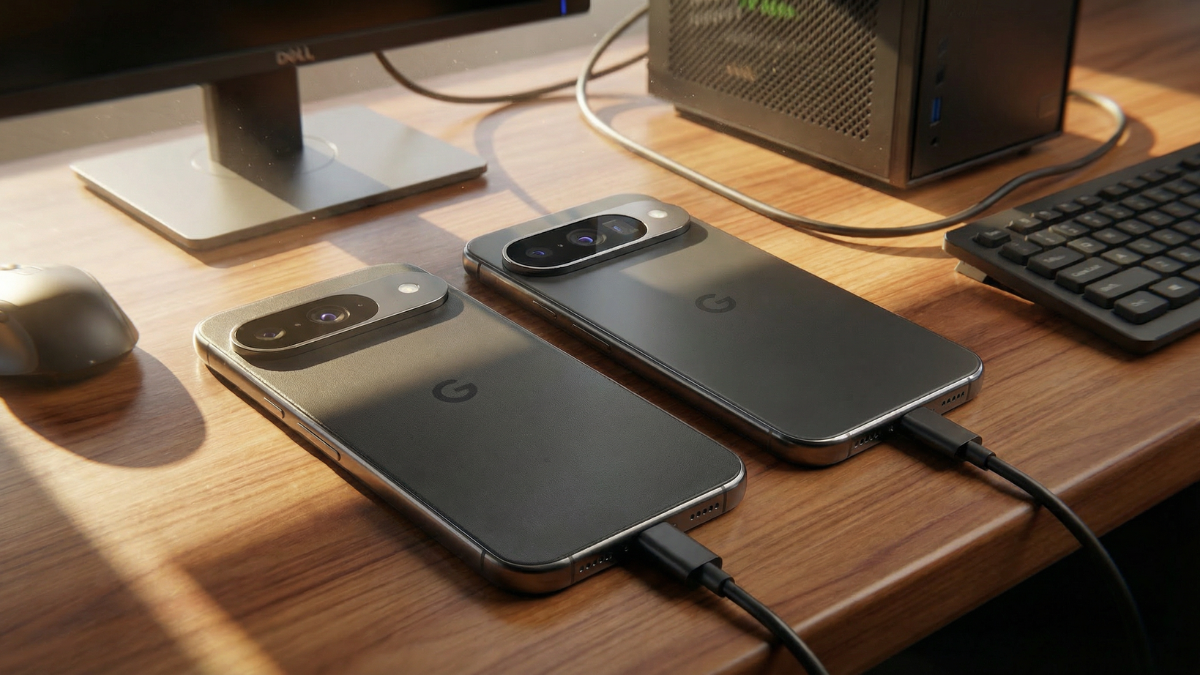
Here is the good news. Compatible Pixel users can now access it without needing to enable Developer Options.
On the March 2026 stable build (Android 16 QPR3), simply plug your Pixel into a compatible monitor. When connected, your phone will show a prompt asking whether you want to connect to the external display as Desktop or Mirror.
Select Desktop. That is it.
If Desktop Mode Does Not Appear Automatically
If you are running an older Android 16 build, or if the prompt does not appear, you will need to enable it manually through Developer Options.
Open the Settings app, go to About phone, and tap Build number seven times to enable Developer options. In Developer options, scroll down to the Window management section. Enable three toggles for Force activities to be resizable, Enable non resizable in multi window, and Enable desktop experience features. After enabling the final toggle, you will be prompted to reboot your device. That’s it. Android desktop mode is now enabled on your device.
If Desktop Mode does not activate after enabling these settings, restart the phone before connecting to the external display.
What the Desktop Experience Actually Looks Like
Once connected, here is what you see on the monitor.
As soon as you connect your Pixel to an external monitor and select Desktop mode, you are greeted with a completely new Android experience on the larger screen. At the bottom of the screen, there is a Windows like taskbar with icons to open the app drawer and your Pixel’s docked apps from the home screen already pinned in place. As you open more apps, they appear next to the dock separator, similar to how running apps show up on macOS and Windows. In the lower right corner of the display, you will find the familiar three button navigation controls for Back, Home, and Recents.
You can work with documents on the monitor while your phone display does its own thing entirely.
That last part is key. Your phone screen keeps working independently. You can reply to messages on your phone while editing a document on the monitor.
Performance: How Well Does It Actually Run?
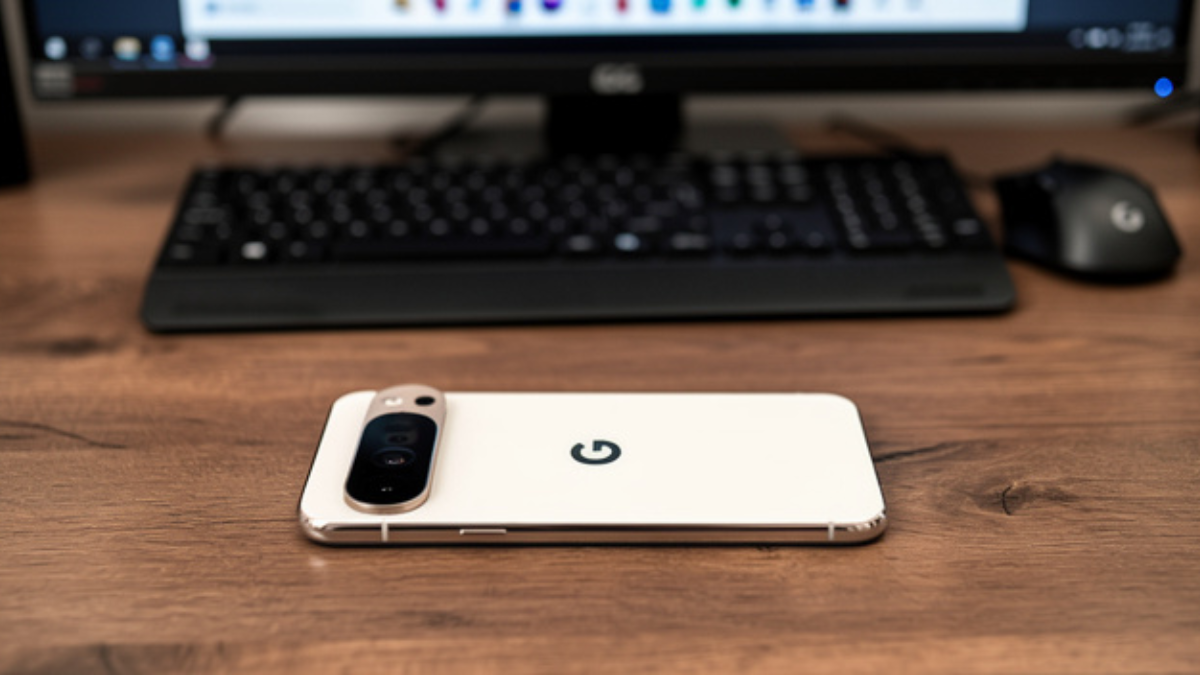
This is the part that surprised me the most during our testing at GTP.
Google’s Tensor G4 inside the Pixel 9 series might not be the fastest chip around, but it’s more than capable of handling just about everything on a daily basis. It turns out that it also has enough juice to get some serious work done in a PC like setup. Messaging, browsing multiple tabs, editing Google Docs — all no problem. Heavyweight spreadsheets did not break it. Lightroom also ran smoothly, handling photo edits just like it does on the phone.
What surprised me the most was how all of this ran smoothly through my Pixel 10 Pro while driving a 27 inch LG monitor without heating up, which was genuinely impressive. Apps don’t just run in phone sized windows — they often open in their tablet or foldable layouts, which fit naturally into a desktop setup. Chrome, Maps, Calendar, and even some non Google apps looked and felt right at home in a PC environment.
What Happens When You Unplug
Apps keep running on your phone once you unplug from the desktop. Chrome tabs, documents, and even games remain open and ready to resume where you left off.
The 5 Things Google Still Needs to Fix
After a full week of daily use, I hit real limitations. Here is what is still missing.
1. No Desktop Widgets or Shortcuts
The desktop is entirely off limits in the current version of desktop mode. You can’t put widgets, shortcuts, or apps on it.
The desktop background is just a wallpaper. You cannot place file shortcuts, app icons, or widgets on it like you would on Windows or macOS. Everything must be launched from the taskbar or app drawer.
2. No Phone as Trackpad
A small but appreciated feature of Samsung DeX is the ability to use your phone as a trackpad. As soon as the phone is connected to an external display, a notification that says “Use your phone as a touchpad” appears. All you have to do is tap it. Google’s desktop mode doesn’t have anything like this yet.
This means you need a physical mouse or trackpad. If you forget to pack one, you are stuck.
3. Shared Settings Create Problems
My one big complaint stems from Google’s key decision to share apps and settings across both phone and desktop — resulting in mild frustrations to outright inconveniences. Visual settings such as wallpaper, icons, color themes and dark mode remain identical in both environments.
There is no option to set an exclusive 16:9 desktop wallpaper that reverts to vertical format when you disconnect the cable. Screen Time adjustments also apply globally. A short timeout set for phone security, such as 30 seconds, forces frequent touches of the fingerprint sensor during display use.v
4. App Compatibility Is Still Uneven
App support is uneven — some apps shine in windowed mode, others default to phone layouts. Several apps can run at once, usually around five to seven, and two windows can be placed side by side, though the system still lacks advanced snap tools like those on Windows and does not offer the virtual trackpad style controls available in Samsung DeX.
5. Mouse Left Plugged In Causes a Bug
A mouse left plugged in causes a blank home screen after disconnection, leaving the device seemingly stuck in desktop mode.
Always disconnect your mouse before unplugging the monitor. This is a known bug that Google has not yet patched.
Desktop Mode vs Samsung DeX: Where Things Stand
| Feature | Pixel Desktop Mode (March 2026) | Samsung DeX (One UI 8) |
|---|---|---|
| First launched | March 2026 (stable) | 2017 (Galaxy S8) |
| Developer Options needed | No (on QPR3 stable) | No |
| Phone as trackpad | No | Yes |
| Desktop widgets | No | Yes |
| Separate wallpaper | No | Yes |
| Multiple workspaces | Yes (up to 4) | Yes |
| Wireless desktop | No | Yes (Miracast) |
| Mouse cursor across screens | Yes | Yes |
| Keyboard shortcuts | Basic (more coming) | Full |
| 4K 60Hz support | Yes | Yes |
| App snap/tile | Limited (side by side) | Full Windows style snap |
Compared to Google’s stock desktop mode, DeX still comes across as the more polished solution. That said, DeX continues to serve a niche user base.
The Bigger Picture: Aluminium OS
Here is why desktop mode matters beyond just plugging your phone into a monitor.
Google has begun full throttle development of Aluminium OS, the platform that’s expected to eventually replace ChromeOS and power upcoming Android PCs. Aluminium OS is meant to merge ChromeOS and Android into a single, unified operating system. The move is part of a broader strategy to eventually merge the best of Android and ChromeOS.
Desktop mode on your Pixel is not just a feature. It is the early preview of a future where your phone is your only computer. Google is building toward a world where you carry one device in your pocket and connect it to any screen for a full desktop experience.
We are not there yet. But after this week of testing, I can see the path clearly.
My Honest Take
After using it for a few days, I can see why it could eventually replace my Mac, or at least serve as a solid alternative for light computing on the go.
After a full week at GTP, here is the bottom line.
Android 16 desktop mode on the Pixel is genuinely useful for light productivity right now. Google Docs, Gmail, Chrome with multiple tabs, Lightroom, spreadsheets — all work well. The independent phone screen means you never lose access to your messages or calls while working.
But it is not ready to replace a laptop for serious work. The missing trackpad feature, the shared settings problem, the lack of desktop widgets, and the uneven app support all hold it back.
If you own a Pixel 8 or newer and you have a USB-C hub lying around, try it today. It takes less than a minute to set up, and what you see on that monitor will genuinely surprise you.
Just remember to unplug your mouse before disconnecting the monitor. Google still has not fixed that bug.