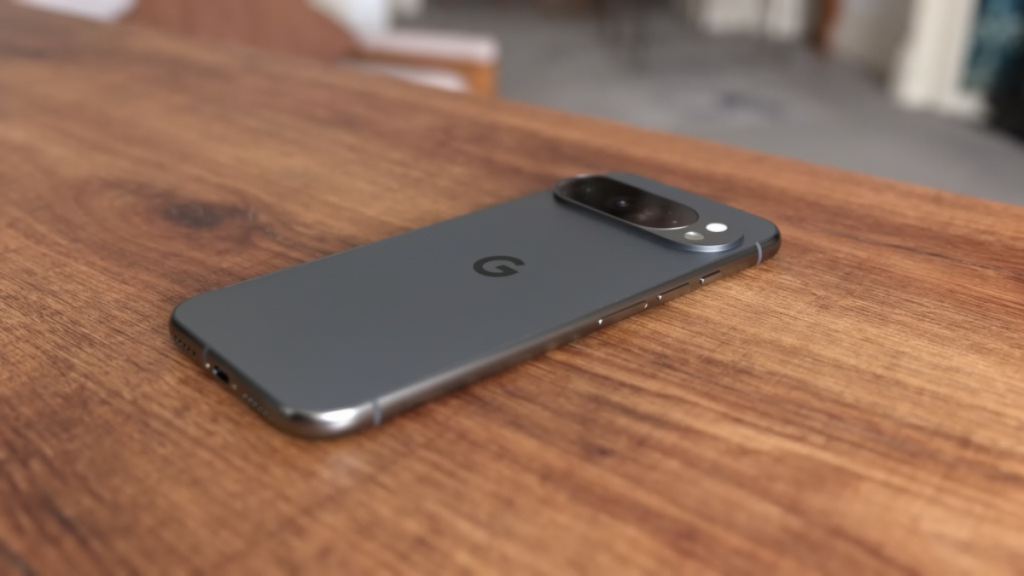
Your Pixel 10 is not imagining things. It is running warm because Google’s thermal management system has a verified 300,000 millisecond polling delay, which means your phone can hit 90 degrees Celsius before the software even checks the temperature.
On top of that, AI features like Magic Cue, Gemini, and Circle to Search run in the background constantly. Here is what is actually happening and which features to turn off right now.

The Thermal Config Error a Developer Found Inside the Pixel 10 Pro
Let me start with the technical discovery that started this entire conversation.
According to a recent GitHub entry, a user going by the handle marx161-cmd began digging into the vendor files of the Pixel 10 Pro to diagnose why their device was heating up significantly during heavy usage.
What they found appears to be a startling configuration choice, or error, in the device’s thermal management files. The developer alleges that a critical thermal sensor config, specifically VIRTUAL-SKIN-CPU-LIGHT-ODPM, has its PollingDelay set to 300,000ms.
What That Actually Means for You
I am Ameer Hamza, and at Global Tech Press, let me translate this into plain language.
If accurate, this means the Pixel 10 Pro could be running high intensity tasks for a full five minutes, generating excess heat and soaking the chassis, before the software realizes it needs to throttle performance to cool down. In the stock Android 16 firmware for the Pixel 10 Pro, the PollingDelay for critical thermal sensors is incorrectly set to 300,000ms (5 minutes).
This creates a massive “blind spot” in the system’s thermal management. During heavy workloads, the CPU can hit 90 degrees Celsius before the Thermal HAL even attempts to sample the temperature, leading to heat soak and potential long term battery degradation.

That is a five minute window where your phone is essentially flying blind on temperature. No other flagship in 2026 has this kind of delay.
Why Your Pixel 10 Feels Warm Even During Basic Tasks
The thermal config is only half the story. The other half is what your phone is doing in the background while you are just scrolling.
One Pixel 10 Pro owner on XDA Forums described the issue: “My Pixel 10 Pro gets warm during basic use, for example in the browser, social media, playing music in my pocket. I first suspected it was the modem, but it’s just as warm without a SIM. I have a S24 Ultra and it remains stone cold during all those activities. The Pixel feels significantly warmer.”
The Pixel’s identity has always been tied to doing more with software than hardware, and that philosophy comes with power costs. When your phone is constantly running AI models in the background, analyzing photos for the best shot, or processing natural language queries, the battery takes a hit. Performance trade offs exist. Intensive on device AI can significantly drain battery life, and powerful on device models can generate heat during extended processing.

This is the core problem. The Tensor G5 chip is designed specifically for AI workloads. Google has defended the Tensor by pointing out that it’s not designed to win benchmarks. Instead, Google’s silicon team works with Google Research to optimize each Tensor generation for a growing list of AI workloads that it feels will help differentiate Pixel from other phones.
That means your Pixel 10 is constantly running AI in the background, even when you are just reading a website.
The Base Pixel 10 Has Worse Cooling Than the Pro
Here is a detail most people miss.
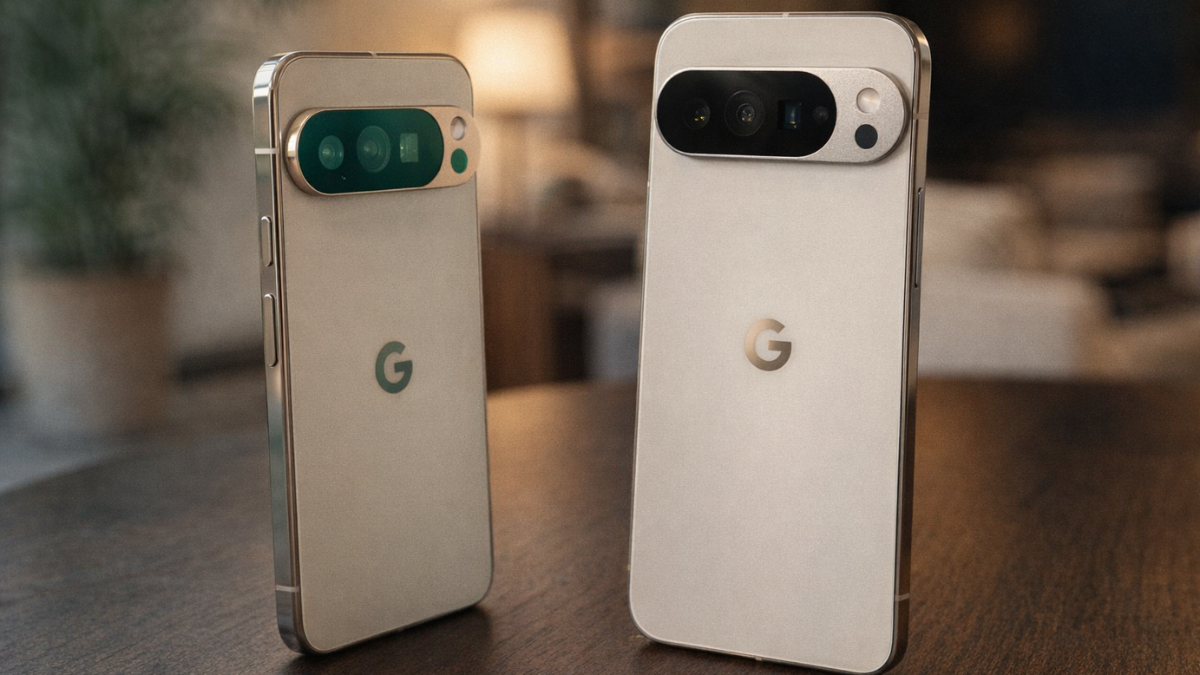
The entire Pixel 10 family ships with the more advanced Tensor G5, but the new chipset and the other components might perform quite differently depending on which model you purchase. This is because the company has given the ‘Pro’ versions preferential treatment by incorporating them with a vapor chamber, while the regular edition will just have a graphene thermal solution for heat transfer.
If you own the standard Pixel 10 (not the Pro or Pro XL), your phone has no vapor chamber. It relies entirely on a graphene sheet to move heat away from the Tensor G5. That same chip running the same AI features in a body with significantly less cooling capacity.

The Pixel smartphone range has always suffered from poor thermal performance, with the blame diverted towards a combination of Google sticking with Samsung’s foundry that utilized inefficient manufacturing processes and the lack of an elaborate cooling solution.
The Tensor G5 finally moved to TSMC’s 3nm process, which should help. But the base Pixel 10 still runs hotter than it should because of the inferior cooling hardware.
The Wireless Charging Overheating Problem
This is a separate issue that compounds everything above.
The first, and biggest, problem has to do with reports that wireless charging with the new ring stand leads to the phones hitting very high temperatures. One Pixel 10 Pro user reported that, after leaving their phone to charge on the Pixel Stand 2 overnight, they found it was like “touching the side of a kettle the next morning.”

It seems that the Pixel 10 series runs much hotter than the Pixel 8 and Pixel 9 did during wireless charging. There’s also inconsistent performance across a variety of wireless chargers, including third party Qi2 chargers and Google’s official stand.
If your Pixel 10 is overheating primarily during or after wireless charging, the AI settings below will help reduce background heat, but the charging heat is a separate hardware and software issue that Google needs to address.
7 AI Features to Disable Right Now to Reduce Heat
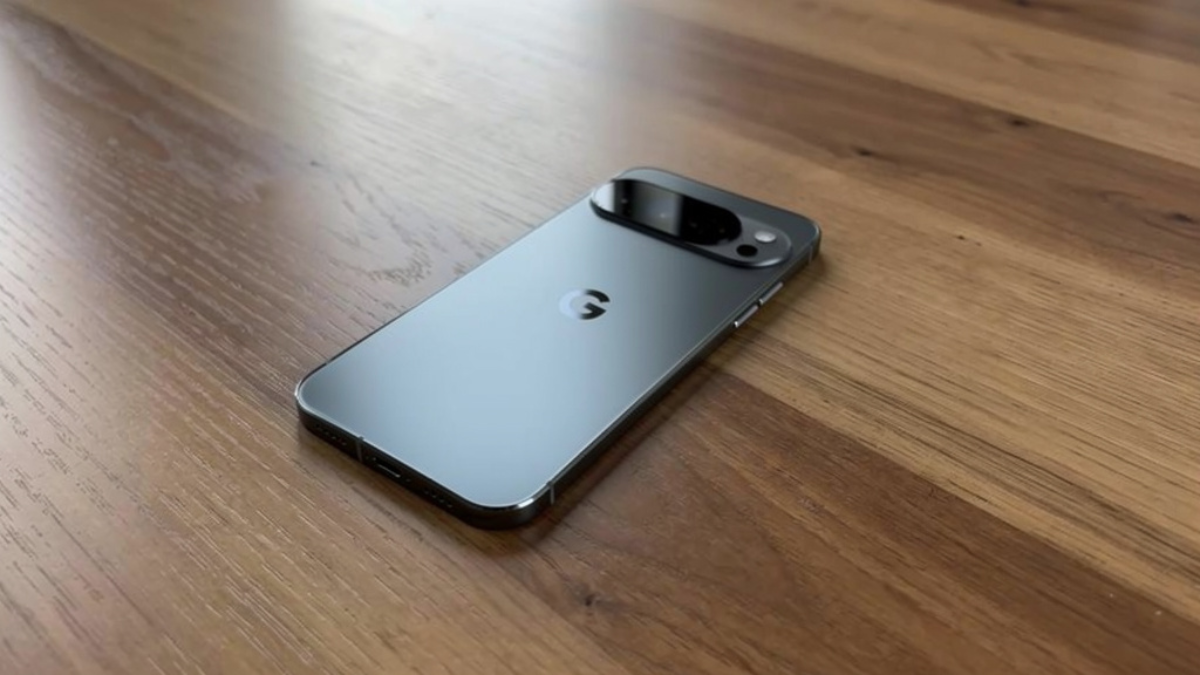
A lot of AI features are baked into the interface, so disabling them isn’t quite straightforward. This is doubly so with Pixels, as Google integrates AI assisted features into most of its utilities, including the Phone dialer, Messages, Google Photos, and Gmail.
Since everyone has a different set of features they find helpful, disabling the AICore and all AI services on your Pixel smartphone is not the ideal decision. Doing so completely turns off AI on your Pixel device, meaning you will no longer be able to use even the AI features you enjoy. The better approach would be to manually disable only the AI features you find annoying, one by one.

Here are the 7 features that run in the background and generate the most unnecessary heat:
1. Magic Cue
Magic Cue is a new addition that provides contextual information based on what you’re doing on your Pixel. It leverages AI and runs in the background. Go to Settings. Navigate to the Magic Cue sub menu. Toggle everything to off to prevent the feature from accessing your data.
The number of times it has failed is significantly higher than the number of times it has succeeded. That’s why one reviewer has permanently disabled the Magic Cue feature on their Pixel 10 smartphone. If you want to disable it on your device as well, open the Settings app, select “Magic Cue,” and turn off all the toggles.
Magic Cue constantly scans your Gmail, Calendar, Messages, and Screenshots in the background using Gemini Nano. If you do not use its suggestions regularly, turning it off removes a significant background processing load.
2. Circle to Search
Disabling it is thankfully pretty quick: Go to your Pixel’s Settings. Scroll down to the System sub menu. Select Navigation mode. Toggle Circle to Search to disable the mode.
Circle to Search is embedded into Android. Even though you disable it, it’s not an app you can uninstall, and even after removing it, you will still see some elements running in the background.
3. Gemini in Messages
Go to Messages. Select your profile photo. Select Messages settings. Go to Gemini in Messages. Toggle Show Gemini button to disable the mode.
4. Camera Coach
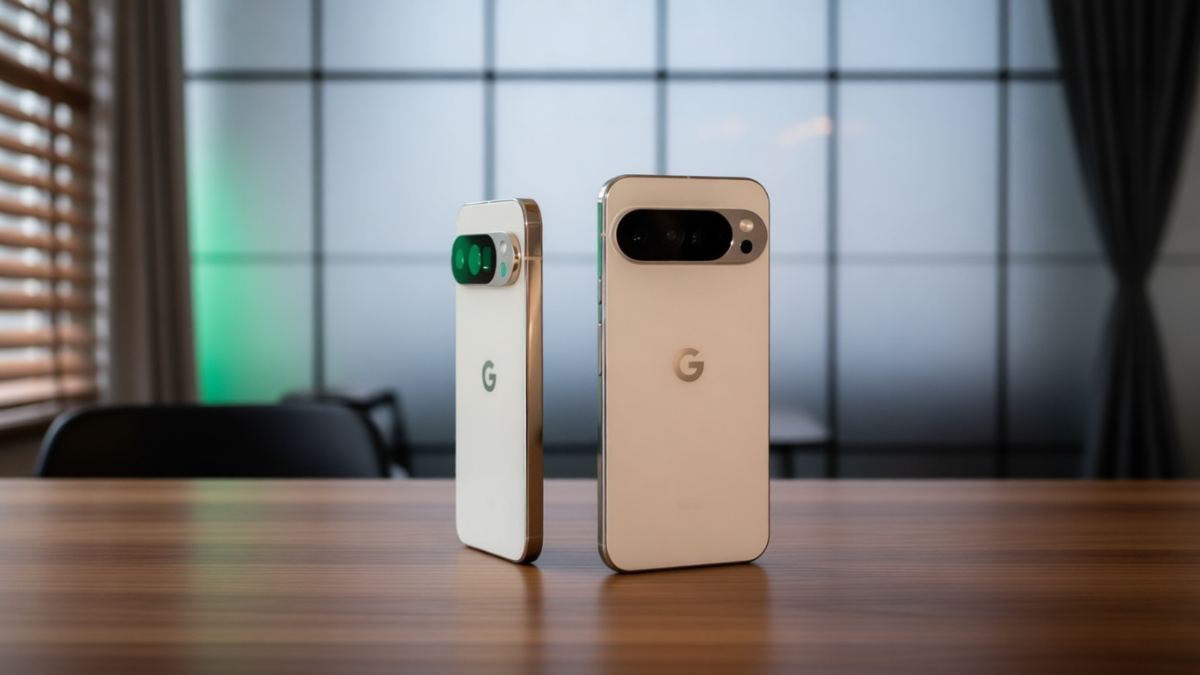
To do this, open the Camera app, tap the gear icon at the bottom left corner, and then tap the three dots in the Photo Settings pop up window. Finally, disable the “Camera Coach (Preview)” toggle.
Camera Coach uses real time AI analysis every time you open the camera. If you already know how to compose a photo, turning this off reduces heat during extended camera use.
5. AI Mode in Google Search Bar
Pixels have a Google search bar located at the bottom of the home screen, and with the Pixel 10, the AI Mode button is integrated into the bar. This is what you need to do to disable it: Select the G icon in the search bar. Tap your profile photo. Go to Settings. Choose Customize Pixel search box. Toggle AI Mode to off.
6. Gemini (the Full Assistant)
It comes pre installed on latest Pixels, and cannot be uninstalled as a result. If you don’t see yourself using Gemini, you can disable it, that’s the closest you can come to uninstalling it.
Go to Settings, then Apps, then All apps, find Gemini, and tap Disable. This reverts your assistant to the lighter weight Google Assistant, which uses fewer background resources.

7. Pixel Screenshots AI Search
Launch the Pixel Screenshots app. Tap the cog icon in the upper right corner. Tap the Search your screenshots with on device AI toggle button.
Pixel Screenshots uses Gemini Nano to analyze every screenshot you take and make it searchable. If you do not use this search feature, disabling it stops unnecessary background AI processing.
The Battery Life Improvement Is Real
One Android Authority reviewer who disabled all AI features noted: “I couldn’t track it rigorously since I had limited time with this setup, but the gains were in the 10 to 15% range, which was noticeably better than usual. More importantly, the phone just felt quieter. No unnecessary alerts, no screen lighting up every half hour with nudges I didn’t need.”
A 10 to 15% battery improvement from disabling unnecessary AI features is significant. On a Pixel 10 Pro XL with a 5,200mAh battery, that translates to roughly 45 to 75 minutes of additional screen on time per day.

The trade off is real, though. The lack of AI smarts was annoying at first, then it got frustrating enough to slow down the regular day. Simple things took twice the time, especially without Gboard’s assistive typing. And that’s when it hit: AI isn’t just Gemini or the ChatGPT app. It’s ambient.
That is why I recommend disabling only the features you do not use, not all of them.
Check Your Phone’s Temperature Right Now
Google has a built in temperature check that most people do not know about.
Open your phone’s Settings app. Tap Battery, then Battery diagnostics, then Phone is very warm.
This will show you real time temperature data and suggestions for cooling down your device. If your Pixel 10 consistently shows elevated temperatures during basic use, the AI feature adjustments above should help.

If your phone feels warm, you shouldn’t be too concerned. Your phone can get warm if you play videos, games, or other media.
Normal warmth during heavy tasks is expected. Warmth during basic browsing, social media, and music playback is not.
The Developer’s Root Fix: Proceed With Extreme Caution

For advanced users who are comfortable with rooting, the developer marx161 created a Magisk module that reduces the thermal polling delay from 5 minutes to 5 seconds.
The module overlays a modified thermal_info_config.json file that makes the following aggressive changes: Reduces polling delay from 300,000ms (5 minutes) to just 5,000ms (5 seconds). Adds a hard threshold at 65 degrees Celsius to force earlier thermal management. Adjusts the passive delay to prevent the CPU frequency from bouncing erratically.
However, there is a critical warning.
A recent background Google Play System Update (January 2026) has introduced SELinux policy changes that may cause this thermal fix to trigger a bootloop. The developer is currently investigating the conflict and will update this repository with a fix as soon as possible. Use with extreme caution for now.
At GTP, we do not recommend rooting your daily driver phone. The AI feature adjustments listed above are the safer approach that does not risk bricking your device.
My Honest Take
It is an almost annual tradition at this point: a new Pixel launches, and shortly after, discussions about thermals heat up, literally.
The Pixel 10 overheating situation is a combination of two problems. The first is a potential thermal management configuration issue where the phone waits too long to check its own temperature. The second is the sheer volume of AI features running in the background on a chip designed specifically for AI workloads.
Google has not officially acknowledged the thermal polling delay. The developer who found it is the only person to have reported it publicly, and to date, he is the only one to come forward with this finding. No other such report from any other developer from the last 5+ years could be found.
So we need to be careful about treating this as confirmed. It could be a deliberate design choice by Google to prioritize sustained performance over aggressive throttling. It could also be that Google has deliberately kept this time limit to sustain peak performance for longer durations before the role of throttling comes into the frame.
But the user reports of warmth during basic tasks are real. The wireless charging heat issue is real. And the fact that AI features contribute to background processing heat is verified by multiple sources.
Disable the AI features you do not use. Check your battery diagnostics regularly. Avoid wireless charging overnight with the Pixelsnap Ring attached. Remove your case during heavy gaming or navigation sessions.
And wait for Google to address this properly. Because at $799 to $1,179, a phone that runs warm during basic web browsing in March 2026 needs a fix. Not just an Adaptive Thermal notification telling you it is hot. An actual fix.