You set up Android’s Private Space. You hid your banking apps. You locked it with a separate PIN. And then your phone quietly showed those exact apps as grayed out icons in your main app drawer under “Suggestions.” Here is the one default setting that defeats the entire purpose of Private Space, and how to fix it in under 30 seconds.

The Privacy Leak Hiding in Plain Sight
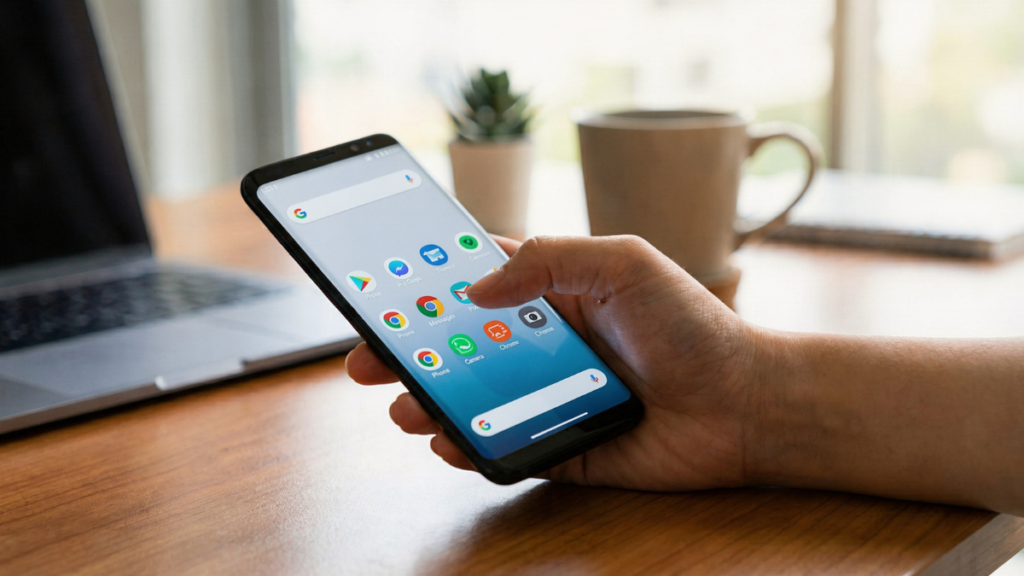
Android Police documented the problem clearly. When you use Private Space apps, they appear under the app suggestions menu in the app drawer. They show up as grayed out icons with a small lock badge.
That means anyone scrolling through your app drawer can see exactly which apps you put inside Private Space. Not the data. Not the content. But the names and icons of the apps you deliberately chose to hide.
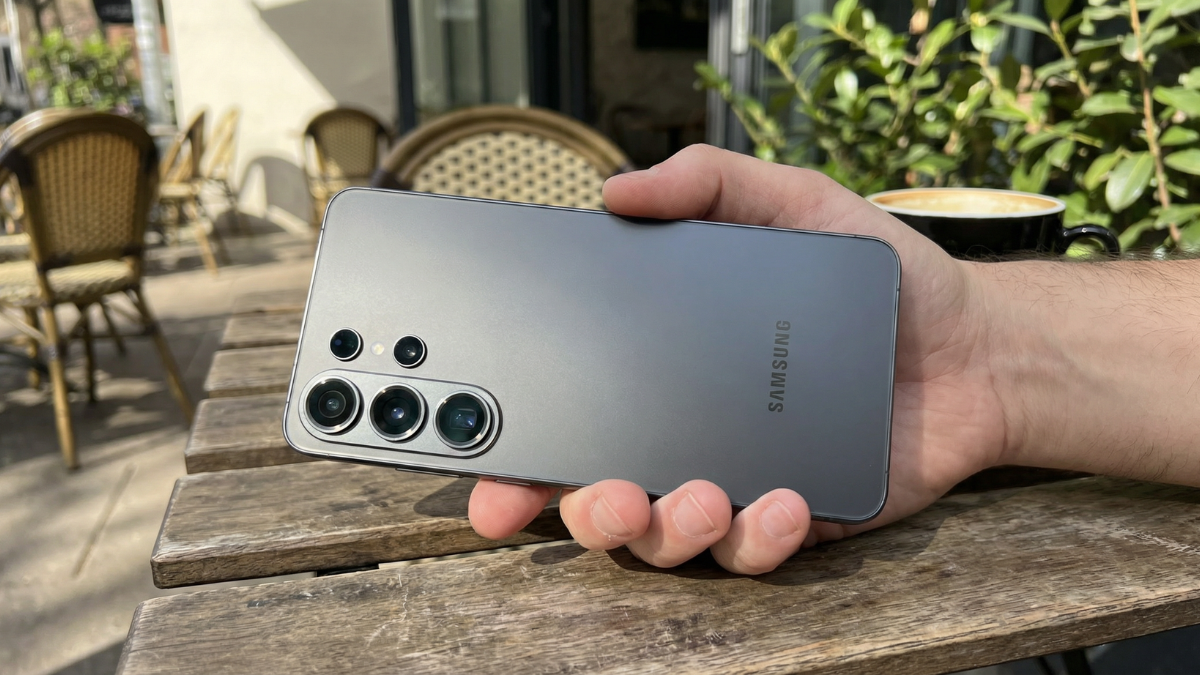
I am Ameer Hamza, and at Global Tech Press, we discovered this during our first week of testing Private Space on a Pixel 10 Pro. I had installed my banking app and a private messaging app inside Private Space, locked it, and assumed everything was invisible. Then I opened the app drawer the next morning and saw both app icons sitting right there in the suggestions row.
The fix takes 30 seconds.
How to Disable App Suggestions
Long tap the home screen to open settings. Scroll to Suggestions. Turn off the Suggestions in all apps list toggle.
That is it. Once disabled, your Private Space apps will no longer appear anywhere in the main app drawer, whether locked or unlocked.
What Private Space Actually Is (And What It Is Not)
Before going further, let me explain what Private Space does at a technical level, because there is a lot of confusion about this.
Private Space creates a dedicated directory for app data and media that is totally separate from your main profile. It’s truly like having a phone within a phone where private apps and data are totally separate from your main phone.
This is not a hidden folder. It is not an app locker. It is not a visual trick that hides icons. Private Space is a fully sandboxed Android profile with its own encrypted storage, its own Google account, and its own app installations.
When the space is locked, the private profile user is stopped, and when the space is unlocked, the user is started. Apps in the Private Space are installed as separate copies of the apps in the main space.
That means your Private Space version of WhatsApp and your main version of WhatsApp are two completely independent apps with separate logins, separate data, and zero interaction between them.
How to Set Up Private Space Correctly
Here is the step by step setup that most guides skip the important parts of.
Step 1: Create Private Space
On your Android device, open your device’s Settings app. Tap Security & privacy. Under “Privacy,” tap Private Space. To unlock, authenticate with your device screen lock. If you don’t have one, you’ll be asked to set up a device screen lock.
Private Space is available on devices running Android 15 and up with at least 6GB of RAM.
Step 2: Use a Separate Google Account
This is the step most people skip, and it is the most important one after the app suggestions fix.
If you want true separation from your personal Google account, meaning no “search suggestion” leaks that use data from your private data, or private apps showing up in your main Google Play account, you’ll want to use a separate Google account. Using a second Google account will also let you run multiple instances of apps like WhatsApp and Telegram if you’re trying to maintain separate profiles.

To help prevent unexpected leaks to your main space, it’s recommended that you use a dedicated Google Account for your Private Space that hasn’t been signed in elsewhere.
If you use the same Google account for both spaces, your Google activity history, app downloads, and search suggestions can cross contaminate.
Step 3: Set a Different Lock
You can use the existing screen lock or choose another one. For maximum security, use a different PIN or password than your main device lock. If someone knows your phone’s PIN, they should not automatically have access to your Private Space.
Step 4: Hide Private Space Completely
If you want to be extra careful and hide the app drawer entry that says “Private”, you can go to Settings, then Security & Privacy, then Private Space, then Hide Private Space, then toggle it On.
Then, in order to bring up Private Space, you’ll have to search your app drawer for “private space” to reveal it. Nobody scrolling through your phone will even know the feature exists.
Step 5: Disable App Suggestions (The Critical Fix)
Long tap the home screen to open settings. Scroll to Suggestions. Turn off the Suggestions in all apps list toggle.
Without this step, your hidden apps are not truly hidden.
The Android 16 QPR2 Upgrade That Changes Everything
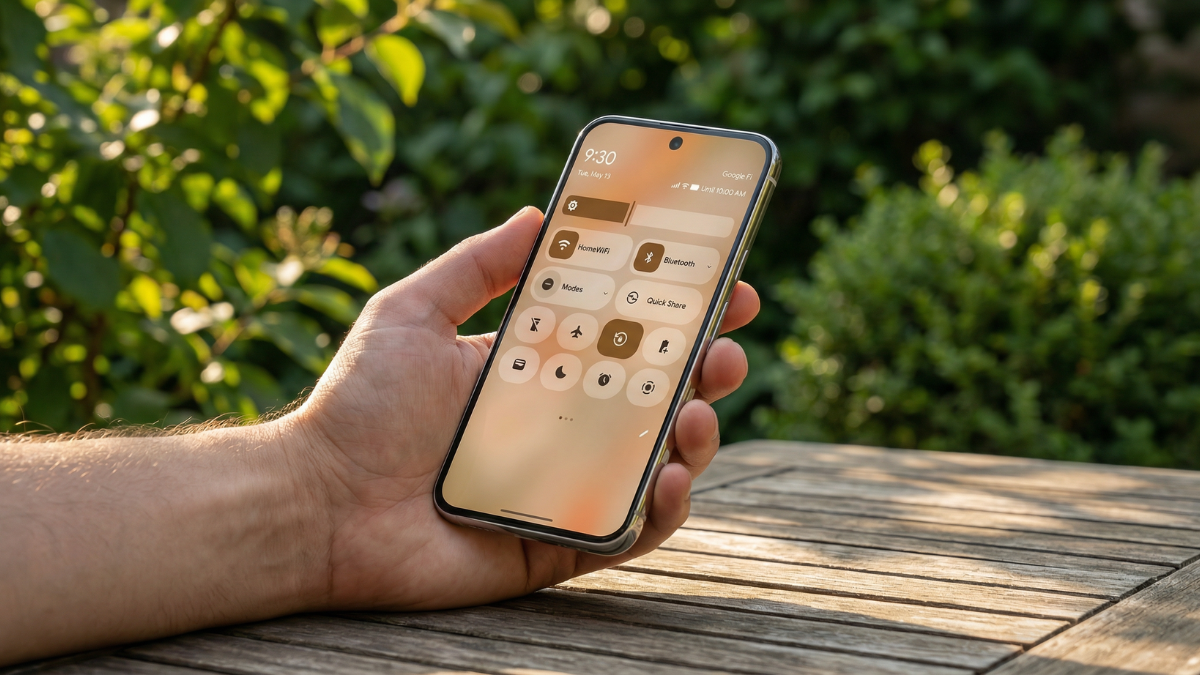
Android 16 brought a major quality of life improvement to Private Space that arrived with QPR2.
Android 16 QPR2 lets users import files and photos directly into their Private Space from the main profile. The flow is initiated from an Add files shortcut of the Add button in the launcher, which uses a new system app to let users move or copy selected files into the Private Space Downloads folder.
Before this update, moving files into Private Space was frustratingly complicated. You either had to download them fresh from inside Private Space or use the share menu and then manually delete the originals.
Now you can tap Add, then Add files, browse your main storage, select what you want, and choose to either copy (keeping the original) or move (deleting the original from your main profile).
The transfer is limited to 100 files or 2GB at a time. The file transfer is managed by a new system component that runs as a foreground service only within the private profile, ensuring the process is secure and reliable.
Samsung Users: Secure Folder vs Private Space
If you use a Samsung phone, you have a similar feature called Secure Folder. But the two are not identical.
Using a similar framework but not as robust, Samsung’s Secure Folder lets you silo key files and apps, but doesn’t let you associate a separate Google account with the private apps. To enable this on your Samsung phone, go to Settings, then Security & Privacy, then More security settings, then Secure Folder.
The key difference is that Private Space creates a fully separate Android profile with its own encrypted data directory. Secure Folder operates within your existing profile, which means it shares the same Google account and some system level data.
For Samsung users running One UI 8 on Android 16, the Secure Folder has been integrated with the native Private Space architecture, giving you the best of both approaches.
The 5 Limitations You Need to Know
Private Space is powerful, but it has real limitations.
No backups. Any on device data for Private Space isn’t backed up. When you set up a new phone, you have to create a fresh Private Space from scratch.
No background activity when locked. As soon as you lock the Private Space, the protected apps have their background activity paused, which means you will no longer see any notifications from them. Do not put medical alert apps or health monitoring apps inside Private Space.
VPN bypass. Private Space apps bypass virtual private network (VPN) on the device. If you rely on a VPN for all your traffic, be aware that Private Space apps may not route through it.
No Quick Share reception. You cannot receive files via Bluetooth or Quick Share directly into Private Space. You have to use the file transfer method described above.
Performance on older devices. Since Private Space is essentially running a second user profile, it consumes extra device resources, which might not be a problem for newer hardware, but if you are running an older Pixel, like the 7 or below, you might notice a performance impact.
Which Apps Belong in Private Space?
Based on our testing at GTP, here is what works best inside Private Space.
Banking and finance apps benefit the most. The isolation prevents other apps from accessing your financial data, and the separate Google account means your banking activity does not appear in your main profile’s search suggestions or app history.
Private messaging apps like Signal, Telegram, or a second WhatsApp account work well because Private Space lets you run duplicate instances with separate logins.
Sensitive documents and photos can now be moved directly into Private Space using the QPR2 file transfer feature.
Apps you do not want others to see when they borrow your phone. Whether work related, personal, or simply something you prefer to keep to yourself, Private Space ensures casual observers see nothing.
My Honest Take
Private Space in Android is the best security feature you’re not using. That is MakeUseOf’s conclusion from their March 2026 deep dive. And after months of daily use at GTP, I agree.
But the feature ships with a default that undermines itself. The app suggestions leak is real, documented by Android Police, and fixable in 30 seconds. The fact that Google has not turned off suggestions for Private Space apps by default is a genuine oversight.
Once you disable that one toggle, use a separate Google account, set a unique PIN, and hide the Private Space entry from your app drawer, you have one of the most secure privacy tools available on any smartphone in 2026. It is not perfect. The backup limitation is frustrating. The VPN bypass is a concern for security conscious users. And the notification silence when locked means this is not suitable for every app.
But for banking, private messaging, sensitive documents, and anything you simply do not want visible when someone borrows your phone, Private Space is the answer. You just need to set it up correctly.
And that starts with turning off one toggle that Google left on by default.