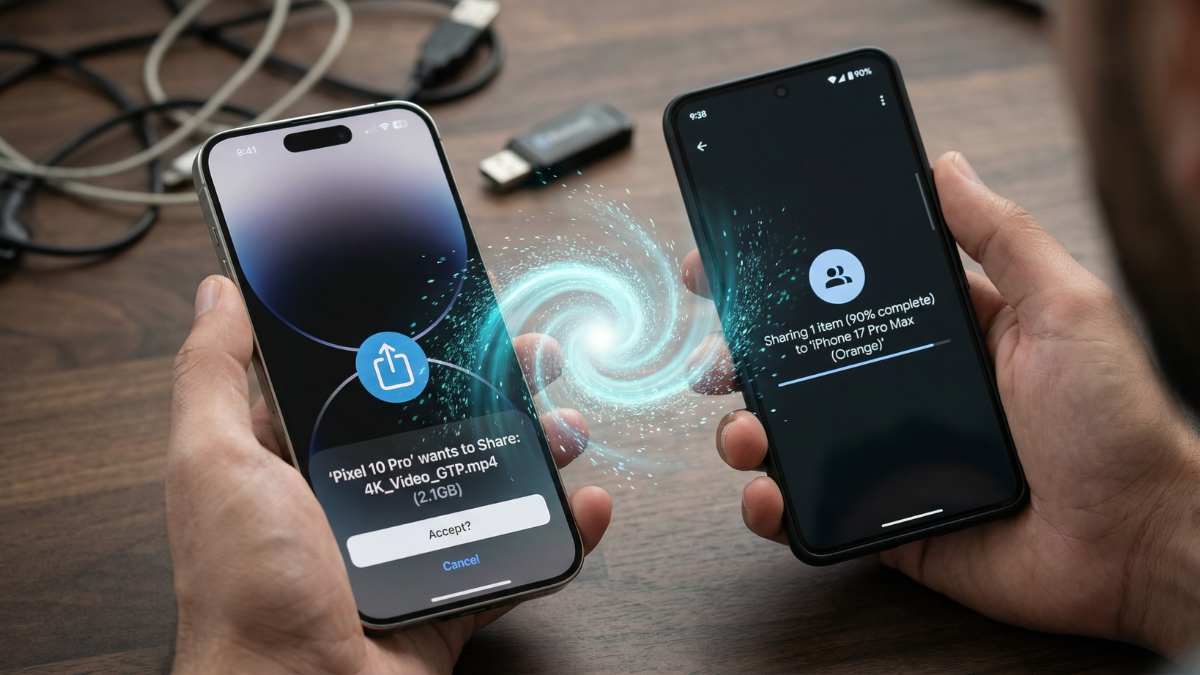
Google just expanded Quick Share to work directly with Apple’s AirDrop. You can now send photos, videos, and documents from your Android phone to any iPhone, iPad, or Macwithout installing any app on either device. No cloud. No email. No cables. Direct, encrypted, peer to peer transfer. And most people are still sending files over Bluetooth at a fraction of the speed. Here is how to set it up in under two minutes.

Quick Share Now Works With AirDrop. This Is Not a Drill.
I am Ameer Hamza, and at Global Tech Press, we have been testing Quick Share’s AirDrop interoperability since it first landed on the Pixel 10 in November 2025.
In late 2025, Google released a new Android update that allowed Pixel 10 users to send files to iPhone through Quick Share. After introducing on the Pixel 10 last year, Google is expanding Quick Share support with AirDrop to the Pixel 9, 9 Pro, 9 Pro XL, and 9 Pro Fold.
And it is not stopping at Pixel.
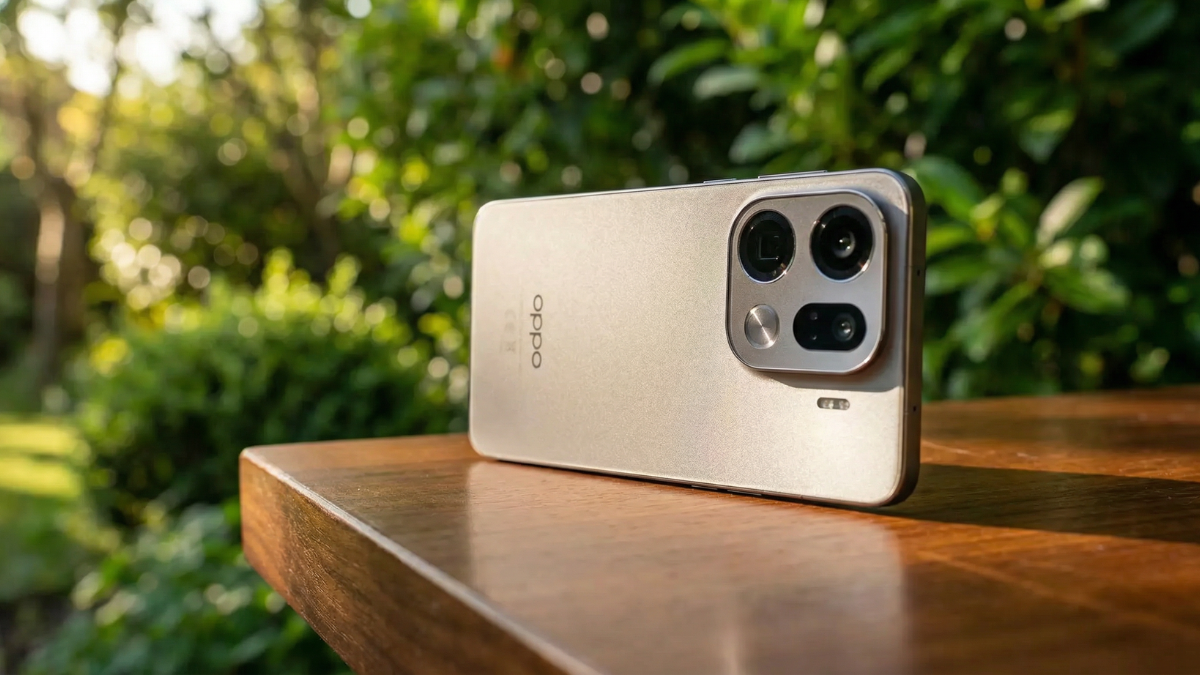
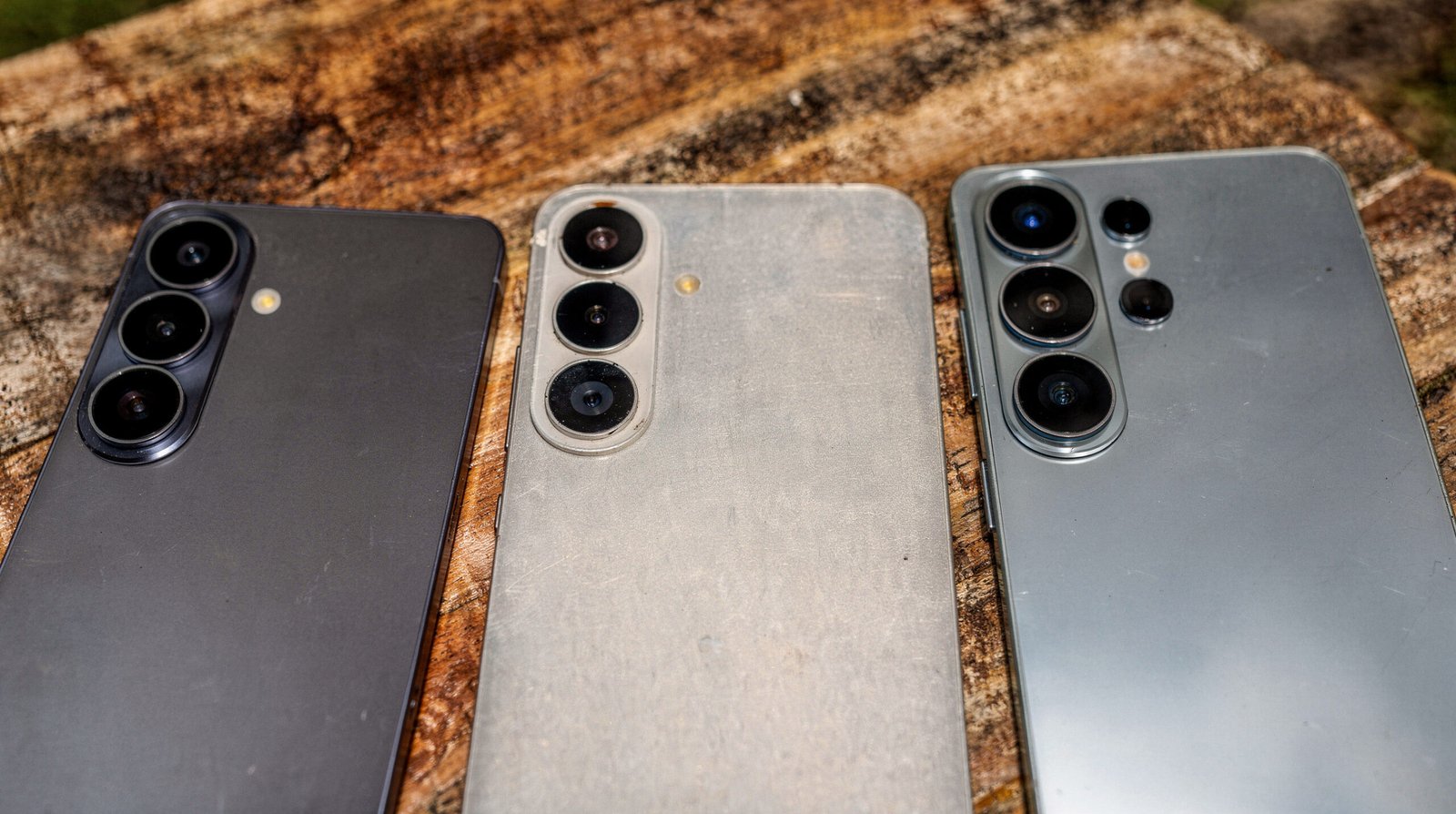
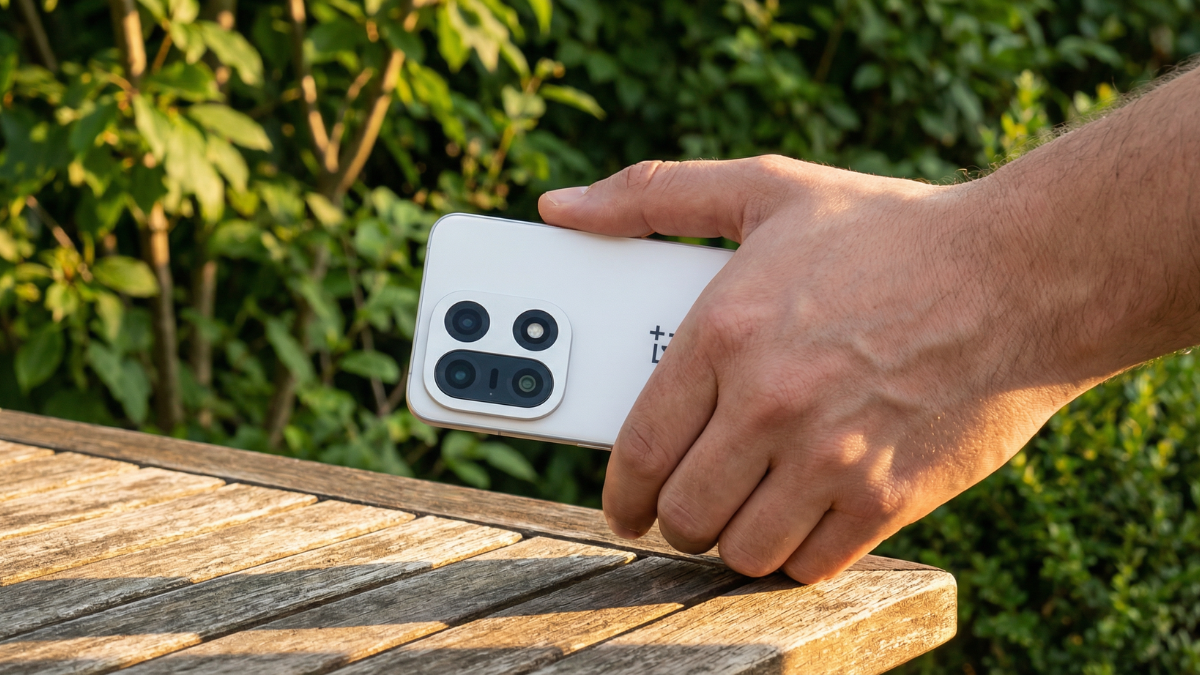
Oppo shared that it plans to bring AirDrop over Quick Share support to its Android phones starting later in March. Coming soon, Oppo’s Find X9 Series will bring Android Quick Share, enabled in close collaboration with MediaTek and Google. With evidence of Samsung also preparing support for AirDrop over Quick Share on the Galaxy S26 series having also recently surfaced, it seems possible that a broader rollout is on the horizon.
How It Actually Works: No Apps Needed on Either Side
This is not a workaround. This is not a third party bridge.
The connection is direct and peer to peer, meaning your data is never routed through a server, shared content is never logged, and no extra data is shared. Quick Share lets you send files between Android phones, tablets, Chromebooks, and Windows PCs. And with supported Android devices, Quick Share also works with Apple’s AirDrop to share files with iPhones.
Step by Step: Android to iPhone
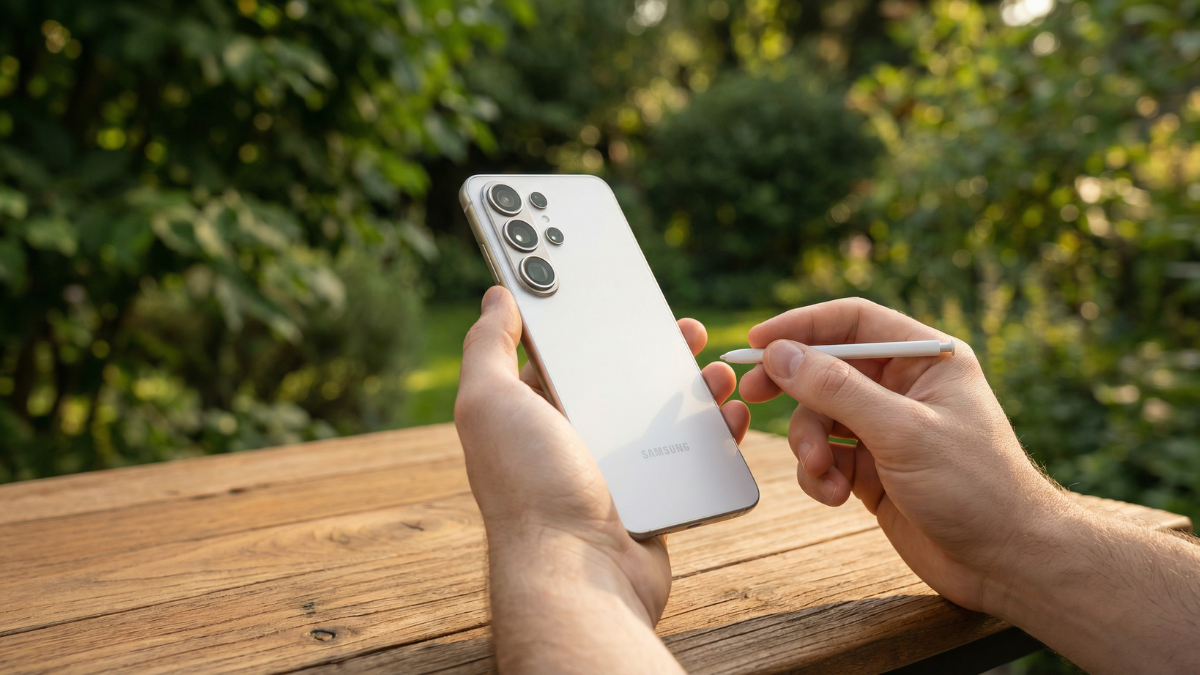
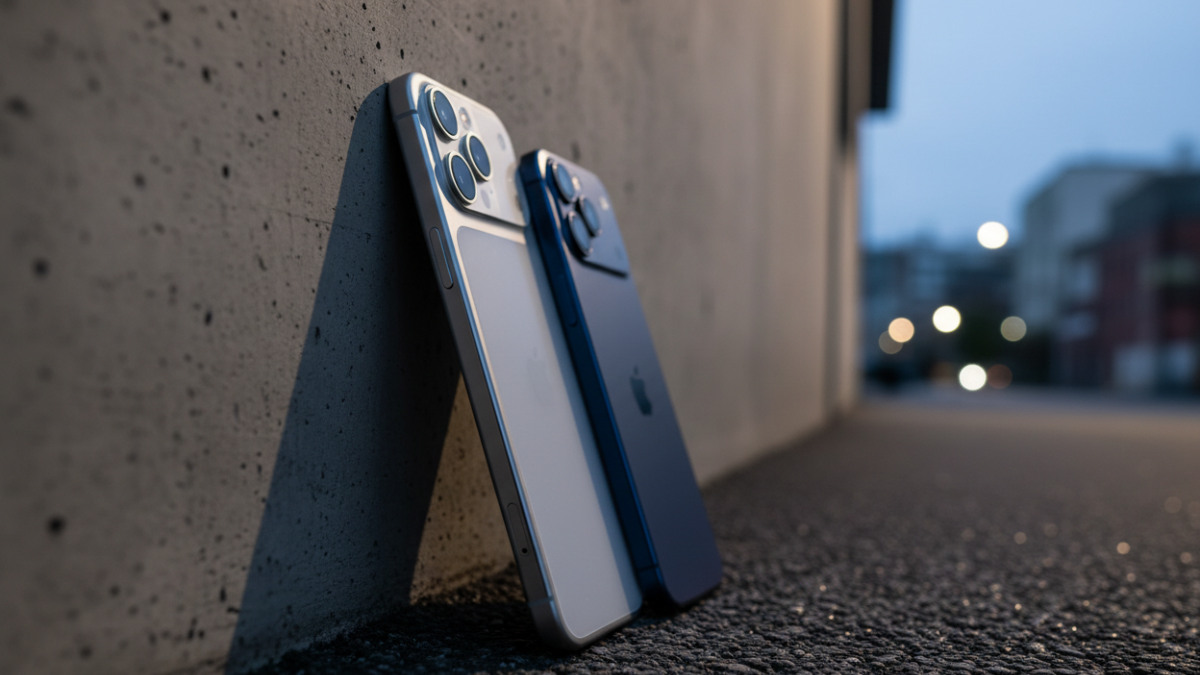
To send files from your Android phone to an iPhone, iPad, or macOS device, have the Apple user open AirDrop settings and switch to “Everyone for 10 minutes.” On your Android device, Quick Share as you normally would and look for the desired Apple device. Make sure the other person accepts.
That is it. No app installation on the iPhone. No pairing. No cloud upload.
Step by Step: iPhone to Android
The reverse works too. The iPhone user selects a file, taps Share, chooses AirDrop, and your Android device appears as a nearby recipient.
On your Android phone, you will see a notification to accept the incoming file.
On Pixel 9: You Need to Install the Quick Share Extension First

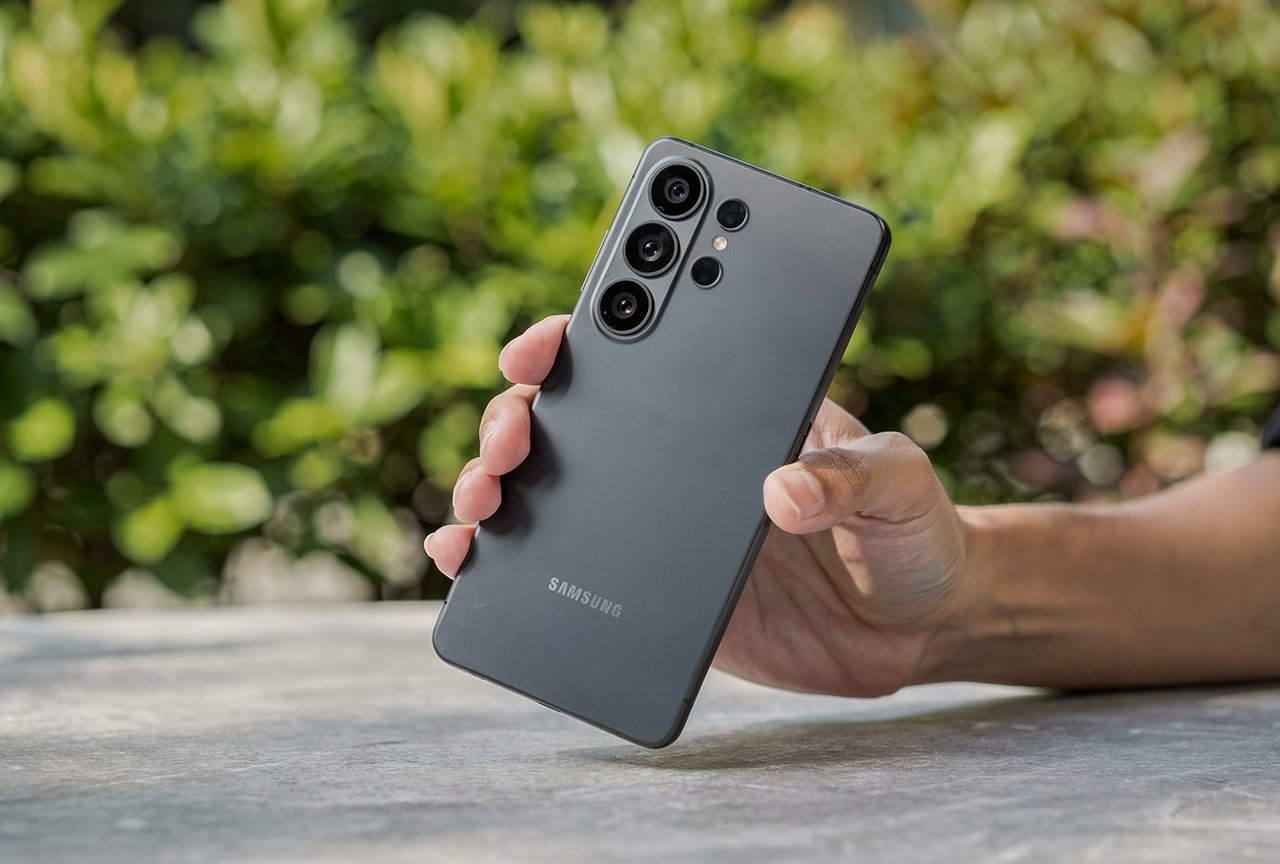
If you own a Pixel 9 series phone, the AirDrop feature does not work automatically. You need one extra step.
You have to install the Quick Share Extension on your Pixel 9: Open the Settings app. Search for System services. Scroll to the Available Updates section. Tap Quick Share Extension, then Update.
Once installed, AirDrop interoperability works identically to the Pixel 10.
For Pixel 10 owners, it is already built in. No extra steps needed.
Google Removed the Permanent “Everyone” Mode for Your Safety
Here is an important security change that happened in February 2026.
Google has quietly removed the Everyone Option from Quick Share. The change brings the Android sharing system closer to Apple’s AirDrop approach. While the file cannot be sent without users’ approval, critics have always warned that social engineering tactics can trick people into accepting suspicious files. To address this security risk, the latest Quick Share update has quietly removed the always on Everyone option.
Now, if you want to receive files from someone not in your contacts, the option is “Everyone for 10 minutes” only.
Quick Share limits “Everyone” to 10 minutes.
After 10 minutes, your visibility automatically reverts to Contacts only or Your devices. You are never permanently discoverable.
Why Quick Share Is Faster Than Bluetooth
Most people still transfer files between phones using Bluetooth. Here is why that is a mistake.
Bluetooth transfers data at roughly 2 to 3 MB per second under ideal conditions. A 1GB video would take over 5 minutes.
Quick Share transferred 1GB of images in 19 seconds. AirDrop took over 30 seconds. Quick Share operates at around 15 meters range and approximately 25MB per second.
That is roughly 10 times faster than Bluetooth. And the range is better too.
Quick Share uses Bluetooth to find nearby devices, then transfers files directly between devices using a fast, local, Wi-Fi connection.
So Quick Share uses Bluetooth only for discovery. The actual file transfer happens over Wi-Fi Direct, which is why it is dramatically faster.
QR Code Sharing: The Feature Nobody Uses
Here is the trick that eliminates every connection problem.
Quick Share now supports QR codes.
If the receiving device does not appear in your nearby list, you can generate a QR code for your selected files. The recipient scans it, and the transfer begins immediately.
This solves the most common Quick Share frustration: “I can’t see the other device.” Generate a QR code instead. Problem solved.
Just select the content, generate a QR code, and let the recipient scan it on your screen. Done.
Quick Share Also Works With Windows PCs
This is the part AirDrop cannot match.
Quick Share lets you transfer photos, videos, documents, or entire folders between your Android and Windows devices with ease.
Download the Quick Share app for Windows from Google’s official page. Sign in with your Google account. Your Windows PC now appears as a Quick Share target.
If both devices are logged into the same Google Account, the file will be accepted automatically.
That means transferring photos from your phone to your laptop requires exactly one tap. No cable. No cloud upload. No waiting.
AirDrop only works within the Apple ecosystem. Quick Share works across Android, Windows, ChromeOS, and now Apple devices.
The Correct Quick Share Settings for Maximum Speed and Safety

Here is how to configure Quick Share for the best experience.
Go to Settings. Search for Quick Share.
Your devices: Your device is visible to your other devices with the same Google Account, even when the screen is off. Contacts: Your device is visible to your nearby contacts while your screen is on and unlocked.
My Recommended Settings
Default visibility: Set to “Your devices” for everyday use. This allows automatic, instant transfers between your own phone, tablet, and laptop.
When someone wants to send you a file: Temporarily switch to “Everyone for 10 minutes.” It auto reverts after 10 minutes.
For AirDrop to iPhone: Both devices must be within Bluetooth range. The iPhone user must have AirDrop set to “Everyone for 10 minutes.”
All Quick Share transfers are protected by E2E encryption.
Which Devices Support Quick Share AirDrop Right Now
| Device | AirDrop via Quick Share | Status |
|---|---|---|
| Pixel 10 series | Yes | Available since November 2025 |
| Pixel 9 series | Yes (with Quick Share Extension update) | Available since February 2026 |
| Oppo Find X9 series | Yes | Rolling out March 2026 |
| Samsung Galaxy S26 series | Expected | Evidence found, not officially confirmed |
| Nothing phones | Expected | Confirmed by Nothing |
| Other Snapdragon devices | Expected | Qualcomm hinted support |
Eric Kay, vice president of engineering for the Android platform, said: “In 2026, we’re going to be expanding it to a lot more devices.” He added: “We spent a lot of time and energy to make sure that we could build something that was compatible not only with iPhone but iPads and Macs.”
My Honest Take
For over a decade, the single biggest advantage iPhone users had over Android users was AirDrop. The ability to tap once and send a full resolution photo to any nearby Apple device was something Android simply could not match.
That gap is now closed.
Quick Share transfers files at 25MB per second over Wi-Fi Direct. It works with iPhones, iPads, Macs, Windows PCs, Chromebooks, and every Android device. It supports QR code sharing for situations where devices do not see each other. And every transfer is end to end encrypted.
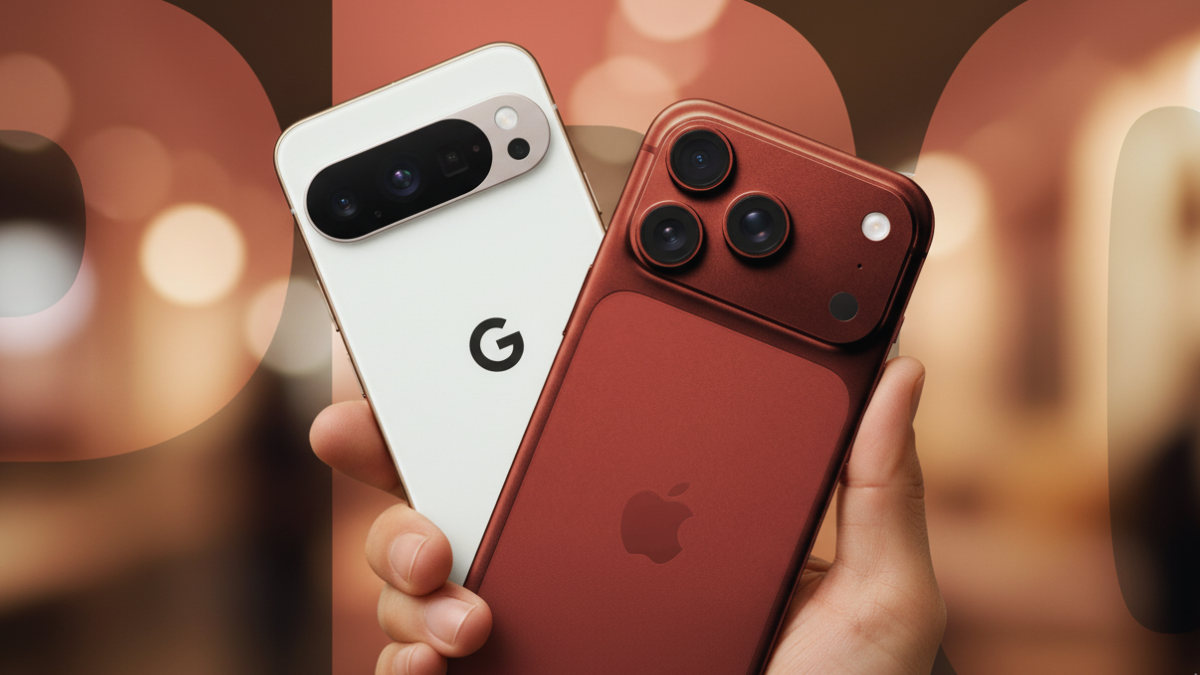
If you are still sending photos to friends over Bluetooth, you are spending 5 minutes on something that takes 19 seconds.
Go to Settings. Search Quick Share. Make sure it is turned on. If you have a Pixel 9, install the Quick Share Extension update. And the next time someone with an iPhone asks you to send a photo, show them that your Android phone can AirDrop it directly.
The look on their face will be worth it.