Pixel 10 Desktop Mode no longer requires Developer Options. After the March 2026 Pixel Drop, you just plug in a monitor and select “Desktop.” Three steps. No toggles. No rebooting. Here is exactly how to do it, which hardware you need, and 5 things it still cannot do.

What Changed With Android 16 QPR3
Before the March 2026 update, enabling desktop mode on any Pixel required digging into Developer Options and manually toggling settings.
Pocket-lint wrote about Android 16’s new native desktop computing environment back when it first shipped experimentally in QPR1 Beta 2 back in July of last year. Now, with the release of QPR3, desktop mode is available in stable form without the need to jump through any hoops or tinker with Developer Options.
I am Ameer Hamza, and at Global Tech Press, we tested Pixel 10 Desktop Mode the day the update dropped. The change is real.
For now, if you have a compatible device, you no longer need to dig through “Developer Options” to find it.
How to Enable Pixel 10 Desktop Mode in 3 Steps
Step 1: Get the Right Cable
Desktop Mode requires a Pixel device that supports DisplayPort Alt Mode over USB-C. Pixel 8 series and newer Pixel models that include DisplayPort Alt Mode are required. Earlier Pixel models without DP Alt Mode cannot output video to an external display.
You need a USB-C to HDMI adapter or a USB-C hub with HDMI output. Charge only cables will not work.
Step 2: Plug Into Any Monitor or TV
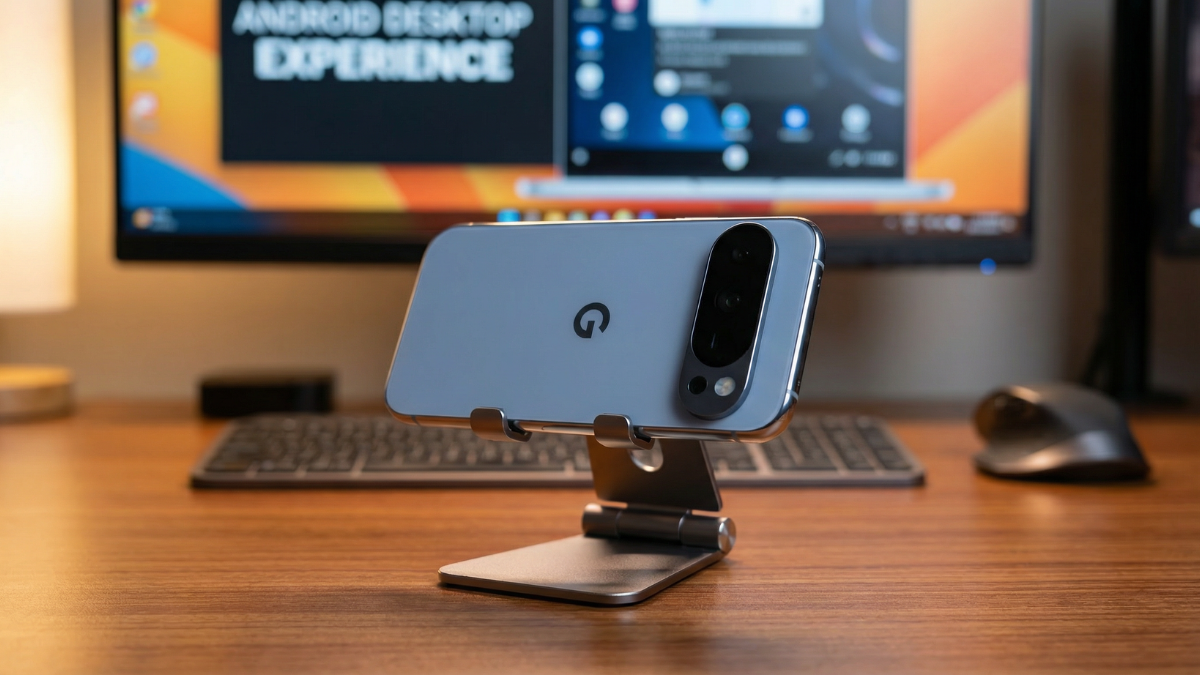
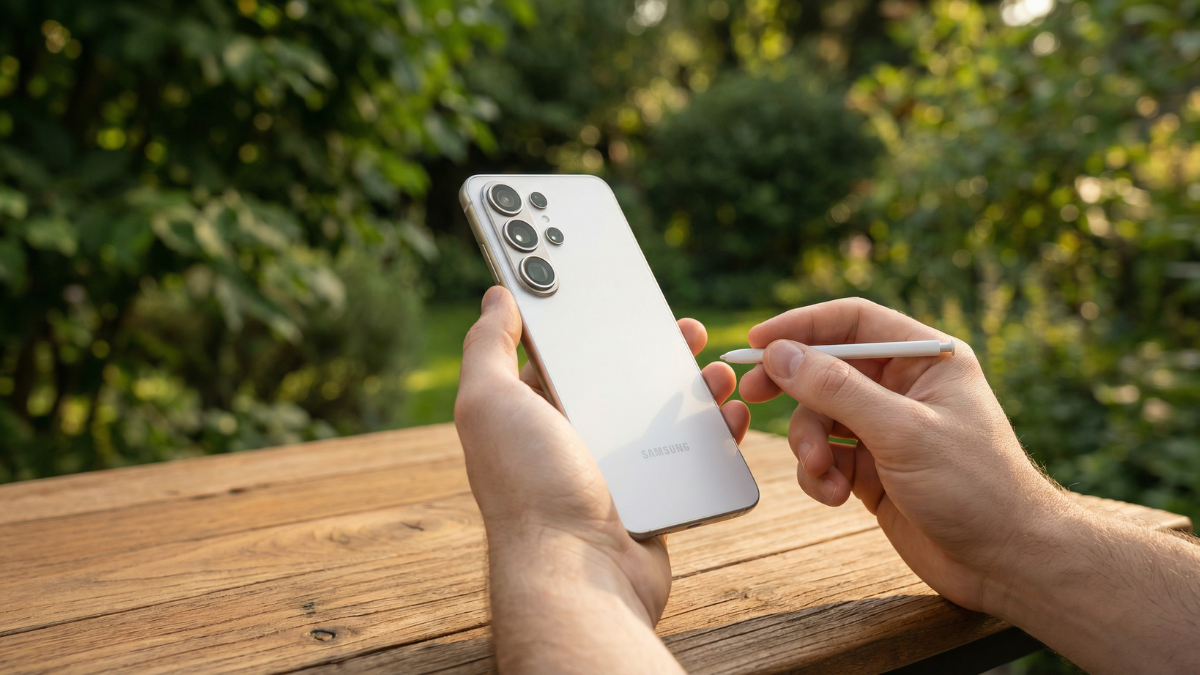
The setup is simple: connect your phone to an external monitor via USB-C, add a Bluetooth keyboard and mouse, and the external display shows a proper desktop with a taskbar, resizable app windows, and an independent phone screen.
A prompt will appear asking whether you want Desktop or Mirror. Tap Desktop.
Step 3: That Is It
You can work with documents on the monitor while your phone display does its own thing entirely.
No restart needed. No Developer Options. No settings to change.
Which Pixel Phones Support This
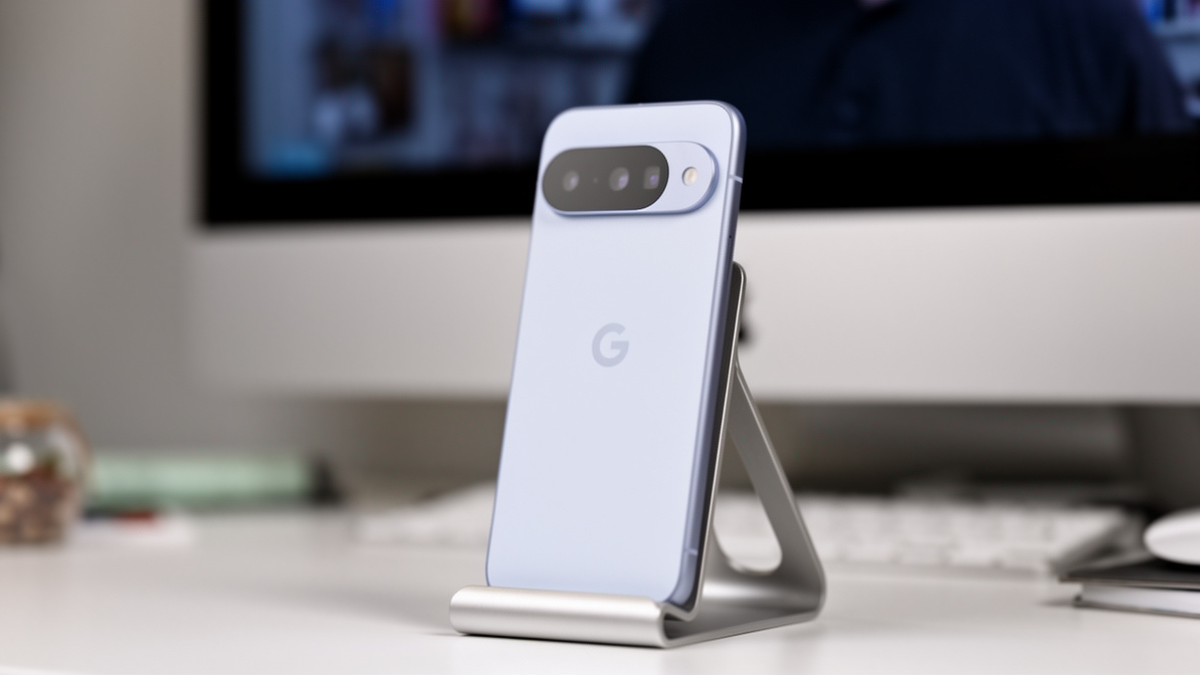
At the time of writing, connected displays are supported on Pixel 8, 9, 10 series and on a wide array of Samsung devices, including S26, Fold7, Flip7, and Tab S11.
| Device | Desktop Mode Without Developer Options |
|---|---|
| Pixel 10 series | Yes (March 2026 QPR3) |
| Pixel 9 series | Yes (March 2026 QPR3) |
| Pixel 8 series | Yes (March 2026 QPR3) |
| Pixel 7 and older | No (no DisplayPort Alt Mode hardware) |
Supported Pixel devices may output up to 4K 60Hz, depending on hardware and monitor capability.
5 Things Pixel 10 Desktop Mode Still Cannot Do
After two weeks of daily testing at GTP, here are the real limitations.
1. No Phone as Trackpad
Samsung DeX lets you use your phone screen as a trackpad. Pixel 10 Desktop Mode does not. You need a physical mouse.
2. No Desktop Widgets or Shortcuts
You cannot place app icons, file shortcuts, or widgets on the desktop wallpaper. Everything launches from the taskbar.
3. No Separate Wallpaper
Your phone wallpaper and desktop wallpaper are the same. No option to set a landscape wallpaper for the monitor.
4. App Compatibility Is Uneven
App support is uneven — some apps shine in windowed mode, others default to phone layouts.
5. Not Every App Is Optimized Yet
Currently, not every app is perfectly optimized for a desktop layout yet — some still default to a vertical phone view.
What Pixel 10 Desktop Mode Handles Well
The experience on the connected display is similar to the experience on a desktop, including a taskbar that shows active apps and lets users pin apps for quick access. Users are able to run multiple apps side by side simultaneously in freely resizable windows on the connected display.
Chrome loads the full desktop version of websites. Google Docs, Gmail, and Lightroom all work smoothly.
Google and Samsung have collaborated to bring a seamless and powerful desktop windowing experience to devices across the Android ecosystem running Android 16 while connected to an external display.
The Bigger Picture: Android and ChromeOS Are Merging
It’s noteworthy that the move is part of a broader strategy to eventually merge the best of Android and ChromeOS. And this functionality will obviously make more sense when we start getting Android (or Aluminium) laptops that natively support Desktop mode out of the box.
Pixel 10 Desktop Mode is not just a feature. It is the early preview of a future where your phone is your only computer.
Sources I Used In This Article:
- Android Headlines (full guide)
- PiunikaWeb (QPR3 changelog)
- Plugable (hardware requirements)
- Android Developers Blog (official Google)
- Pocket-lint (5 new Pixel features)
- Thurrott (desktop mode analysis)
- AndroidSage (March 2026 Pixel Drop)
- BGR (desktop mode feature)

Written by Ameer Hamza
Tech Analyst and Founder of Global Tech Press. Currently expanding the GTP hardware testing labs and building the next generation of digital tech media.