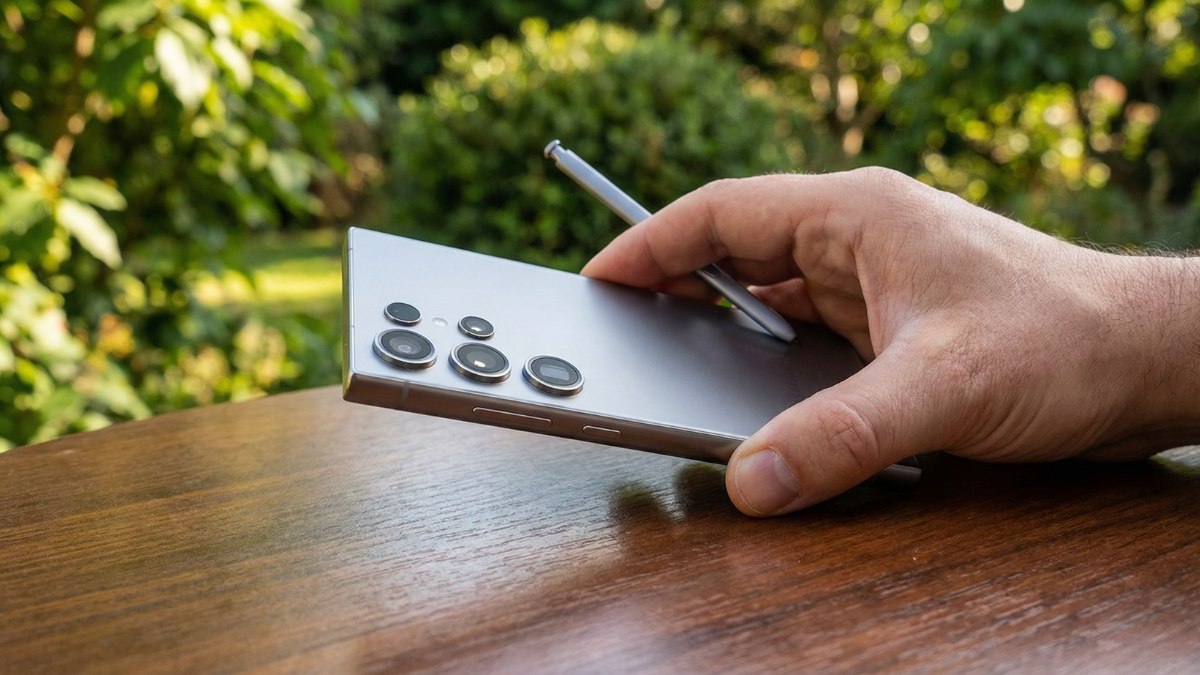
Samsung removed Bluetooth from the Galaxy S26 Ultra S Pen. Bluetooth Low Energy features like Air Actions or gestures are unavailable on the Galaxy S26 Ultra S Pen. That means no remote shutter. No flick gestures. No media control from across the room. Samsung removed this feature due to very low usage. Samsung claimed that fewer than 1% of users made use of the feature. But the S Pen still does 6 things most owners never discover. Here they are.

What the Galaxy S26 Ultra S Pen Lost
I am Ameer Hamza, and at Global Tech Press, let me be clear about what is gone before telling you what remains.
According to YouTuber Sahil Karoul, the S Pen bundled with the Galaxy S26 Ultra does not support Bluetooth connectivity. As a result, it does not offer Air Actions. The main feature removed by ditching Bluetooth is Air Actions, which lets you snap a picture using the S Pen’s button as a shutter release or flick gestures to interact with the phone.
The S Pen in your Galaxy S26 Ultra doesn’t rely on Bluetooth, so there’s no need for pairing or charging. Just keep it stored inside your phone when not in use and take it out whenever you’re ready to start.
That last part is the upside. No charging. No pairing. It just works every time you pull it out.
Feature 1: Air Command Floating Menu
This is the hub that connects every S Pen feature.
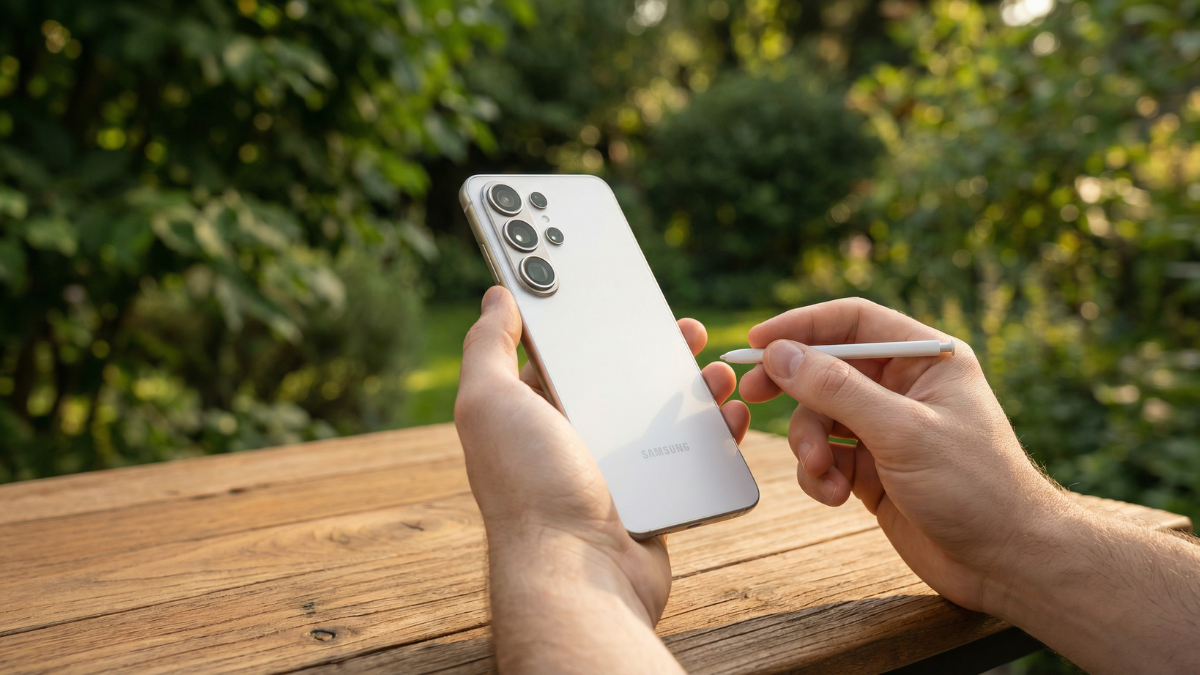
The Air Command menu on the Galaxy S26 Ultra provides quick access to apps and features optimized for the S Pen. To open it, remove the S Pen from your phone, and then tap the Air Command icon on the right side of the screen. Alternatively, you can also hover the S Pen over the screen and press the S Pen button.
Most owners see this menu once and never explore what is inside it.
Feature 2: AI Select

This is the new One UI 8.5 feature most people skip.
AI Select: Select an item on the screen, draw on it, generate images, or create GIFs.
Draw a circle around any content on your screen. Galaxy AI analyzes the selection and offers contextual actions. Text gets summarized or translated. Images get background removal. Products get shopping links.
This works on any screen, in any app.
Feature 3: Creative Studio (Sketch to Image)
Creative Studio: Turn sketches into artwork, create images from text descriptions, or transform Gallery photos into cartoons.
Draw a rough sketch on any photo. Galaxy AI turns your doodle into a photorealistic object. A rough circle on a beach becomes a beach ball. A squiggly line above a mountain becomes a bird.
This feature was confirmed at the Galaxy S26 launch by Samsung Newsroom.
Feature 4: Screen Off Memo
This is the Galaxy S26 Ultra S Pen feature I use most at GTP.
When the screen is off, pull the S Pen out. The screen lights up with a black notepad. Write immediately. Put the S Pen back. The note saves to Samsung Notes automatically.
No unlocking. No opening apps. Less than 2 seconds from pulling the S Pen out to writing.
I use this multiple times a day for phone numbers, meeting notes, and grocery lists.
Feature 5: Air View (Hover Preview)
Air View allows you to preview content by pointing your S Pen at it on the screen. Open Settings, then Advanced features, then S Pen. Tap Air view and turn on the switch at the top of the screen. Choose between Previews and pointer, Pointer only, or Previews only to customize the experience.
In the Gallery, hovering over a folder shows a preview of its contents. In Calendar, hovering over a date shows events. In Samsung Internet, hovering over a link shows a page preview.
Feature 6: S Pen to Text
Use the S Pen to write directly in search fields, address bars, or any text input area. Your handwriting will automatically convert to text. Open Settings, then Advanced features, then S Pen. Tap S Pen to text and turn on the switch at the top. Tap How to edit to learn how to modify your handwriting. Turn on Show writing toolbar for added convenience.
This works in any text field across the entire phone. Write in the Google search bar. Write in WhatsApp. Write in the address bar of Chrome. The S Pen converts it to typed text instantly.
The Quick Note Shortcut Nobody Knows
This one is buried and almost nobody discovers it naturally.
Create notes instantly by pressing and holding the S Pen’s button and tapping the screen twice with the pen tip.
- That is it.
- Hold the button.
- Double tap.
- Instant note.
- Works from any screen.
What Samsung Community Users Are Saying

The frustration about losing Bluetooth is real.
After looking at the S26 Ultra specs, I was really disappointed to see that the Bluetooth functionality has been removed from the S Pen. The remote shutter on the S Pen was genuinely useful.
But other users adapted quickly.
I’ll adapt of course, but it would be nice to see Samsung keep experimenting with those kinds of ideas rather than quietly removing them. The core S Pen experience, writing, annotating PDFs, quick selection, and precision editing, remains intact. EMR pens don’t need charging for basic input, which many users actually prefer.
Why Samsung Actually Removed Bluetooth
According to Samsung, Bluetooth was removed from the S Pen because not enough people used it. According to usage data obtained by Samsung, less than 1% of users actually cared about Bluetooth in the S Pen. Removing Bluetooth simplifies the pen’s internal design, no supercapacitor, coil, or contacts, potentially improving long term durability and waterproofing within the phone’s pen silo.
There may also be a technical reason. Rumors suggest that Samsung is developing a new S Pen technology that could be based on the Universal Stylus Initiative standard. This approach could avoid the S Pen’s interference with Qi2 wireless charging magnets.
My Honest Take
The Galaxy S26 Ultra S Pen lost Bluetooth and Air Actions. This predictably didn’t sit well with those who did use it.
But for the 99% who never used Air Actions, the S Pen gained AI Select, Creative Studio, and Writing Assist while losing a feature they never opened.
The real problem is not the hardware. The real problem is that Samsung buries its best S Pen features inside menus most people never explore.
Screen Off Memo alone saves me minutes every day. AI Select turns any screen content into actionable data. S Pen to Text eliminates the keyboard in any text field.
- Pull out your S Pen right now. Tap the floating Air Command menu. Explore what is there.
- Settings. Advanced features. S Pen. Every feature listed above lives in that menu.
- You paid $1,299 for this phone. The S Pen came free inside it. Use all of it.

Written by Ameer Hamza
Tech Analyst and Founder of Global Tech Press. Currently expanding the GTP hardware testing labs and building the next generation of digital tech media.