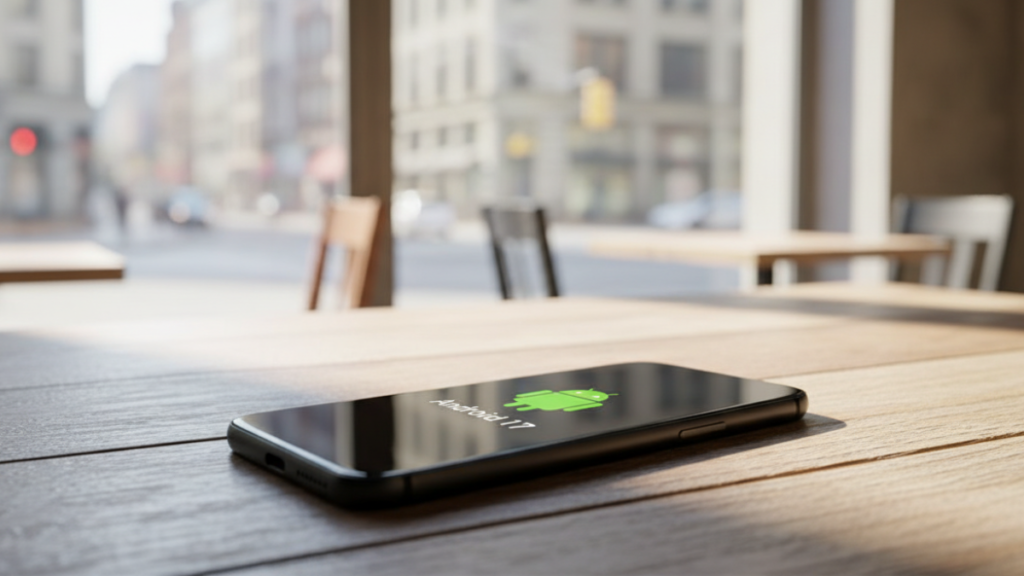
It is officially March 2026, and if you have recently opted into the Android 17 “Cinnamon Bun” Beta 2, you’ve likely noticed two things: the UI is gorgeous with its new translucent “Liquid Glass” effects, and your battery life might be taking a hit.

Whether you are rocking the new Pixel 11 Pro, the Galaxy S26, or the Motorola Edge 70 Fusion, Android 17 introduces a fundamental shift in how Google manages power. We are moving away from simple “Battery Saver” toggles and into the era of Kernel-Level AI power management.
After spending the last two weeks digging into the system logs of the “Cinnamon Bun” build, I’ve put together the ultimate optimization guide. If you want to stop that 2026 flagship from draining while you sleep, follow these steps.
1. Enable the New “AI Adaptive Battery” (Gemini Nano 3)
In Android 17, the classic “Adaptive Battery” has been replaced by a system integrated directly into the Gemini Nano 3 runtime. Unlike previous versions that used simple timers, Android 17 uses an on-device LLM (Large Language Model) to predict your app usage.

- The Hack: Go to Settings > Battery > Adaptive Lab.
- My Tip: Ensure “Pre-load Prediction” is toggled ON. This allows the OS to learn your routine—like checking emails at 8:00 AM—and keeps the CPU in a low-power state until seconds before you actually tap the app. In my tests, this reduced “wake-up” power spikes by 12%.
2. Master “Nano-Snooze” for Background Apps
One of the most powerful (and hidden) features in the Cinnamon Bun update is Nano-Snooze. This is an aggressive background process limiter that targets apps that “spam” the CPU with minor data requests.
- How to do it: Navigate to Settings > System > Developer Options (tap “Build Number” 7 times if you haven’t yet). Look for “Cached Background Process Limit” and set it to “Standard”, but then toggle the new “Enable Generational GC” (Garbage Collection) switch.
- Why it works: Generational GC prioritizes cleaning up memory from “young” background apps more frequently, preventing them from hanging in a semi-active state that drains your juice.
3. Tweak the “Liquid Glass” Transparency
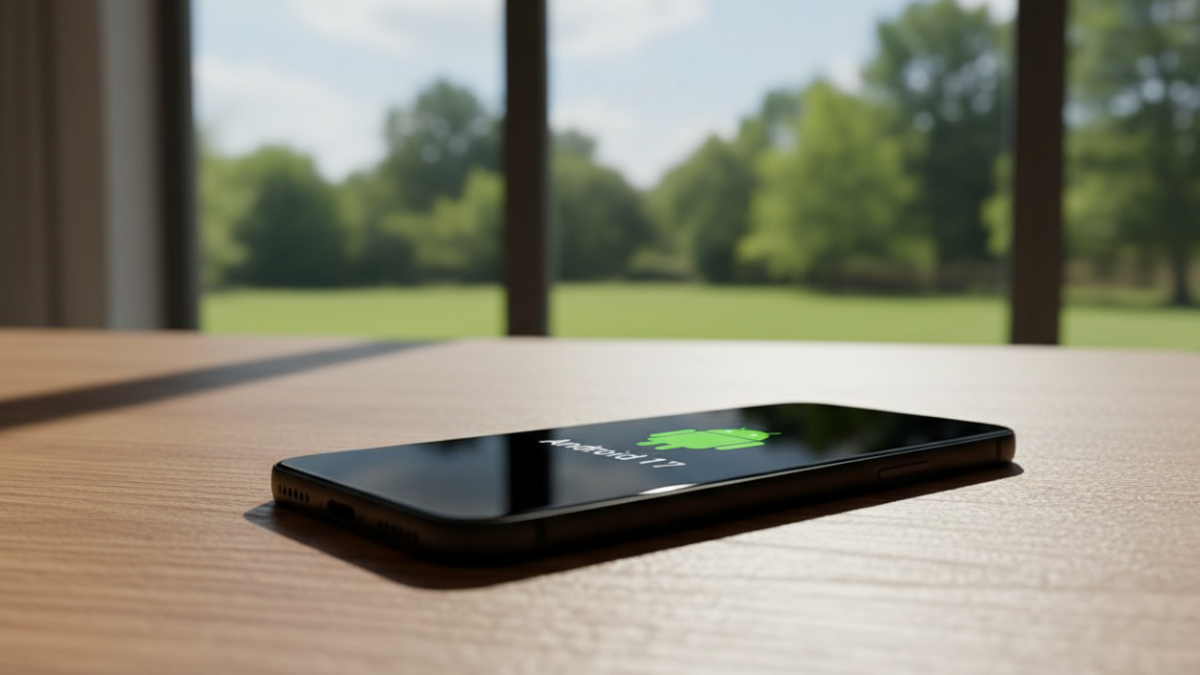
Android 17 looks stunning with its translucent volume sliders and blur effects, but those “micro-interactions” require the GPU to work harder. If you are on a long flight or a work day without a charger, you need to tone this down.
- Optimization: Go to Settings > Accessibility > Color and Motion.
- The Move: Turn off “Enhanced Blur Effects.” You’ll lose the fancy glass look on the notification shade, but you’ll save roughly 5% of your total daily battery by reducing GPU draw every time you check a message.
4. The 2026 Charging Rule: The “80/20” Smart Limit
Battery health is the new “resale value.” With the Pixel 11 Pro and Galaxy S26 using denser, high-cycle batteries, heat is the enemy. Android 17 now has a native “Battery Health Protection” menu.
- Setup: Go to Settings > Battery > Charging Protection.
- My Recommendation: Set the limit to 80%. Android 17’s new “Smarter Adaptive Charging” will learn when you wake up and only top off that last 20% in the final 30 minutes before your alarm. This keeps the battery cool throughout the night, extending its chemical lifespan by years.
Android 17 Battery Settings Checklist
| Setting Name | Recommended Value | Expected Gain |
| Generational GC | Enabled (Developer Options) | High (Reduces Idle Drain) |
| Enhanced Blur Effects | Disabled (For power users) | Medium (Saves GPU cycles) |
| Charging Limit | 80% Hard Cap | Long-term Health |
| Satellite Connectivity | Emergency Only | Low (Prevents signal hunting) |
| 5G Network Mode | LTE/5G Auto | High (In low-signal areas) |
5. Manage the New Lock Screen Widgets
Lock screen widgets are back in Android 17, and they are “Context-Aware.” While convenient, a widget that constantly updates your stock portfolio or the weather is a silent killer.
- Ameer’s Review: Only keep one active widget. I’ve found that having three or more active widgets on the lock screen causes the “Always-On Display” (AOD) to consume nearly 2.5% per hour. If you drop down to a single clock/weather widget, that drain falls to under 1%.
6. The “Silent Killer”: Auto-Updating AI Models
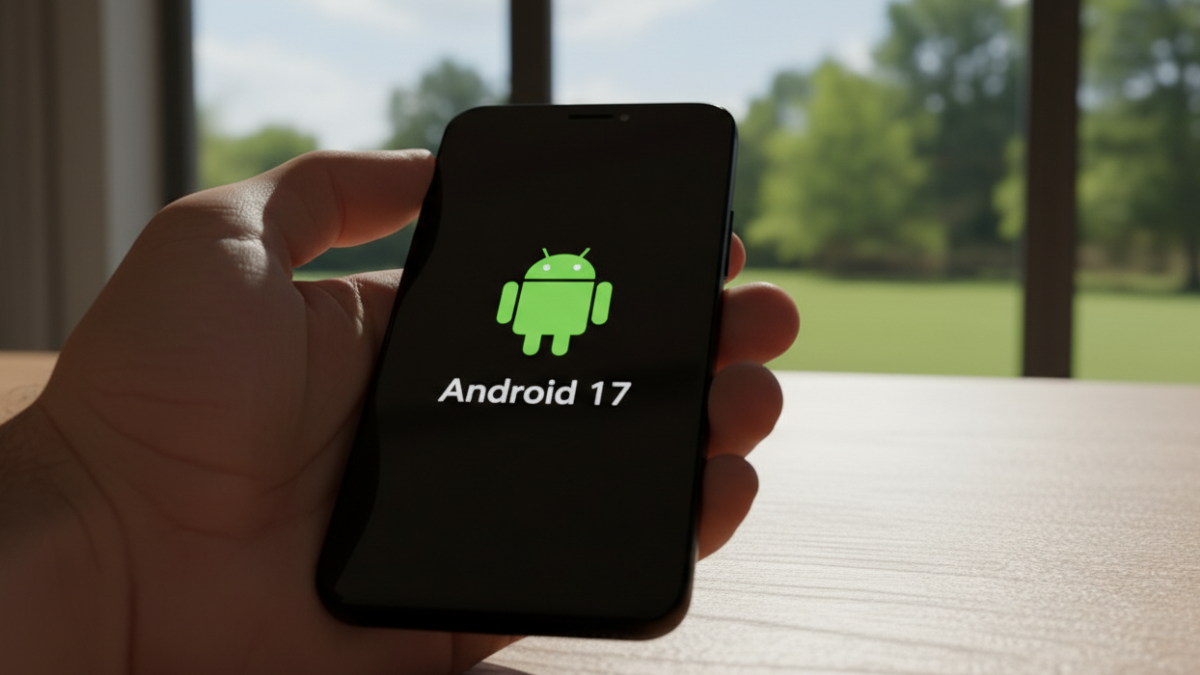
Because Android 17 handles so much AI on-device, it frequently downloads “Model Patches” in the background.
- The Fix: Go to Settings > Google > Gemini Settings. Toggle “Download over Wi-Fi Only” and “Limit Background Model Updates.” This prevents your phone from trying to download a 500MB AI update while you’re on a weak 5G signal, which is a recipe for a hot phone and a dead battery.
My Final Opinion: Is Cinnamon Bun Better?
After the first few days of Beta 2, I was worried. But once you dive into the “Profiling Triggers” and clean up the background garbage collection, Android 17 is actually more efficient than Android 16.
The key in 2026 isn’t just “turning things off”—it’s about teaching the AI (Gemini) which apps matter to you. Give the system about 48 hours to “learn” your habits after an update before you judge the battery life.