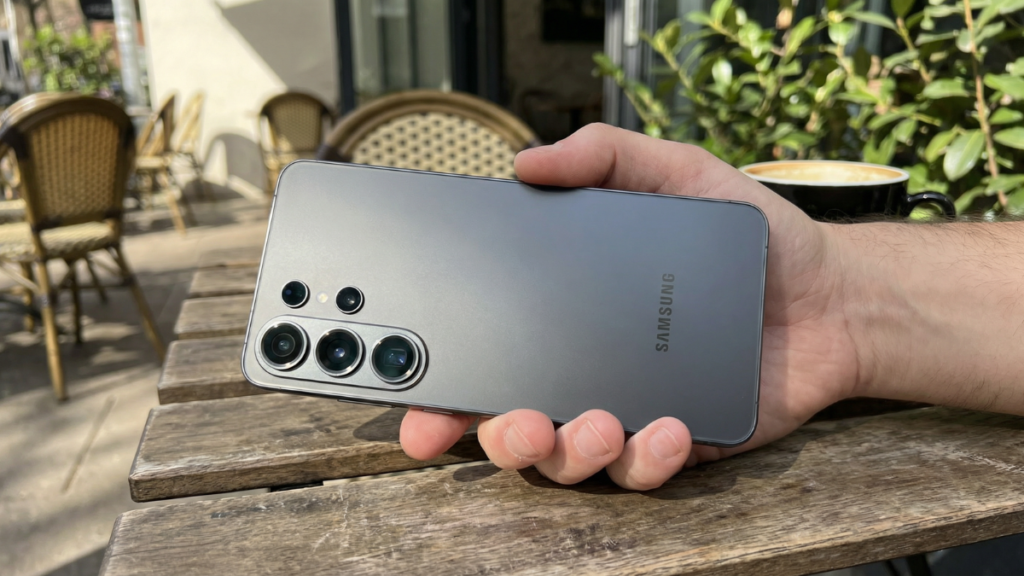
Samsung shipped the Galaxy S26 with over a dozen powerful tools buried inside its settings menus. After two weeks of daily testing at Global Tech Press, here are the 10 One UI 8.5 features that most owners will never find on their own, and every one of them deserves to be turned on today.

Introduction
When Samsung launched the Galaxy S26 in January, I expected the usual upgrade cycle. Faster chip, brighter display, better cameras. And on the surface, that is exactly what you get.
The Snapdragon 8 Elite hums along, the display is gorgeous, and the 200MP sensor captures detail that would have been unthinkable two years ago. But the real story of this phone lives beneath all of that.
I am Ameer Hamza, and at Global Tech Press, the Galaxy S26 has been my only phone for two weeks straight. I carried it across three cities, two international flights, and long work days where my screen time regularly hit 8 hours.
Along the way, I found One UI 8.5 features that Samsung never mentioned during their launch event. Some of them quietly changed how I use this phone every single day. Here are the 10 worth your time.
Why Samsung Buries Its Best Software
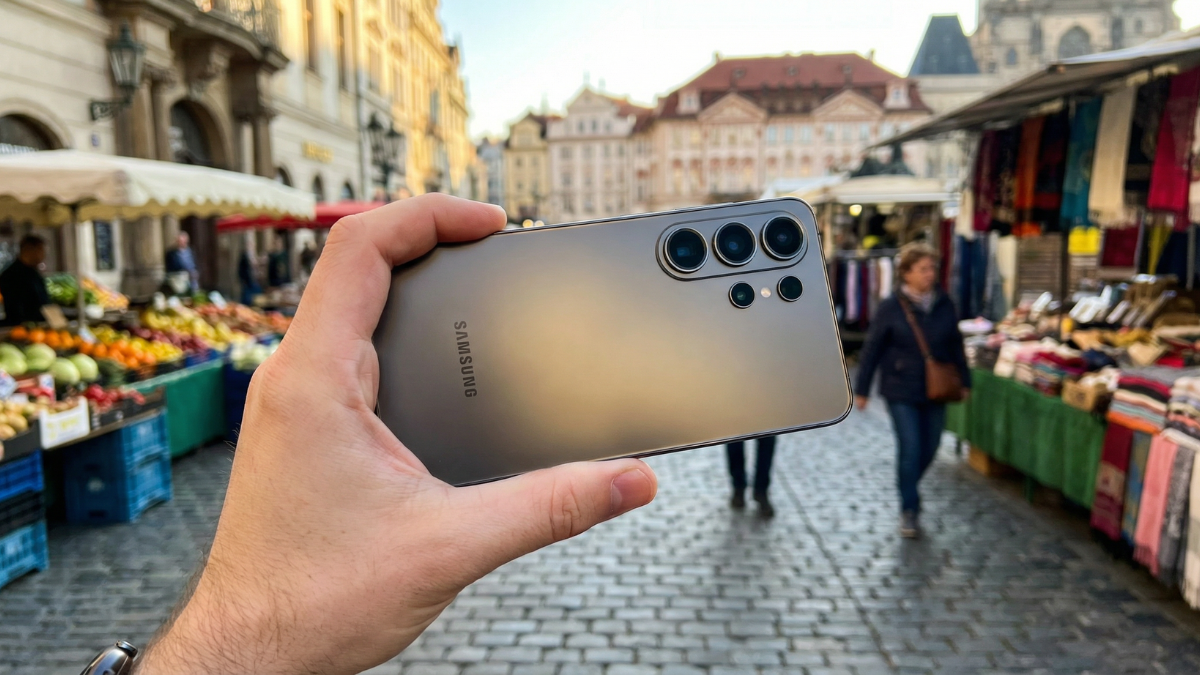
Samsung has always packed more features into its phones than any other Android maker. The problem is they hide most of them behind three or four layers of menus. Unlike Apple, which walks users through new additions during setup, Samsung lets people figure things out alone.
The result is that millions of Galaxy S26 owners are carrying a phone running at half its real capability. These One UI 8.5 features were built to make the phone smarter, faster, and more personal. They just need to be switched on first.
AI Notification Sorting That Actually Learns
Under Settings, then Notifications, then Priority Sorting, Samsung added an AI layer that watches how you interact with alerts over time.
Within three days of use, my Galaxy S26 figured out that messages from my editor and team Slack channels should float to the top. Promotional emails and social alerts quietly dropped to the bottom without me touching a single setting.
This is one of those One UI 8.5 features that sounds small on paper. But after a full week with it running, going back to a standard notification feed feels chaotic. The shade becomes calmer and more useful, and that simple shift changes how the phone feels in your hand throughout the entire day.
The Privacy Display Toggle Nobody Talks About
Samsung added a viewing angle filter to the Galaxy S26 that you can toggle straight from Quick Settings. When you enable it, the screen content becomes nearly impossible to read for anyone sitting beside you.
I tested this on a packed train in London, going through client emails and personal messages, and the person right next to me could not see a single word on my display.
Find it under Settings, then Display, then Screen Privacy. For anyone who handles sensitive work information in public or simply values personal space, this is one of the most practical Samsung Galaxy S26 hidden settings you can turn on right now.
Offline Live Translate on Phone Calls
Samsung’s Live Translate has been around since the Galaxy S24. But on the S26, One UI 8.5 features now include full offline support for 16 languages. I tested this during a flight from Dubai with airplane mode on, making a Wi-Fi call to a colleague who speaks Arabic.
The translation happened in real time, entirely on the device, with almost no noticeable delay.
To set it up, go to Settings, then Advanced Features, then Call Assist, and toggle Offline Translation. Download the language packs you need while you still have a connection. Once they are stored locally, the feature runs without any network at all. For anyone who travels regularly, this is one of the most genuinely useful tools Samsung has shipped in years.
Night Engine 2.0 for Low Light Photography
I discovered this one by accident. I was at a dimly lit restaurant in Toronto, trying to photograph a plate for a piece I was working on, and the camera app never prompted me to switch to Night Mode.
It handled the entire low light processing on its own. Samsung calls this Night Engine 2.0, and it activates automatically whenever the sensor detects dim conditions.

Camera improvements have always been among the quietest One UI 8.5 features on any Galaxy phone, and this generation follows that pattern. Make sure it is active by opening the Camera app, tapping Settings, and looking under Advanced Shooting. While you are there, turn on Adaptive Scene Detection as well. Together, these Galaxy S26 camera settings will quietly improve every indoor and evening shot you take.
Lock Screen Widgets You Can Stack and Swipe
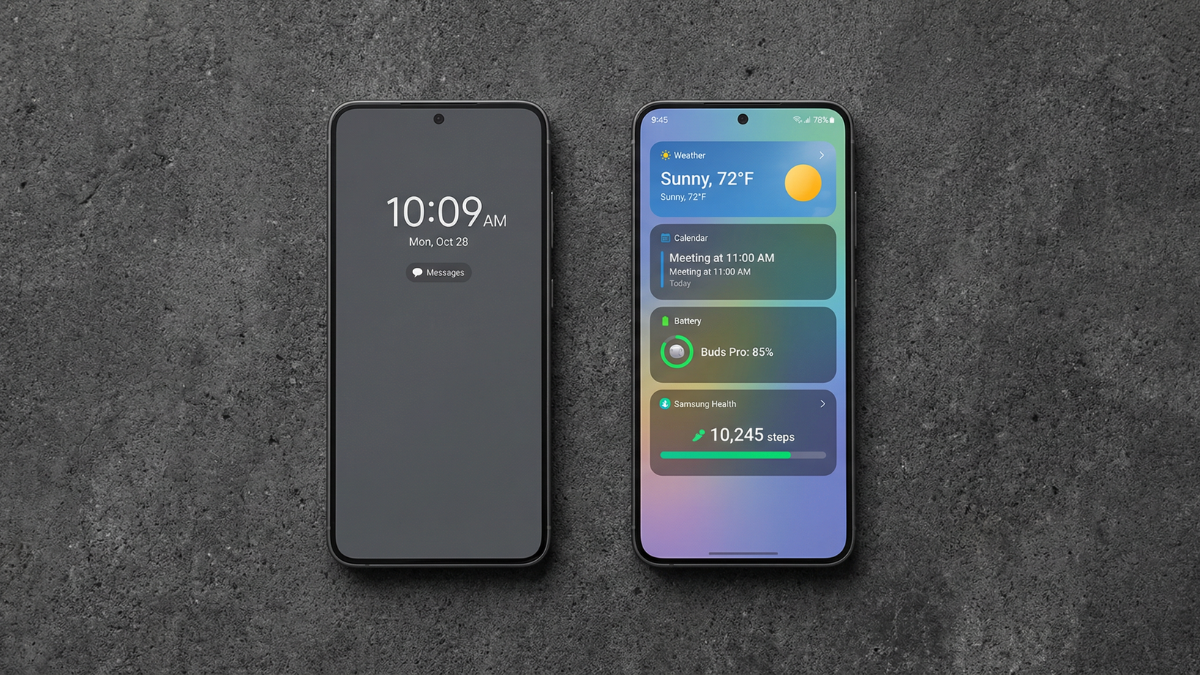
The Galaxy S26 now lets you stack up to four widgets on the lock screen. Weather, calendar events, fitness stats, and music controls all sit in a single swipeable layer beneath the clock. Long press the lock screen, tap Widgets, and start building your stack.
I set mine to show weather first, then my next meeting, then Samsung Health steps. It noticeably reduced how many times I unlocked my phone each day. This is a straightforward One UI 8.5 customization option, but once you set it up, going back to a flat lock screen feels like wasted space.
Per App Sound Profiles
Under Settings, then Sounds and Vibration, then App Volume Control, you can set individual volume levels for every app on your Samsung Galaxy S26. I keep Spotify at full volume, Instagram at half, and all messaging apps at a low hum.

The entire configuration took about 60 seconds. Small, practical One UI 8.5 features like this are what separate Samsung’s software experience from stock Android, and I genuinely wish more people knew they existed.
Secure Folder That Locks When You Walk Out the Door
Samsung’s Secure Folder has been a Galaxy staple for years. But One UI 8.5 features now include a location based auto lock. You set a trusted zone, your home or your office, and the folder stays accessible while you are inside that area. The moment you step outside, it locks on its own.
I keep banking apps and private documents inside Secure Folder. This addition means I no longer have to remember to lock it manually every time I leave the house. Activate it under Secure Folder Settings by enabling Location Based Lock. It is a quiet but meaningful improvement to Samsung Galaxy S26 privacy controls.
Adaptive Battery Learning and RAM Plus 3.0
Two features in one section here, because they serve the same goal: making the Galaxy S26 work harder in the background so you never have to think about it.
Under Settings, then Battery, then Advanced Optimization, Samsung built a learning system that tracks your habits over a full week. It identifies when you open heavy apps, when the phone sits idle, and adjusts power delivery accordingly.
After the first week, my Galaxy S26 battery life stretched by roughly 40 to 45 minutes per day. That adds up fast over a month.

Then there is RAM Plus 3.0 under Settings, then Device Care, then Memory. You can allocate up to 12GB of virtual RAM from internal storage. I tested it by jumping between Chrome with 14 tabs, Slack, Photoshop Express, and Spotify. Nothing reloaded. Nothing dropped. For anyone focused on Galaxy S26 performance, both of these One UI 8.5 features are worth enabling on day one.
Developer Options Speed Tweaks in 30 Seconds
This trick is not new to the Galaxy S26, but it pairs beautifully with One UI 8.5. Tap Build Number seven times under About Phone to unlock Developer Options. Then lower all three animation scales to 0.5x. Window Animation Scale, Transition Animation Scale, and Animator Duration Scale.
Every screen transition, every app launch, every swipe becomes noticeably snappier. On the S26 with the Snapdragon 8 Elite underneath, the reduced animations make the phone feel like it responds before your finger even lifts off the glass.
These are Samsung Galaxy S26 settings to change that take half a minute and make the entire daily experience feel sharper and more direct.
The GTP Quick Settings Reference
| Feature | Where to Find It | On by Default |
|---|---|---|
| AI Notification Sorting | Settings > Notifications > Priority Sorting | No |
| Privacy Display | Settings > Display > Screen Privacy | No |
| Offline Live Translate | Settings > Advanced Features > Call Assist | No |
| Night Engine 2.0 | Camera > Settings > Advanced Shooting | No |
| Lock Screen Widget Stack | Long Press Lock Screen > Widgets | No |
| Per App Sound Profiles | Settings > Sounds > App Volume Control | No |
| Secure Folder Location Lock | Secure Folder > Settings > Location Based Lock | No |
| Adaptive Battery Learning | Settings > Battery > Advanced Optimization | No |
| RAM Plus 3.0 | Settings > Device Care > Memory | Partial |
| Animation Speed Tweaks | Developer Options > Animation Scales | Default 1x |
Final Thoughts
The Samsung Galaxy S26 already works well the moment you take it out of the box. But turning on these One UI 8.5 features is the difference between using a good phone and using one that genuinely shapes itself around how you live and work.
Samsung packed every one of these tools into the software, then buried them behind layers of menus most people never explore. Now you know exactly where each one sits.
Take ten minutes tonight, walk through the settings listed above, and let this phone show you what it was actually designed to do. You already paid for all of it. You might as well put it to work.