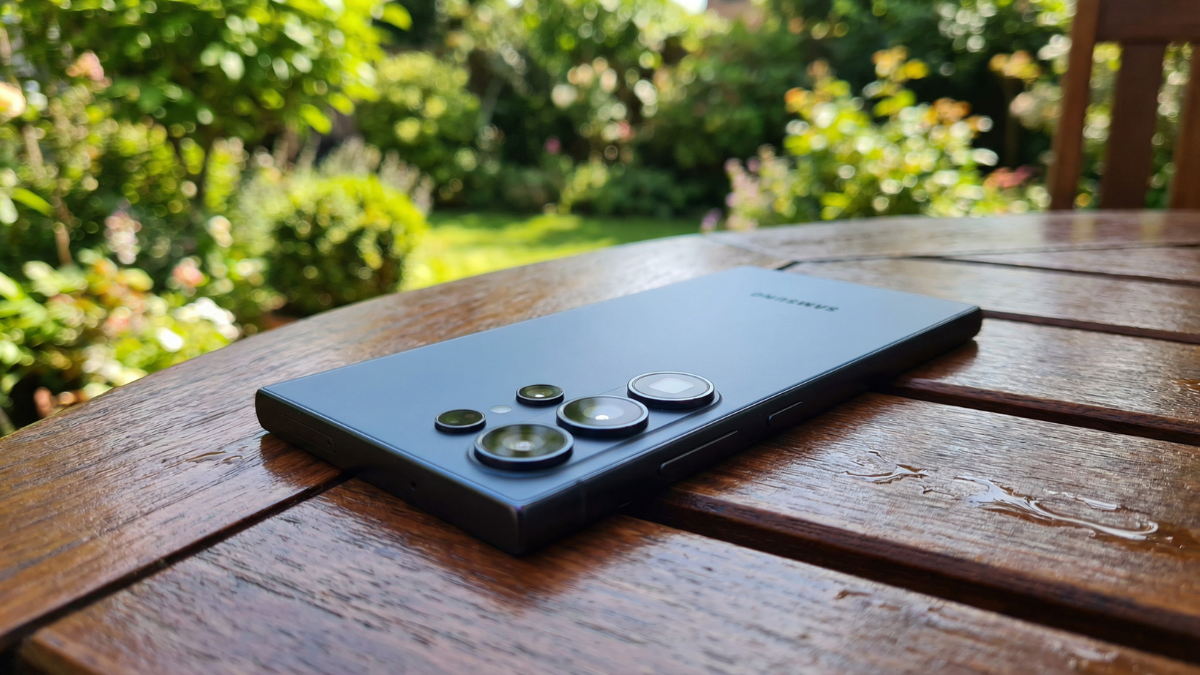
In a world first on mobile, the Galaxy S26 Ultra comes with a built-in Privacy Display that ensures personal details on your screen remain safe in public. After two weeks of daily testing at the Global Tech Press offices, I found that most owners are either leaving it completely off or using it wrong. Here are the five settings you need to fix right now.

How Privacy Display Actually Works at the Pixel Level
Unlike stick-on screen protectors, Samsung has implemented the Privacy Display at the pixel level. The screen hardware itself is changing. When Privacy Display turns on, the tech directs the light that is emitted so it is only going straight forward, at the user. You can turn on Privacy Display and it will go into the standard mode making it slightly difficult to view at angles, or you can toggle on Maximum Privacy, adding an additional layer that makes the display even harder to view.
Stop Leaving It on Full Screen All Day
This is the most common mistake I see. The Privacy Display feature is designed to allow safe screen usage in public places. It can operate automatically depending on the situation and app. Individual settings can be configured by app, allowing selective application only to certain supported financial apps or personal apps.
If you leave it on full screen permanently, you lose brightness for no reason. Set it to trigger only when you open banking apps, messaging apps, or when entering passwords.
Set It to Activate Automatically for Passwords and PINs
You can turn it on only for incoming notifications, so pop-ups will be hard to see from someone standing next to you. The system recognizes PINs, passwords and patterns and activates the Privacy Display only for those fields. Unfortunately, the feature works only in system apps and on the phone’s lock screen.
This is the setting that makes the biggest difference. It means your screen looks perfectly normal during everyday use, but shields your credentials the moment you type them.
The Battery Impact Is Smaller Than You Think
There is not a lot of difference in the overall endurance. We are talking less than 20 minutes in the most extreme cases. But that does not change the fact that switching on Privacy Display may drain your battery faster than if it were switched off. Running the Galaxy S26 Ultra through a custom battery test saw the battery last 16 hours and 10 minutes with the adaptive refresh rate switched on. Turning the refresh rate to standard 60Hz increased that time by half an hour.
Use Standard Refresh Rate if Battery Matters to You
Privacy Display will affect your battery life by a small amount, and potentially more so if you use the Galaxy S26 Ultra’s adaptive refresh rate. Switching to Standard (60Hz) mode when using Privacy Display gives you the best combination of privacy and endurance.
Turn Off Wi-Fi and Bluetooth Scanning
This tip has nothing to do with Privacy Display, but it compounds the battery savings. Go to Settings, then Location, then Location services, then Location accuracy. Turn Wi-Fi scanning and Bluetooth scanning off if you do not need them. These two toggles run in the background constantly and drain battery even when you are not actively using location services.
Enable Light Performance Mode
Light Performance Mode reduces power usage while keeping performance smooth. Go to Settings, then Battery, then Performance profile, then Light. Most users will not notice any speed difference. Combined with smart Privacy Display settings, this keeps your Galaxy S26 Ultra running all day without any noticeable trade-offs in speed or usability.
Galaxy S26 Ultra Privacy Display Quick Reference
| Setting | Where to Find It | What It Does |
|---|---|---|
| Privacy Display Toggle | Quick Panel (swipe down) | Activates privacy filter instantly |
| Maximum Privacy | Settings > Display > Privacy Display | Adds extra protection layer |
| Per App Activation | Settings > Display > Privacy Display > Apps | Enables only for selected apps |
| Auto Password Shield | Settings > Display > Privacy Display > Conditions | Hides PINs and passwords automatically |
| Standard Refresh Rate | Settings > Display > Motion Smoothness | Reduces battery drain with Privacy Display on |
What I Learned After Two Weeks
The Privacy Display on the Galaxy S26 Ultra is one of the most genuinely useful features Samsung has shipped in years. But it is not meant to be a blanket setting you turn on and forget. The real value comes from setting it to activate conditionally, for specific apps, for passwords, and for notifications. That way, you get full brightness and full battery when you do not need privacy, and automatic protection the moment you do. It is a simple adjustment that makes this feature work the way Samsung intended.

Written by Ameer Hamza
Tech Analyst and Founder of Global Tech Press. Currently expanding the GTP hardware testing labs and building the next generation of digital tech media.