Your Samsung Galaxy A-series phone has a 120Hz display sitting right inside it. But by default, Samsung ships it locked at 60Hz. Here is exactly how to unlock it in under one minute on Galaxy A56, A55, A36, A35, or A26.

Introduction
I picked up my colleague’s Galaxy A36 last month and immediately noticed something.
Scrolling felt slow. A little choppy. Not what I expected from a phone with a 120Hz Super AMOLED panel. I went straight into the settings. And there it was. The phone was running at 60Hz by default, with the 120Hz option sitting right there, completely untouched.
Most Galaxy A-series owners have no idea this setting exists. The term refresh rate is often associated with high-performance gaming monitors, but newer Samsung Galaxy models can support up to 120Hz.
The refresh rate of Galaxy phones is set to 60Hz by default, but you can improve it to enable smoother movement on the display by changing it to 120Hz.
I am Ameer Hamza at Global Tech Press. After verifying everything through Samsung’s official support pages, GSMArena, TechRadar, SamMobile, PhoneArena, Tom’s Guide, Android Authority, SammyFans, and TechPP, here is the complete, honest guide to enabling 120Hz on your Samsung Galaxy A-series phone right now.
Which Galaxy A-Series Phones Actually Support 120Hz?
Before you go digging through settings, let us confirm which phones actually have the hardware for this.
All three 2025 Galaxy A-series devices — the Galaxy A56, Galaxy A36, and Galaxy A26 — feature 6.7-inch FHD+ Super AMOLED displays with 120Hz refresh rates, offering smooth scrolling and vibrant visuals.
The three siblings share key features, including a 120Hz refresh rate, a 5,000mAh battery, and an IP67 water and dust resistant rating.
Here is the confirmed spec and pricing table for all three:
| Model | Display | Refresh Rate | Price (US) | Price (UK) | Price (AU) |
|---|---|---|---|---|---|
| Galaxy A56 | 6.7-inch Super AMOLED | 120Hz | $499.99 | £499 | AU$699 |
| Galaxy A36 | 6.7-inch Super AMOLED | 120Hz | $399.99 | £399 | AU$549 |
| Galaxy A26 | 6.7-inch Super AMOLED | 120Hz | $299 | £299 | AU$499 |
Important note: not every Galaxy A model supports 120Hz. Older models like the Galaxy A71 are capped at standard 60Hz, and will not have the Motion Smoothness option at all.
Why Samsung Ships These Phones at 60Hz by Default
This is the question most people ask first.
A higher 120Hz refresh rate allows for smoother navigation, enhanced gaming experiences, and better entertainment quality. However, increasing the refresh rate may impact battery life.
Samsung makes a conservative decision out of the box.
As the display refreshes more times per second, more battery power is required.
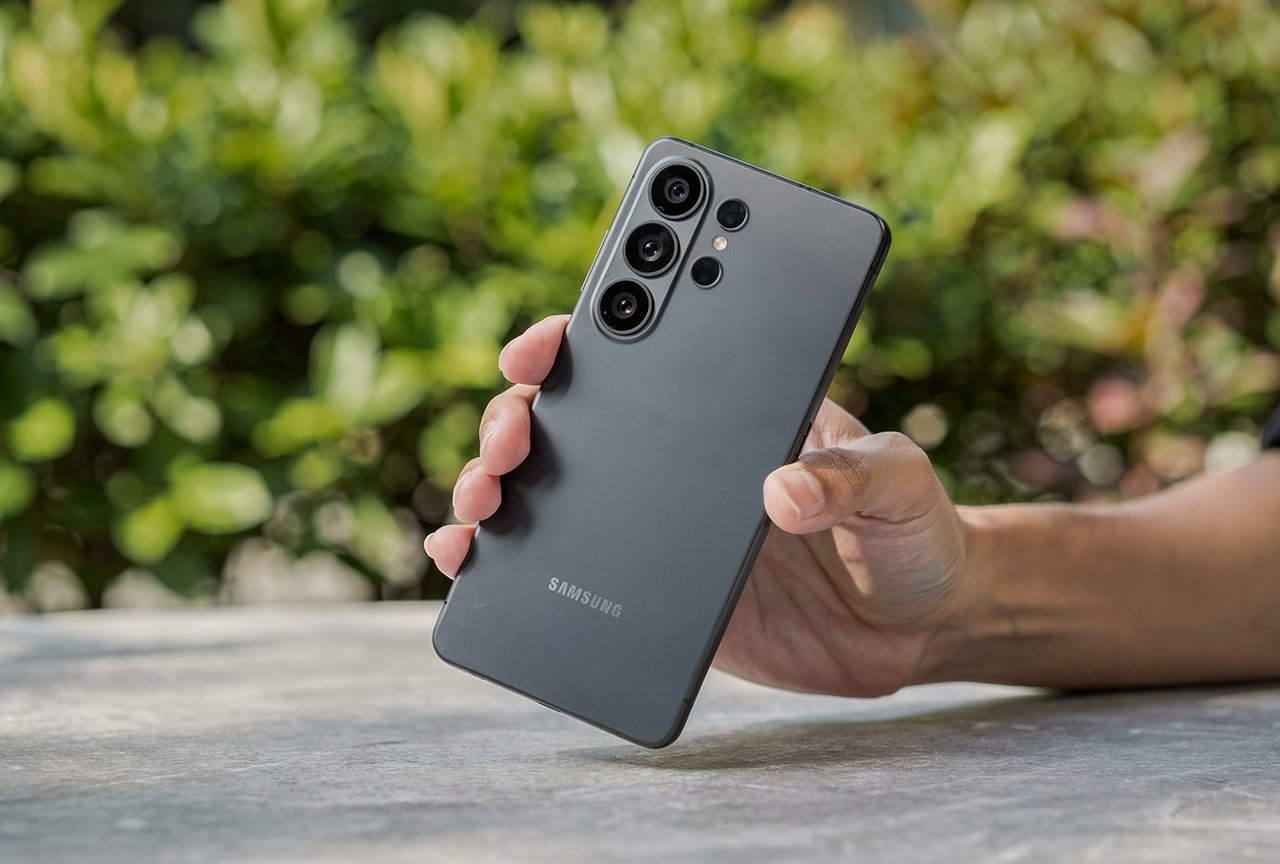
The default 60Hz setting protects battery life for users who do not know this setting exists. But for anyone who wants the best scrolling and gaming experience their phone can deliver, switching to 120Hz is the right call.
How to Enable 120Hz on Samsung Galaxy A56, A36 and A26
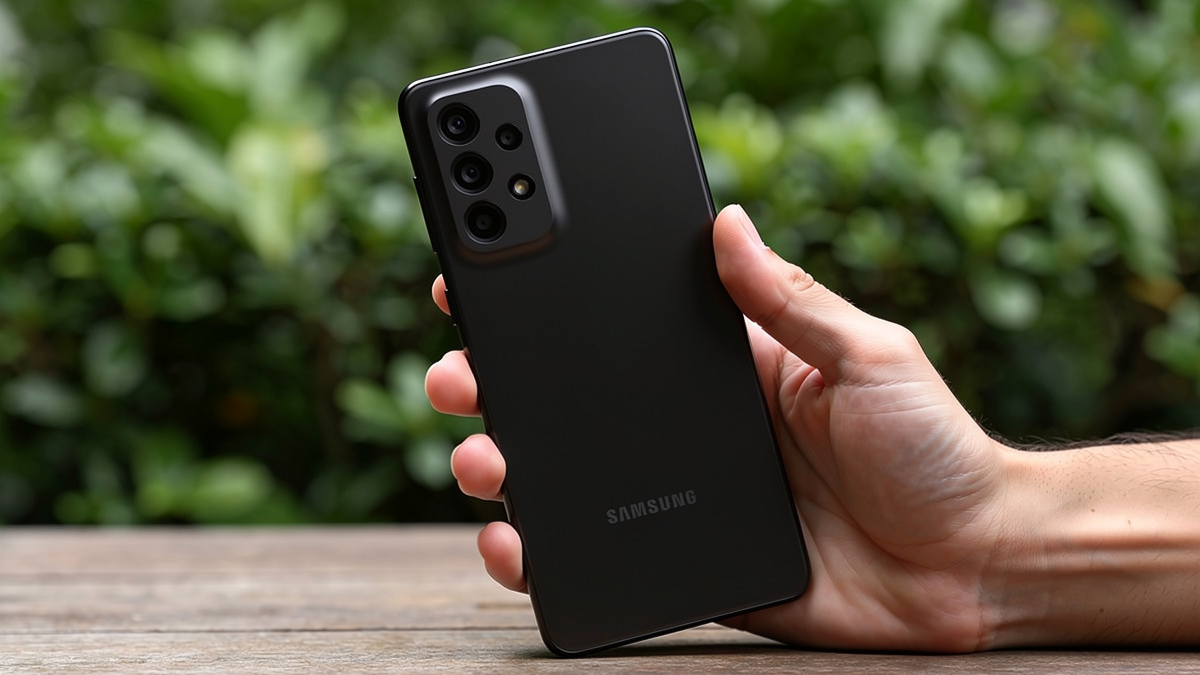
This takes under sixty seconds. Here is the exact path confirmed by Samsung’s own official support pages across the US, Canada, UK, and Australia.
- Step 1: Open the Settings app on your Galaxy A-series phone.
- Step 2: Scroll down and tap Display.
- Step 3: Tap Motion Smoothness.
On Galaxy devices, the refresh rate is referred to as “Motion Smoothness.” From Settings, search for and select Motion Smoothness. Tap Motion Smoothness again, and then choose your desired option.
- Step 4: You will see two options:
- Step 5: Select Adaptive or High depending on your model.
- Step 6: Tap Apply.
Standard sets your device to a 60Hz refresh rate and provides the best battery life. High locks your device to a 120Hz refresh rate and will use more battery, but you will get all the benefits of a fast refresh.
That is it. Your Galaxy A-series display is now running at 120Hz.
Adaptive vs High: Which One Should You Pick?
This is the part most guides skip, so let me be clear.
Refresh rate control on the Galaxy A56 is straightforward. You have two options — Adaptive and Standard. Standard puts a cap at 60Hz, while Adaptive will try to keep the refresh rate at 120Hz in most scenarios. However, when showing static images or playing video, the display will dial down to 60Hz.
Choose Adaptive if you want the best balance between smooth performance and battery life. The phone intelligently switches between 60Hz and 120Hz depending on what you are doing.
Choose High only if you want the screen locked at 120Hz all the time. This gives you maximum smoothness but will drain your battery faster throughout the day.
For most users in the US, UK, Australia, and Canada who use their Galaxy A-series phone for a full work day, Adaptive is the smarter daily choice.
What About 120Hz for Gaming Specifically?
Samsung added a separate control for gaming refresh rates in One UI 7, which ships on the Galaxy A56, A36, and A26.
With One UI 7, Samsung tweaked this option, and the Gaming Motion Smoothness now offers the option to set the refresh rate to 60Hz or 120Hz specifically for games.
To change the game refresh rate on One UI 7: Go to Settings → Advanced Features → Game Booster Settings → Gaming Motion Smoothness. Choose 60Hz for better battery or 120Hz for smoother gameplay.
Testing Android games proven to run at 120fps confirms they play nicely with the Galaxy A56. The titles tested saturated the display’s maximum refresh rate at 120fps and 120Hz.
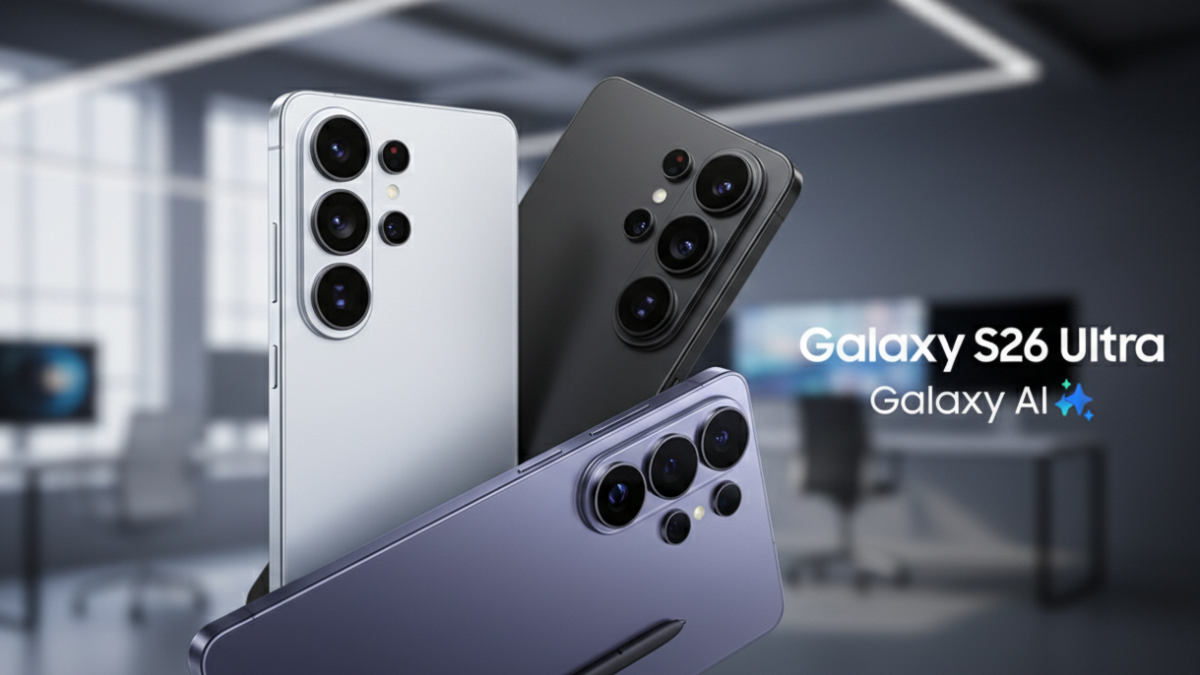
This means your Galaxy A56 is not just capable of showing 120Hz in the system UI. It can genuinely run supported games at a full 120 frames per second. That is a genuinely impressive result for a phone at this price point.
The Galaxy A-Series 2025 Lineup: What You Also Get
The 120Hz display is just one part of what makes this lineup impressive in 2025 and into 2026.
Both the A56 and A36 pack 5,000mAh batteries and support 45W wired charging — a standout feature even missing from the Galaxy S25.
Samsung is committing to six years of OS and security updates for the A36, and seven years for the A56 — a rarity for mid-range phones.
The Galaxy A56 5G ships with Android 15 and One UI 7.0 pre-installed. At MWC 2025, Samsung announced the A56, A36, A26, and A16 will all receive six Android OS upgrades and six years of security updates, with support ending in 2031.

For buyers in the UK, Australia, Canada, and the US, this software commitment is one of the most important reasons to consider the Galaxy A-series over competing mid-range phones in 2026.
One Important Thing to Check First
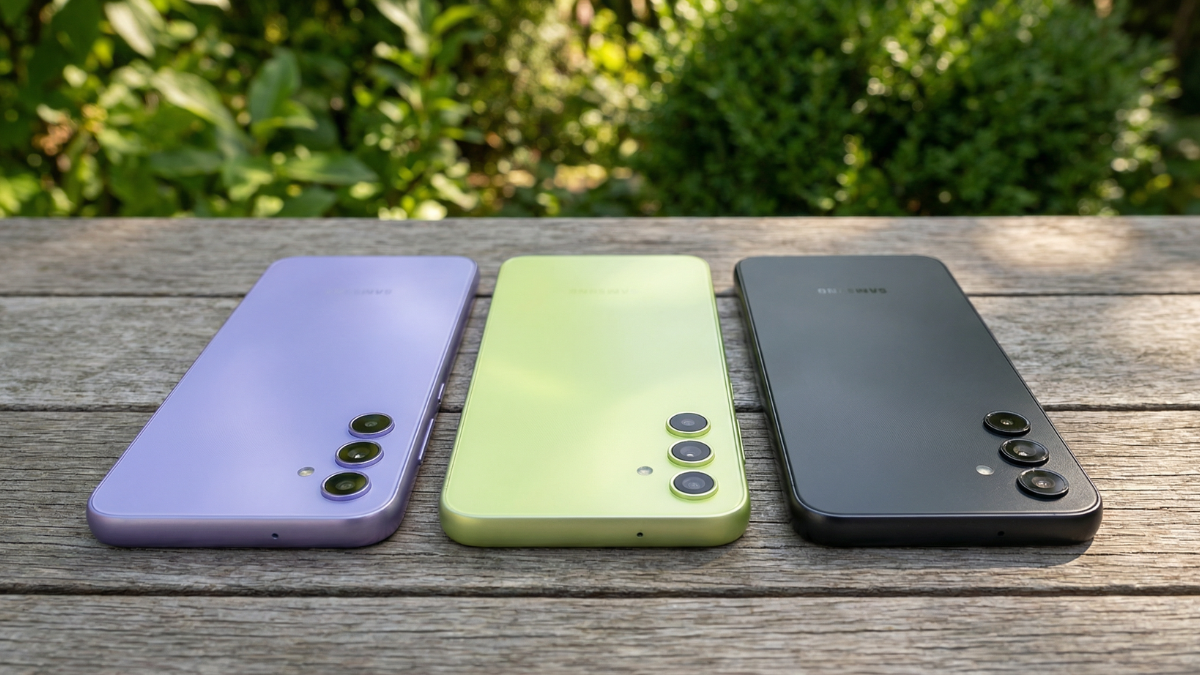
Before you switch your refresh rate, there is one quick step Samsung officially recommends.
Before trying the refresh rate recommendations, be sure to check if your device’s software and related apps are updated to the latest version. Go to Settings → Software Update, then tap Download and Install, and follow the on-screen instructions.
Running the latest One UI 7 build ensures the Motion Smoothness setting behaves as expected and that your phone is getting the most optimized version of the 120Hz experience.
The Honest Wrap-Up
Your Samsung Galaxy A-series phone shipped with one of the best mid-range displays available in 2025. A 6.7-inch Super AMOLED panel with 120Hz refresh rate, HDR10+ support, and up to 1900 nits peak brightness is genuinely premium hardware at this price.
But Samsung locked it at 60Hz by default to protect battery life for users who might not care about display smoothness.
Now you know the setting exists. Now you know exactly where to find it.
Go to Settings → Display → Motion Smoothness → Adaptive → Apply.
Do it once. Thirty seconds. And every swipe, every scroll, every game on your Galaxy A56, A36, or A26 will feel noticeably different from this point forward.