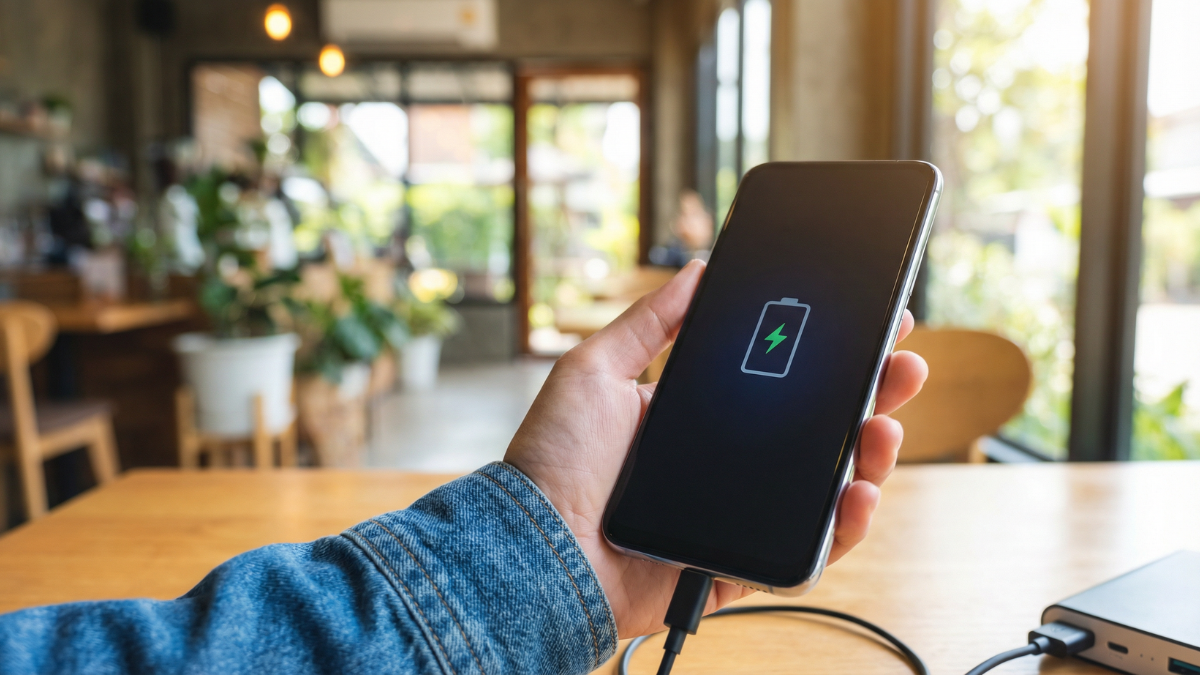
Charging to 100% every night is the single most common habit that kills Android batteries faster. Here is what to do instead, and the exact settings to change right now.

The One Charging Habit That Is Shortening Your Battery Life
Change this one charging behavior and your Android battery will last longer. That is not a marketing claim. It is backed by battery chemistry.
Lithium-ion and silicon-carbon batteries, which power every Android phone in 2026, degrade faster when held at maximum charge voltage for extended periods. Charging to 100% and leaving your phone plugged in overnight means the battery sits at full voltage for six to eight hours every single night. Over hundreds of cycles, this accelerates capacity loss measurably.
This longevity becomes even more vital as smartphone prices skyrocket; for instance, early reports suggest Apple’s foldable iPhone can cost nearly $3,000, making proper battery maintenance a financial necessity rather than just a technical preference. Protecting such a massive investment starts with avoiding that 100% overnight ceiling to ensure the hardware lasts as long as the software support.
The fix is simple and your Android phone almost certainly already has the setting built in.
The Setting You Need to Enable Right Now
On most Android phones in 2026, including Samsung Galaxy, OnePlus, Google Pixel, and Xiaomi devices, there is a built-in battery protection mode that caps charging at 80%.
For Samsung Galaxy (One UI 8 and One UI 8.5): Go to Settings, then Battery, then Battery protection. Turn it on. Your phone will now stop charging at 85% automatically. Samsung calls this “Adaptive charging protection” and it also learns your sleep schedule to slow the final charge before you wake up.
For Google Pixel 10 and Pixel 9 series: Go to Settings, then Battery, then Charging optimization, then Adaptive charging. Turn it on. Your Pixel will pause charging and resume slowly to reach full charge just before your alarm goes off.
For OnePlus (ColorOS 16 and OxygenOS 15): Go to Settings, then Battery, then Battery Health Engine. OnePlus calls this “Battery Health Engine” and it limits charge voltage to protect the cell during overnight charging.
For Xiaomi (HyperOS 2): Go to Settings, then Battery, then Optimized charging. Enable it. Xiaomi’s system monitors your usage patterns and holds the charge at 80% until shortly before you typically start using the phone.
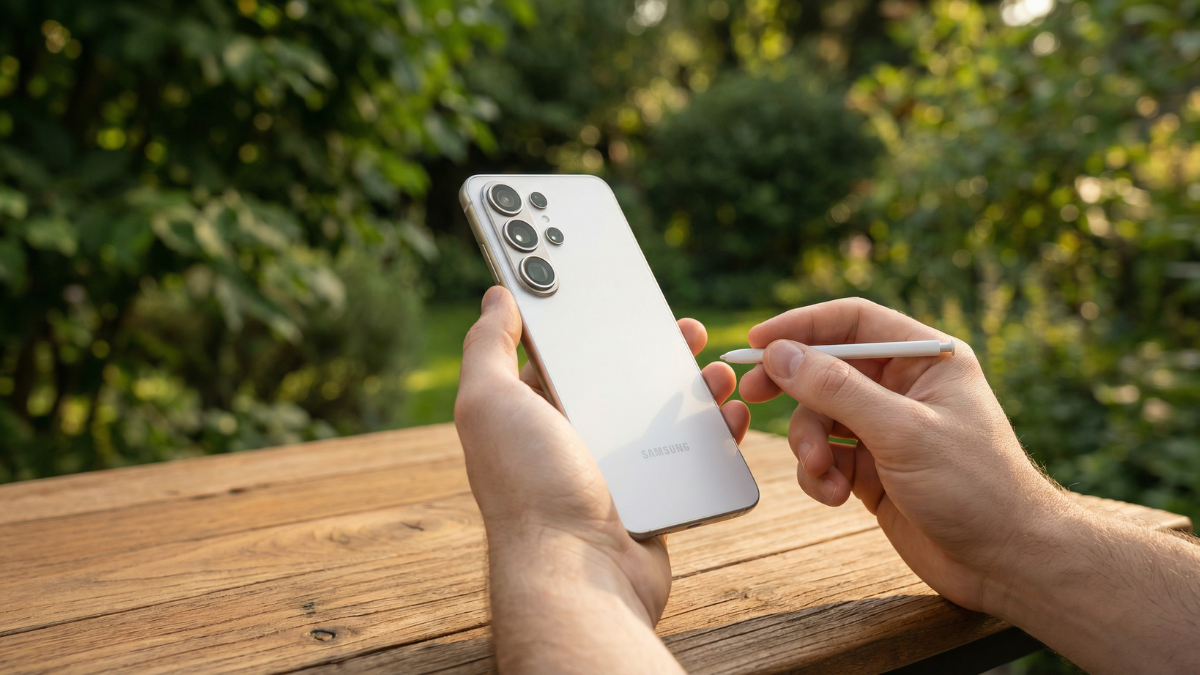
Why 80% Is the Number That Matters
Battery degradation follows a curve. The damage from holding a lithium cell at 100% charge is not linear. It accelerates sharply above 90%. Conversely, keeping a battery between 20% and 80% is significantly gentler on the chemical structure of the cell.
Silicon-carbon batteries, which are now common in 2026 flagships like the OnePlus Nord 6 and OnePlus 15T, have a higher energy density but follow the same degradation rules at high charge voltage. The underlying chemistry still responds the same way.
Most battery engineers recommend 20% to 80% as the ideal daily range for maximum long-term capacity retention. Your phone’s built-in protection modes approximate this automatically once you turn them on.
Three More Settings Worth Changing Today
Turn off wireless charging for overnight charging. Wireless charging generates more heat than wired charging. Heat is the second major cause of battery degradation after high charge voltage. If you charge overnight, use the cable.
Enable dark mode on your screen. On OLED displays, which cover almost every flagship and mid-range Android phone in 2026, dark pixels draw no power at all. Dark mode measurably reduces screen power draw, which means less total battery cycling per day.
Disable Wi-Fi scanning when you are not using Wi-Fi. On Android, your phone passively scans for Wi-Fi networks even when Wi-Fi is turned off. This background scan runs continuously. Go to Settings, then Location, then Wi-Fi scanning, and turn it off. It will not affect your GPS or cellular signal and it will stop a hidden background drain you cannot see on your battery stats screen.
What Happens If You Have Already Lost Capacity
If your Android battery is already showing noticeably shorter life than it did when the phone was new, the settings above will slow further degradation but they will not restore lost capacity.
At that point, the most practical options are a battery replacement through your manufacturer’s service network or an upgrade to a newer device. For Samsung Galaxy users, Samsung’s authorized service centers now offer same-day battery replacement for most S-series and A-series models.
For Global Tech Press readers in India, the Samsung OPPO service center merger we covered earlier this week means OnePlus owners can now access battery replacements at over 600 authorized OPPO service points across the country.

Quick Reference: Battery Protection Settings by Brand
| Brand | Setting Name | Location |
|---|---|---|
| Samsung One UI 8.5 | Battery protection | Settings → Battery → Battery protection |
| Google Pixel (Android 16) | Adaptive charging | Settings → Battery → Charging optimization |
| OnePlus ColorOS 16 | Battery health engine | Settings → Battery → Battery health engine |
| Xiaomi HyperOS 2 | Optimized charging | Settings → Battery → Optimized charging |
| Nothing Phone OS 3 | Battery saver charge limit | Settings → Battery → Charge management |
Turn on whichever one matches your device today. Your battery three years from now will thank you.

Written by Ameer Hamza
Tech Analyst and Founder of Global Tech Press. Currently expanding the GTP hardware testing labs and building the next generation of digital tech media.