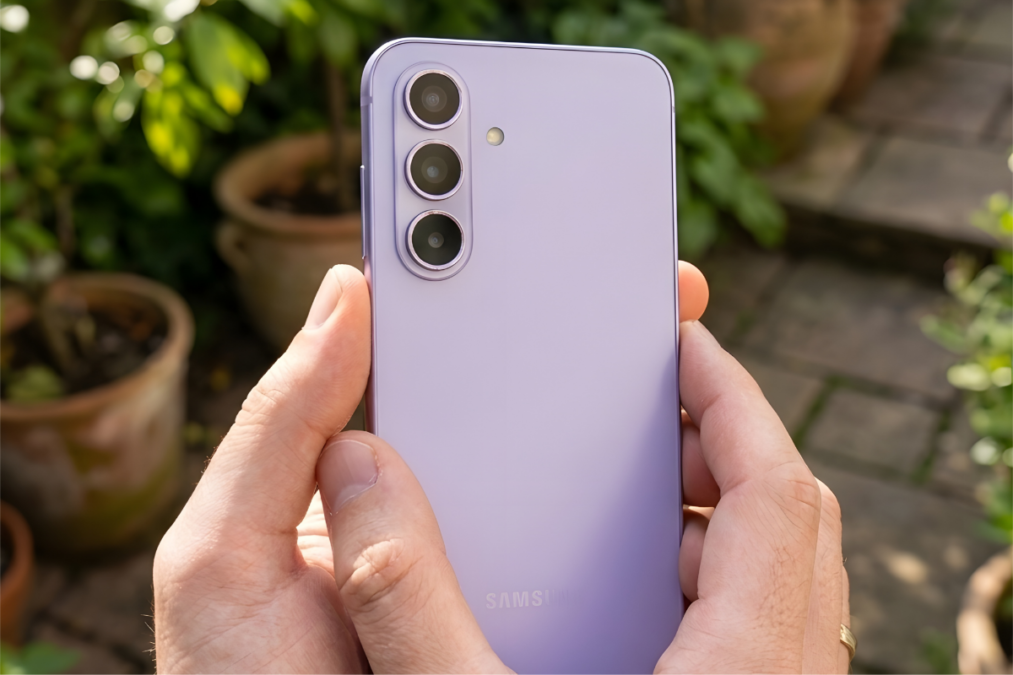
Samsung buried the most useful AI shortcut on the Galaxy A57 inside a gesture almost no one knows about. Here is exactly how to use it.

The Samsung Galaxy A57 5G ships with One UI 8.5, and thanks to the newer firmware, the mid-range Galaxy A57 shares at least one convenience feature with the premium Galaxy S26: easier access to AI Select via a simple long-press of the Edge Panel.
That is the feature. And almost nobody is using it yet.
Here is exactly what it does and why it matters more than most of the other AI tools Samsung talked about at launch.
The Long-Press Trick: What Happens and Why It Works
Find It in 10 Seconds Right Now
Pull out your Edge Panel by swiping from the right side of the screen. Now instead of tapping, press and hold the Edge tab. AI Select launches immediately without any extra navigation, no menus, no extra taps.
Once it is open, draw around anything on your screen. A product in a webpage, text in a photo, a logo in an app. The Galaxy A57 then gives you a list of contextual actions — search it, translate it, extract the text, or edit it directly.
This works because the Galaxy A57’s Exynos 1680 NPU delivers 33% more AI processing performance than the chip inside the Galaxy A56. The device can handle these tasks on-device, which means faster responses and no cloud dependency.

Three More Settings Worth Enabling Today
Enable These Before You Do Anything Else
1. Circle to Search With Multi-Object Support
The A57 upgrades Circle to Search so you can select multiple objects within one image simultaneously. Go to Settings > Advanced Features > Circle to Search and make sure it is switched on. Most people leave this on its default single-object mode and never discover the multi-object upgrade.
2. Voice Transcription
This feature converts spoken words into text in real time, whether you are in a meeting, on a call, or just thinking out loud. Find it at Settings > Advanced Features > Voice Transcription. It works entirely on-device, which means your voice data never leaves the phone.
3. Nightography Video Mode
Most people know Samsung’s Nightography for still photos. The Galaxy A57 adds Nightography to video recording for the first time at this price tier. Open your Camera app, switch to Video mode, then tap the Settings icon and enable Nightography Video. Night footage on a mid-range phone used to look unusable. This changes that.
The One AI Feature Samsung Did Not Shout About
Direct Voicemail Is More Useful Than It Sounds
The Galaxy A57 introduces Direct Voicemail, which allows callers to leave messages when a call goes unanswered. The system aims for high voice accuracy so you hear the message in the caller’s original tone. These messages are transcribed by AI and stored securely on the device, functioning independently of network operator voicemail services.
The reason this matters is that most carrier voicemail services are inconsistent across networks in the US, UK, Australia, and Canada. This replaces all of that with something that lives entirely on your phone and actually works.
Go to Settings > Phone > Direct Voicemail to enable it.
The Battery Setting Most People Overlook
45W Charging Needs This One Toggle
The Galaxy A57 supports 45W Super Fast Charging, but this speed is not always active by default depending on your region’s firmware. Go to Settings > Battery > Charging Settings and make sure Super Fast Charging is toggled on rather than just Fast Charging.
The difference matters. Standard Fast Charging on the A57 drops to 25W, which adds around 15 to 20 minutes to a full charge cycle. If you use a compatible 45W charger and this toggle is off, you are leaving speed on the table every single morning.
We covered how the Galaxy S26 Ultra charges to 84% in 30 minutes with 60W, and the A57 follows the same principle at a lower wattage tier.
Why the 12GB RAM Variant Is Worth Considering
Six Years of Updates Makes RAM Future-Proofing Real
The Galaxy A57 comes with either 8GB or 12GB of LPDDR5 RAM. If you multitask heavily or want the phone to stay smooth for the full six-year software lifecycle, the 12GB variant is the clear recommendation.
Android 17 and Android 18 are both in development right now. By the time the A57 reaches the end of its update window, apps will demand more background memory than they do today. Spending the extra amount now avoids performance degradation three or four years from now.
For context, we have been following Samsung’s commitment to One UI 8.5 updates rolling out across the mid-range lineup, and the A57 is among the first mid-range devices to receive it at launch.

Written by Ameer Hamza
Tech Analyst and Founder of Global Tech Press. Currently expanding the GTP hardware testing labs and building the next generation of digital tech media.