Android 16 shipped with five battery related settings that are either turned off by default, buried inside submenus, or simply misunderstood. Most people never touch them. And that is costing them real battery life every single day. Here are the five Android 16 battery settings you should change right now.

Battery Health: Your Phone Finally Tells You When to Replace It
This is the biggest new addition to Android 16 battery settings and the one most users walk right past.
The Android 16 update introduces “Battery health,” though specific functionality depends on what phone you have. All devices (Pixel 6+) get a “Battery health” menu in Settings > Battery with Android 16.
It lists help articles, like “Avoid extreme temperatures,” under a dropdown, and moves “Charging optimization” to the bottom of this page from the main menu.
On the Pixel 8a (2024) and newer, you get “Battery capacity” as an estimated percentage of charge the battery can currently hold compared to a new standard battery. This is accompanied by an icon and status: Normal means battery capacity is within normal limits. Reduced means battery capacity is below 80%, and Google says to “consider a battery replacement.” This is meant to serve as an indicator of when to replace your battery, especially with devices getting 7 years of updates.
To check yours: Open Settings, tap Battery, then tap Battery health.
The new battery health menu is a great addition, though it is disappointing that it is exclusive to the Pixel 8a and newer.
If you own an older Pixel, you still get the menu and the charging optimization options, but not the capacity percentage.
Limit to 80% Charging: Protect Your Battery for Years
This setting has been around since Android 15, but Android 16 moved it and made it smarter. Most people either do not know it exists or do not understand what it does.
Limit charging to 80%: To help extend the lifespan of your phone’s battery, you can limit charging to 80%. This feature is available on Pixel 6a and later devices.
Here is how to find it in Android 16:
Settings > Battery > Battery health > Charging optimization > Limit to 80%
Android battery optimization now includes smarter charging limits designed to slow long term battery wear. Charging caps at 80% reduce chemical stress on lithium cells, preserving capacity over hundreds of cycles.
Now, one honest detail you should know. With Android 16 Beta 3, Google is now more specific about how “Limit to 80%” will fully charge your Pixel to 100% “every one to two weeks.”
This means your phone will override the limit periodically to recalibrate. To keep its battery capacity readings accurate, your Pixel needs to fully charge at every 10th cycle. This applies even if you have the “Limit to 80%” option turned on.
There is one more thing worth knowing. Another user shared a screen recording showing that with the 80% limit imposed, their Pixel starts pulling less than one watt at a 77% charge, versus 12 to 14 watts at the same charge level with the setting turned off. Despite some users’ displeasure with the new behavior, a Google IssueTracker entry about the behavior has been marked as fixed, with a Googler sharing that the new charging pattern is intentional “to manage battery health.”
So yes, charging will slow down near 77% to 80%. That is intentional, not a bug.
Adaptive Connectivity: Two New Toggles That Save Battery Silently
This is one of the most impactful Android 16 battery settings changes in 2026, and almost nobody is talking about it.
Google is introducing a new way to squeeze more life out of your battery on Android 16. By splitting its adaptive network settings into two granular toggles, Android users get more control over their connection efficiency.
Previously, Adaptive Connectivity was a single on/off switch. Now, in Android 16 QPR3, it has been split into two separate controls.
The toggles say: “Auto switch to mobile network” which ensures connectivity when Wi Fi is poor or unavailable. And “Optimize network for battery life” which automatically selects the best network connection to extend your battery life.
To find them: Settings > Network & internet > Adaptive Connectivity
Both toggles are enabled by default.

Here is the important nuance. The first toggle will automatically switch you from Wi Fi to your mobile network when the Wi Fi signal is not strong enough to give you a good quality connection. The problem with this is that by switching to mobile data, it could eat up the amount of premium data you are allowed on your plan each month. Thus, Google added the toggle to allow you to disable the feature if you would rather go Wi Fi or bust.
The second option really does not have a downside to it, which means you are probably likely to keep this setting enabled at all times. It looks for the best network connection that is likely to extend your battery life.
My recommendation: Keep the second toggle (Optimize network for battery life) on at all times. Only disable the first toggle if you have a limited data plan.
Dark Mode on OLED: The Battery Setting That Depends on Your Screen
Dark mode is not new to Android 16. But it remains one of the most misunderstood battery settings on any phone, and too many people either ignore it or use it on the wrong device.
Here is the science. Dark mode can save battery life, but only on phones with OLED or AMOLED screens where black pixels turn off completely. On LCD screens, you will see little to no battery savings.
The numbers from Purdue University research confirm this. According to researchers, dark mode on an OLED smartphone will save 3 to 9 percent of the power when used at 30 to 50 percent brightness, usually in line with the automatic brightness level.
At higher brightness, the savings jump significantly. Real world tests show battery life improvements ranging from 15% to 60% when using dark mode extensively on OLED displays, with the highest savings occurring at maximum brightness.
To enable Dark Mode on Android 16: Settings > Display > Dark theme
If your phone has an OLED or AMOLED display (most Samsung Galaxy phones, Pixel phones, and flagship OnePlus, Xiaomi, or Motorola devices from 2020 onward), turn dark mode on. If your phone has an LCD screen (many budget phones, older devices), dark mode will still reduce eye strain, but it will not save meaningful battery.
Bonus tip: Dropping from 120Hz to 60Hz alone can cut display consumption by up to 40%, especially on OLED panels. If you need to stretch battery on a long day, dropping refresh rate in Settings > Display > Motion smoothness (Samsung) or Settings > Display > Smooth Display (Pixel) alongside dark mode gives you the biggest combined savings.
Battery Saver and Background Restrictions: The Emergency Toolkit
Battery Saver is the oldest trick in the Android toolkit. But in Android 16, it works alongside a stronger set of background restrictions that most users never configure.
Power saving tips built into Quick Settings simplify control. Battery Saver reduces CPU performance, limits animations, and restricts background sync when power drops, while Developer Options unlock deeper controls like background process limits and enforced 60Hz refresh rates.
You can activate Battery Saver from Quick Settings (swipe down, tap the battery icon) or set it to turn on automatically at a specific percentage.
But the real power is in restricting specific apps.
Open Settings > Battery > Battery usage. Look at which apps are consuming the most power in the background. Tap on each one and choose “Restricted” to prevent it from running when you are not actively using it.
An always on assistant like Gemini must continuously process audio, even if only locally. The mode keeps your microphone hot, actively analyzing audio and screen content that draws constant power. When one user deactivated Gemini, the battery drain stopped.

If you have Gemini set as your default assistant and notice battery drain, consider switching back to Google Assistant for daily use, or only activating Gemini when you need it.
Android has a setting that periodically scans Wi Fi access points and nearby Bluetooth beacons to triangulate your position faster than GPS alone. This feature works even when you turn those radios off. Android 16 activates this feature by default. The goal is quicker and more precise location information. However, scanning increases battery usage when multiple apps frequently request location updates.
You can disable this under Settings > Location > Location services > Wi Fi scanning and Bluetooth scanning. Turn both off if battery is more important to you than slightly faster location accuracy.
The 5 Minute Fix That Adds Hours to Your Phone
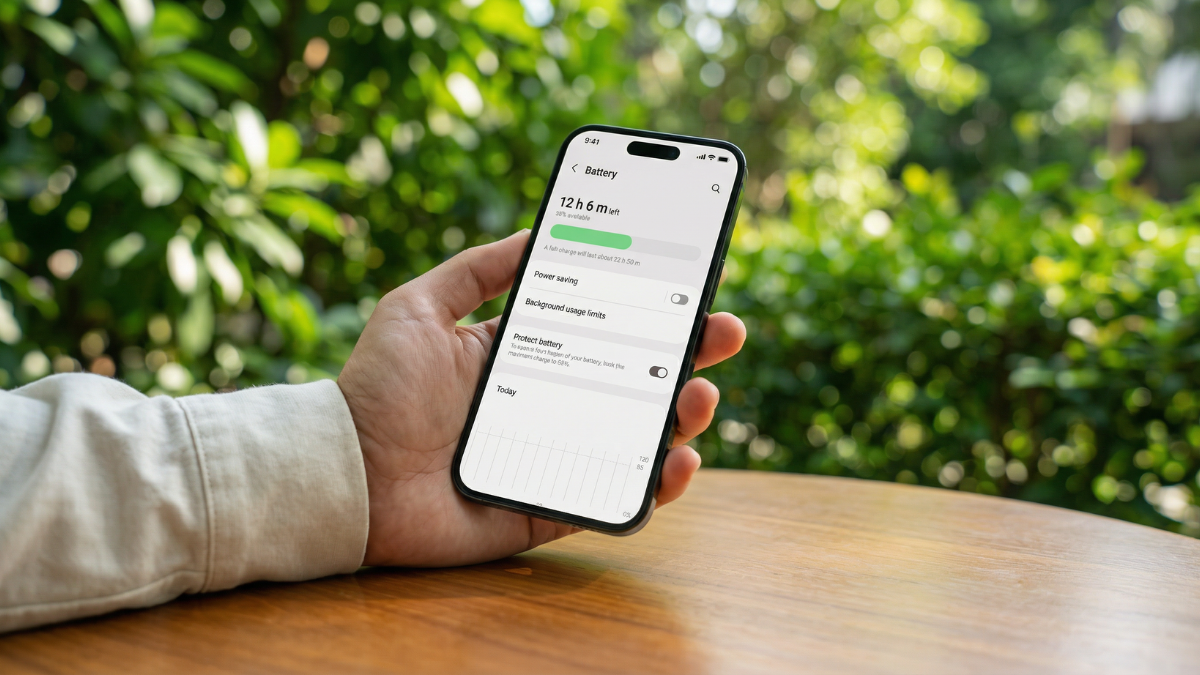
These five Android 16 battery settings are not complex. They do not require root access, third party apps, or technical knowledge. They just require five minutes of your time walking through the settings menu.
Here is the quick checklist:
Battery Health — Check your capacity and understand your battery’s current state. Settings > Battery > Battery health
Limit to 80% — Enable it to slow long term battery degradation. Settings > Battery > Battery health > Charging optimization > Limit to 80%

Adaptive Connectivity — Keep “Optimize network for battery life” on. Disable “Auto switch to mobile” only if on a limited data plan. Settings > Network & internet > Adaptive Connectivity
Dark Mode — Enable it if you have an OLED or AMOLED display for measurable battery savings. Settings > Display > Dark theme
Battery Saver + App Restrictions — Set Battery Saver to activate automatically, restrict background heavy apps, and disable Wi Fi/Bluetooth scanning if you do not need fast location. Settings > Battery > Battery Saver and Settings > Location > Location services
Your phone already has every one of these tools built in. Google just does not always make them easy to find. Now you know exactly where they are and what each one does.

Written by Ameer Hamza
Tech Analyst and Founder of Global Tech Press. Currently expanding the GTP hardware testing labs and building the next generation of digital tech media.