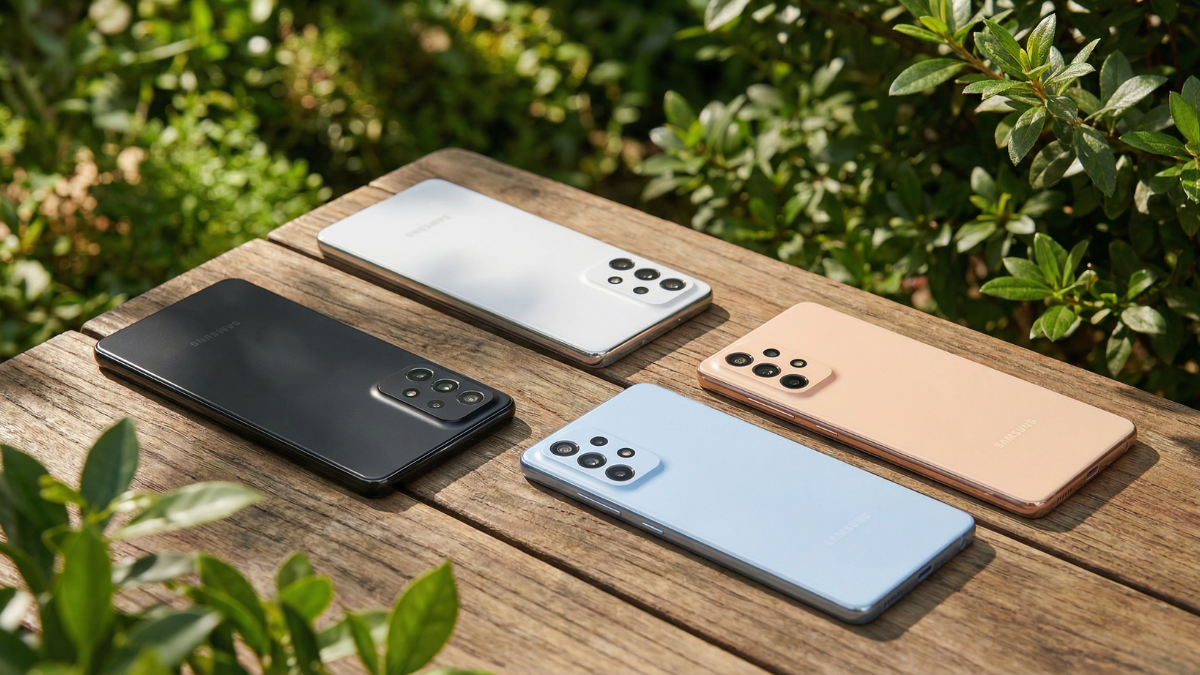
If you own a Samsung Galaxy A series from this list Galaxy A56, A55, A36, A35, or A26, your phone almost certainly supports a 120Hz refresh rate. But right now, there is a very high chance it is running at 60Hz. Samsung ships every single one of these devices with the refresh rate locked to the Standard setting out of the box. That means half the display performance you paid for is sitting there, turned off, waiting for you to flip a switch buried inside the settings menu.

Why Samsung Ships Every Galaxy A Series Phone at 60Hz
This is not a bug. It is a deliberate choice by Samsung.
The refresh rate of Galaxy phones is set to 60Hz by default, according to Samsung’s own support page. This option provides the best battery life.
Samsung prioritizes battery endurance over display smoothness on initial setup. And that makes sense from a business perspective. The Galaxy A series has always been about value and longevity. A phone that lasts all day out of the box makes a better first impression than one that feels smooth but dies by 6 PM.
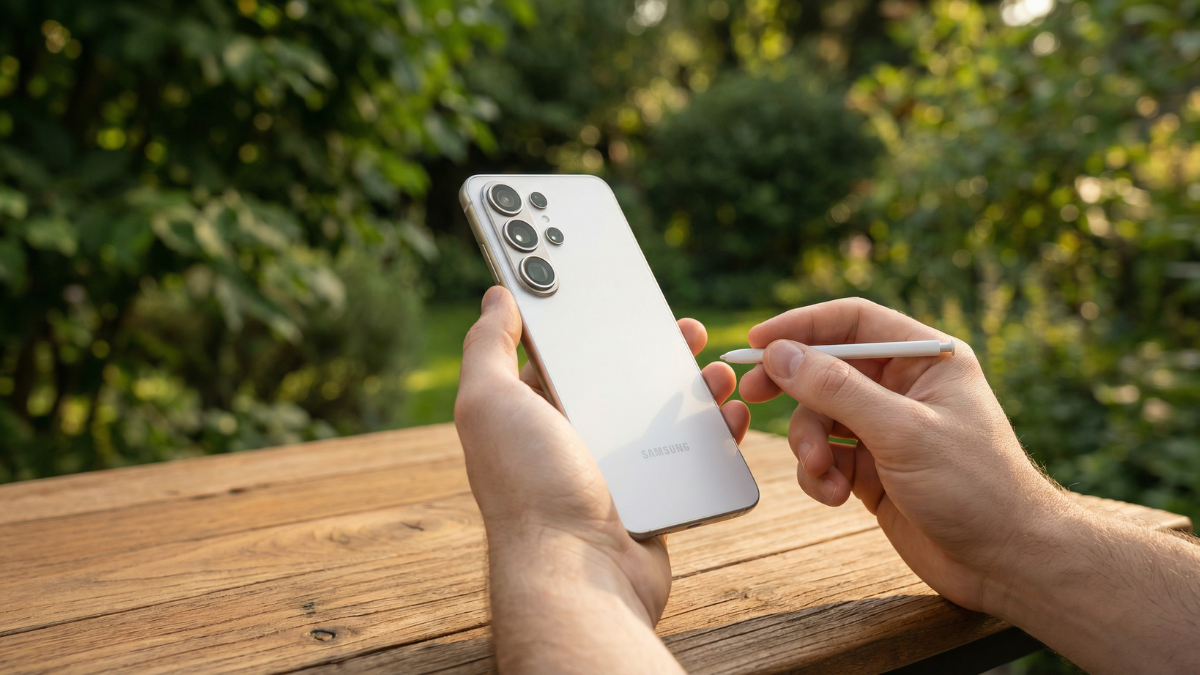
But here is the problem. Most Samsung Galaxy A series owners never touch the display settings. They use their phone for months, sometimes years, at 60Hz without realizing there is a faster, smoother option sitting one menu away. Many users are not aware of how to fully utilize this feature across all applications.
If you have been scrolling through Instagram, playing PUBG Mobile, or watching YouTube and the motion feels a little choppy, this is probably why.
Which Samsung Galaxy A Series Phones Actually Support 120Hz
Not every Galaxy A phone supports 120Hz. This is important to know before you start digging through settings.
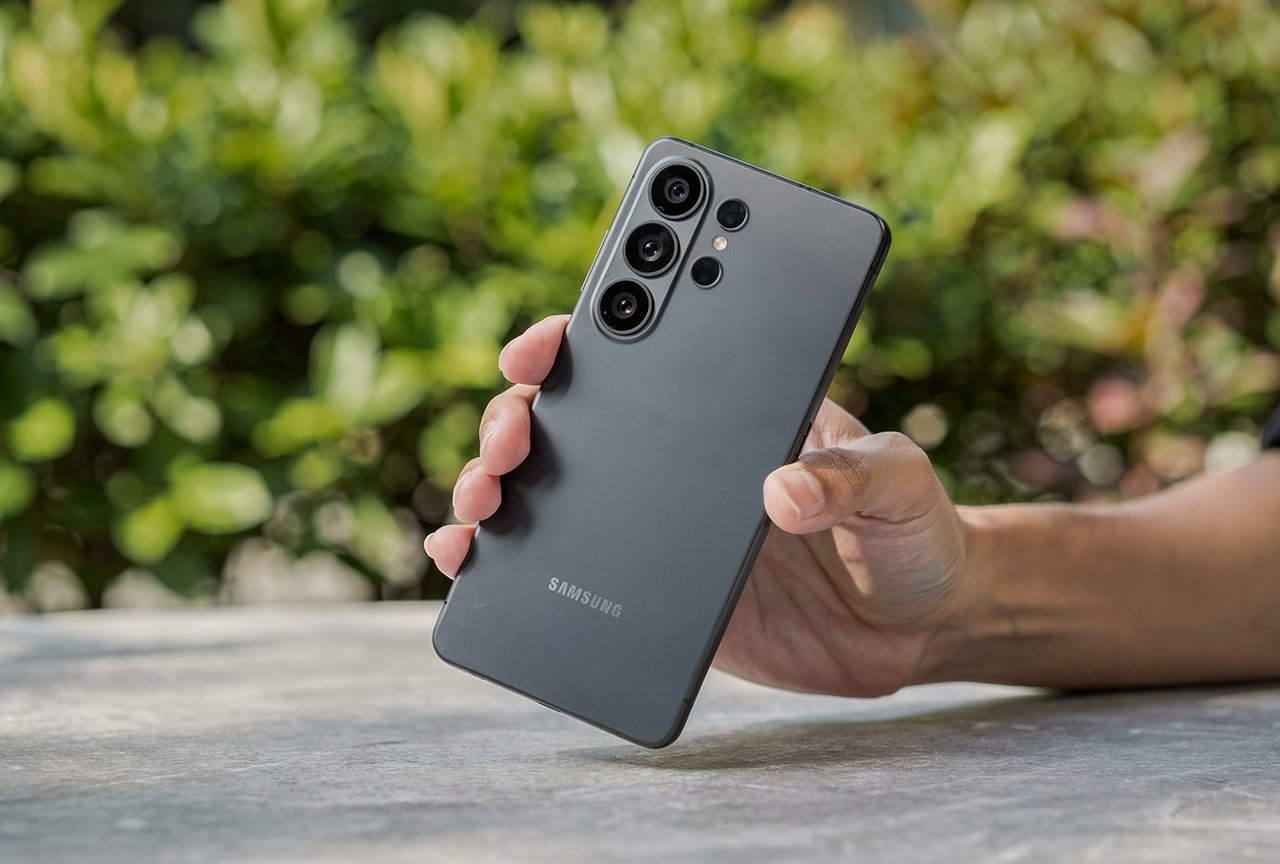
Here is the confirmed list of Samsung Galaxy A series models that support 120Hz, verified against Samsung.com, GSMArena, Wikipedia, and Android Central:
| Model | Display | Refresh Rate | Year |
|---|---|---|---|
| Galaxy A56 5G | 6.7 inch Super AMOLED | 120Hz | 2025 |
| Galaxy A55 5G | 6.6 inch Super AMOLED | 120Hz | 2024 |
| Galaxy A54 5G | 6.4 inch Super AMOLED | 120Hz | 2023 |
| Galaxy A53 5G | 6.5 inch Super AMOLED | 120Hz | 2022 |
| Galaxy A52s 5G | 6.5 inch Super AMOLED | 120Hz | 2021 |
| Galaxy A36 5G | 6.7 inch Super AMOLED | 120Hz | 2025 |
| Galaxy A35 5G | 6.6 inch Super AMOLED | 120Hz | 2024 |
| Galaxy A34 5G | 6.6 inch Super AMOLED | 120Hz | 2023 |
| Galaxy A26 5G | 6.7 inch Super AMOLED | 120Hz | 2025 |
Some devices can be locked to a 120Hz refresh rate (or a 90Hz refresh rate for other devices, such as the Galaxy A16 5G).
Important: If your phone is not on this list, it may only support 90Hz (like the A16 5G) or 60Hz (like the A15 or older A series models). Only select models can use the 120Hz refresh rate.
How to Enable 120Hz on Your Samsung Galaxy A Series Phone
This takes less than 30 seconds. Here is exactly what to do, step by step, confirmed directly from Samsung’s official support page.
- Step 1. Open the Settings app on your phone.
- Step 2. Scroll down and tap Display.
- Step 3. Tap Motion smoothness.
- Step 4. You will see two or three options depending on your model.
- Step 5. Select either High or Adaptive (more on the difference below).
- Step 6. Tap Apply.
That is it. Your Samsung Galaxy A series phone is now running at 120Hz.
On Galaxy devices, the refresh rate is referred to as “Motion smoothness.” If you cannot find it, try searching the word “smoothness” in the Settings search bar. It will appear immediately.
One common issue: 120Hz can only be activated if the energy saving mode is deactivated. Otherwise you can find the setting in the settings under Display > refresh rate. If Power saving mode is turned on, Samsung automatically forces the display back to 60Hz and hides the toggle. Turn off Power saving first, then go back to Motion smoothness.
Adaptive vs High: Which 120Hz Setting Should You Pick
This is the question most people get stuck on after finding the toggle. Samsung offers two (or three) options, and the names are not exactly self explanatory.
Standard: Your device is set to a 60Hz refresh rate. This is what your phone shipped with. Smoothest battery life, choppiest scrolling.
High locks the refresh rate at 120Hz on select models, consuming more battery but ensuring the smoothest experience. Your screen refreshes 120 times per second, all the time, no matter what app you are using. Games, home screen, Chrome, everything runs at full speed.
Adaptive dynamically adjusts the screen refresh rate up to 120Hz, providing high refresh rates when needed and conserving battery life in less demanding situations. When you are scrolling or gaming, it pushes to 120Hz. When you are reading a static article or looking at a photo, it drops to 60Hz automatically.
My recommendation for most Samsung Galaxy A series owners: Choose Adaptive. It gives you the smoothness when you need it and saves battery when you do not. The difference in daily use between Adaptive and High is noticeable on battery, but barely noticeable on screen.
If you are a gamer who wants every frame locked at 120Hz regardless of battery, choose High. Just know that increasing the refresh rate may impact battery life.
How Much Battery Does 120Hz Actually Cost You
This is the concern that keeps most people from switching. And it is valid.
This will use more battery, but you’ll get all the benefits of a fast refresh.
In real world terms, switching from Standard (60Hz) to Adaptive (up to 120Hz) typically reduces battery life by about 10% to 15% on the Galaxy A56 and A55. That is roughly 30 to 45 minutes less screen time on a full charge for a phone with a 5,000mAh battery.
If you are on a phone like the Galaxy A56 with a 5,000mAh battery and the efficient Exynos 1580 chipset, you will still comfortably get through a full day on Adaptive mode. The Galaxy A56 also has unbelievably good battery life.
The real battery drain happens when you lock the phone to High (always 120Hz). That constant high refresh burns through power even when the screen is showing a static lock screen. For most users, Adaptive is the smarter choice.
What 120Hz Actually Changes in Your Daily Experience
If you have never used a 120Hz display before, here is what changes the moment you enable it.
Scrolling feels fluid and responsive. Text and images stay sharp as they move across the screen instead of blurring into a smear. The smooth 120Hz refresh rate enhances scrolling fluidity, ensuring a seamless user experience in both the interface and web browsing.
Gaming gets a noticeable boost. If you are a mobile gamer, a higher refresh rate means your games will have less lag and stuttering. There will be smoother animation, even if you’re playing online. On top of this, movies and videos with a lot of motion will look more realistic.
App transitions are smoother. Opening and closing apps, pulling down notifications, switching between recent apps, everything feels snappier. Responsiveness at the phone’s peak 120Hz is pleasant and unencumbered.
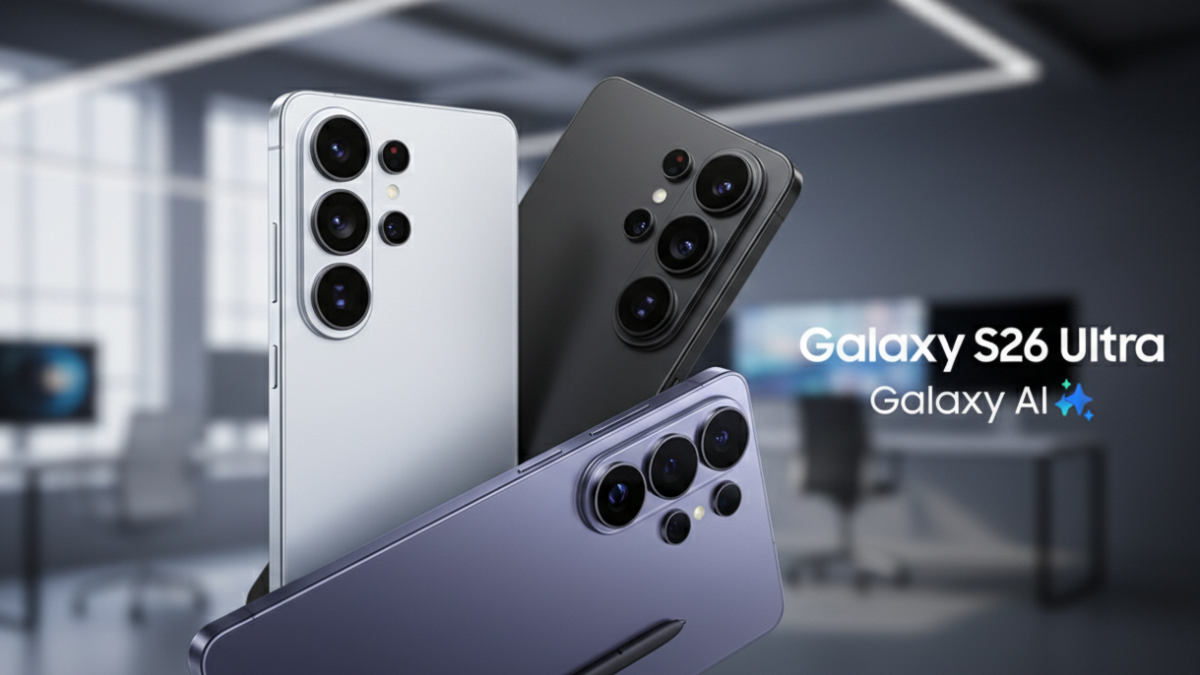
The effect is especially noticeable on the Galaxy A56 and A36, both of which now feature 6.7 inch Super AMOLED displays. The resolution is the same as before (FHD+), and both phones support 120Hz refresh rate. That larger screen makes the smoothness even more visible during daily use.
The 30 Second Fix That Changes How Your Phone Feels
Your Samsung Galaxy A series phone was designed to run at 120Hz. Samsung built the hardware, calibrated the panel, and put the toggle in the settings menu. They just chose not to turn it on for you.
The fix takes 30 seconds. Open Settings. Tap Display. Tap Motion smoothness. Select Adaptive. Tap Apply.
Your phone will feel like a different device. Scrolling gets smooth. Animations get fluid. Games get responsive. And with Adaptive mode, the battery impact stays minimal because the phone automatically drops to 60Hz when it does not need the extra speed.

If you bought a Galaxy A56, A55, A36, A35, or A26 and you have not changed this setting, you have been using half the display your phone is capable of. Fix it now. It takes less time than reading this sentence.